Archive
Take control of your log files
Everyone knows about SharePoint’s ULS logs, these are written by the SharePoint tracing service.
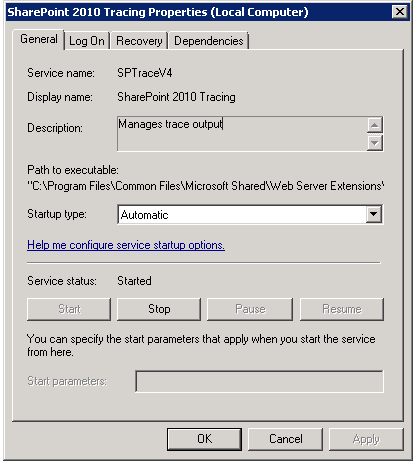
To the location set in Central Admin –> Monitoring –> Configure Diagnostic logging

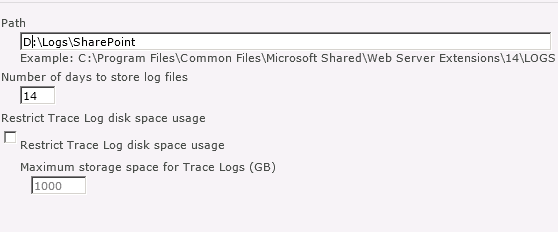
You also have a couple of options to control the number of logs created and /or the amount of space used making SharePoint log space friendly, you should be writing the logs to a non-system drive.
But what about IIS ? In IIS logging can either be on or off, and you can change their location, but that’s about it.
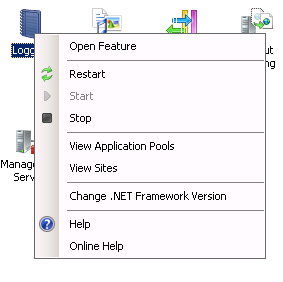
From the IIS console select Logging and open the feature
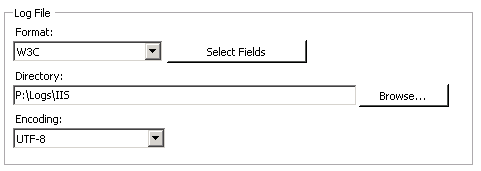
From here you can set the location for the IIS logs, a location set here will be used for all the sites on the server, and it should be on a non-system drive.
The IIS log location will look something like this, with a number of sub-folders, one for each web application.
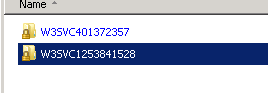
the folder names (after the W3SVC) will tally with web site id shown in IIS

each folder will contain a number if log files, normally one created per day.

This folder names will be the same on all your servers as the site ids are replicated, the only problem with this is that the IIS logs never get cleaned-up. To help address this I have written a quick PowerShell script, that will delete log files over 30 days old.
# PS script used to delete IIS logs from sub folders
# set the location to start from
# $location = "D:\logs\iis" use the lines below to read in a location from the command line
$location = $args[0]
if (! $location)
{$location= Read-Host "Enter location to cleanup"}
# get a reference to each file from each subfolder by using the -recursive switch.
foreach ($File in get-childitem $location -Recurse -Include *.log)
# check the lastwrite time and delete if necessary
{if ($File.LastWriteTime -lt (Get-Date).AddDays(-30))
{del $File}}
The location can either be set in the script or read in when you run it, the –Recuse argument causes Get-Child item to walk through nested folders, with the –Include argument putting a filter on log files, with the –30 value specifying how old a file has to be in days to be deleted.
This can wrapped in a simple batch file and called from a weekly scheduled task to keep your IIS files under control.
Follow @NeilKing41
SharePoint and fun with SP1
Recently I was asked to take a look at a SharePoint 2010 system that was having a few problems. Looking at the patching status it was still running SPS2010 RTM, so the 1st job was to at least get SP1 installed, then the latest CUs on top, and so the fun started…
I downloaded the appropriate service packs, and kicked off the foundation SP1 install and got the following.

The error appeared straight away, no upgrade log was written, nothing in the ULS logs and nothing in the Windows logs.
I used /? switch on the end on the Service Pack file to get the usage options.
sharepointfoundation2010sp1-kb2460058-x64-fullfile-en-us.exe /?
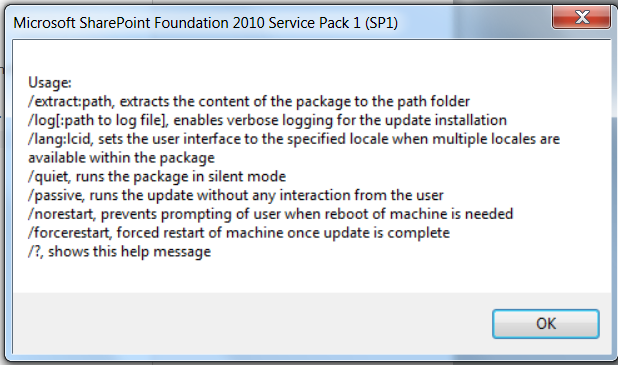
Next I used the log option to have a look at the output of the Service Pack install
C:\patches>sharepointfoundation2010sp1-kb2460058-x64-fullfile-en-us.exe /log:c:\
patches\sp.log
There is quite a lot of information written to the log file, but nothing that pointed to the reason of the failure, next was to extract the patch and see which patch file was causing a problem.
C:\patches>sharepointfoundation2010sp1-kb2460058-x64-fullfile-en-us.exe /extract
:c:\patches\sp
the c:\patches\sp folder now contains the extracted patch files and the EULA text file

Running the patch wsssp1-x-none.msp was giving the following error.

So the Service Pack wouldn’t install because one of the patches inside it didn’t realise that SharePoint was installed, interesting as the error I would have expected to if SharePoint wasn’t installed would have been this one…

I tried running the Config Wizard, but that didn’t help either, after checking with one of colleagues who knows all about packaging software he thought that the failing msp was probably looking for a specific registry key or value.
So I decided to try running a repair from Control Panel, to reset all the original Server settings while not effecting the content or configuration databases (this process ran for quite a long while)


Then I re-ran the Config Wizard, (which now asked about removing the server from the farm).
Finally, after all this the Service Pack would finally install.
Another day done in the world of SharePoint.
Follow @NeilKing41
Issue Downloading SharePoint 2010 Prerequisite Installer Files
Strictly speaking this quick article doesn’t really have anything to with SharePoint, but hopefully it might help-out someone out there in SharePoint land.
One of the projects I’m currently working on is a 2010 Farm build, we are just getting the media set ready to install SharePoint with AutoSPInstaller, and of course need to download the Pre-Requisite Installer Files. For this particular project I have no local access to the servers so everything is being done by RDP on the server. So to download the Pre-Requisite Installer Files I’m was using this script from codeplex, but it was failing with a really wierd error
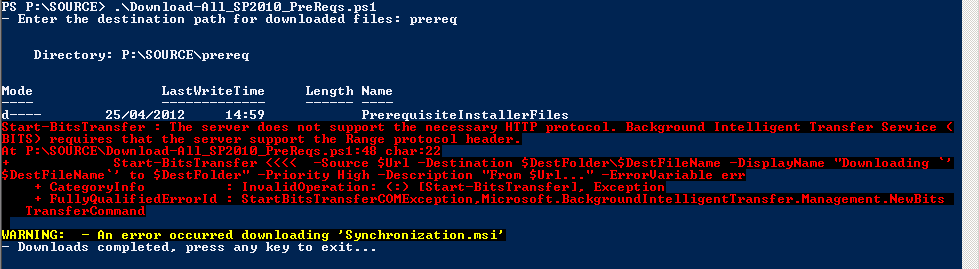
I tried it on a few different servers, but they all had the same problem.
I could of course simply open the script, grab the URL’s and paste them into a browser, but where is the fun in that.
This KB article talks about foreground / background transfers, and this being a problem when using background transfers and that foreground should be okay.
This article describes the cmdlet references for BITS and the –Priority switch that controls the foreground / background transfer setting
So the fix was to change this line
Start-BitsTransfer -Source $Url -Destination $DestFolder\$DestFileName -DisplayName "Downloading `’$DestFileName`’ to $DestFolder" -Priority High -Description "From $Url…" -ErrorVariable err
to this line
Start-BitsTransfer -Source $Url -Destination $DestFolder\$DestFileName -DisplayName "Downloading `’$DestFileName`’ to $DestFolder" -Priority Foreground -Description "From $Url…" -ErrorVariable err
and Voilá, pre-reqs downloaded . 

SharePoint and PDFs
Everyone knows that the Adobe PDF iFilter can be used to index PDF files, so I was quite surprised to look at an SP2010 farm last week that was only sometimes showing the PDF icon, and sometimes a blank icon.
Of course the solution to this was obvious, this farm had 2 WFE servers and the icon file and DOCICON.XML file had only been updated on one server, so a couple a minutes later everything was working once I had updated the 2nd server.
Here are the Microsoft instructions on how to install the PDF iFilter http://support.microsoft.com/kb/2293357
but personally I prefer the Nick Grattan instructions.
http://nickgrattan.wordpress.com/2010/06/14/adobe-pdf-ifilter-indexing-with-sharepoint%C2%A02010/

SharePoint Patching and “Action Required”
The last 2 SharePoint 2010 systems I have looked at have displayed the “Action Required” status for one or more servers in the farm in the “Manage Servers in this Farm” page, which is normally caused by incorrect server patching.
When you apply a Service Pack or CU to your SP2010 farm, you are normally looking at performing a quite straight forward 3 stage process.
Stage 1: Obtain patch:
Download the latest Service Pack or CU from here:
http://technet.microsoft.com/en-us/sharepoint/ff800847#LatestUpdates or use the “Use this page to view the latest patch status for products installed on servers in the farm” link on the CA site in Central Administration > Manage Patch Status

Stage 2: Install Patch
Once you have your Service Pack or CU, you will need to run it on each of the servers in your SharePoint Farm that has the SharePoint binaries installed, there is no special order to do this, but personally I like to run the patch on each WFE in turn, then on the application servers.
Once the patch has installed you will normally be prompted to run the Config wizard, if you are working on a single server farm, run the Config Wizard at this point, if you are working with a multi server farm cancel the Config Wizard and run the patch on each server on your farm.
Stage 3: Config Wizard
If you are running a single server system and have followed the instructions in stage 2, you should be finished. If you are running a multi-server farm you now need to run the Config Wizard to finalize the patch install. I like to run the wizard on the 1st server I patched and let it run to completion, then run the wizard on the rest of the servers in the farm, again there is no particular order to this but personally I like to run the wizard in the same order as I patched the servers, Once finished a quick reboot all round and we are done, and your status should be “No Action Required”


Managing Content Types in a Document Library
I was recently asked about the best way to manage large numbers of content types in a document library. The most simple way that I know of is to just add more document libraries and spread the content types among them, but what if your requirement is to only have one document library, in this scenario folders can help you.
When you set “Allow Management of content types” to Yes:

an extra item “Change New Button Order” is added to the bottom of the ECB menu for folders

This takes you to a “Change New Button Order” screen for the current folder not the document library.

You can now create logical groups of content types in separate folders, also as permission levels can be broken as folder level you can now create permissions at folder level and indirectly control who can use which content type in a document library.
** NOTE **
If you want to create a document library template or site template with content types in folders remember to tick the “Include Content”, button when you save your template or your folders will not be saved.


Documenting a SharePoint Farm
Anyone involved with the building / running / supporting of a SharePoint system will know how important documenting the original build configuration is.
If you build farms using the excellent AutoSPIntaller, then most of your work is already done as you have to plan things like your service accounts and database names for the inputs.xml file.
But what if you are called into look at a system that you know nothing about ?. in this case the equally excellent SPSFarmReport will come to your help.
The download zip file has versions for both WSS 3.0 / MOSS (32 & 64 bit) and SharePoint Foundation / SP2010 / Project Server 2010.
Once downloaded onto one of your servers with the binaries installed, simply run the appropriate executable under Farm account credentials, once ran you can delete the executable if needed.
The report output file is a nicely formatted HTML document that covers just about every single aspect of your farm configuration, this can be used to create your documentation guide, and as a timed snapshot of your configuration for future comparison.
Fun with PowerShell and Feature Activation
I was recently working on a system where we wanted to create a site based on a previously saved site template, unfortunately when trying to create the site we were getting the error.
Error creating site: The site template requires that the Feature {some-or-other-GUID} be activated in the site collection.
Hmm, oh well, off to Site Collection Administration and I switched on all the features I could find, but still no joy, time to crack open PowerShell.
First thing to do is find the name of the feature we are looking for, this excellent post on MSDN lists all the SP2010 features and their GUID’s.
Now we know the name of the feature we are looking for its time to get PowerShelling…
Firstly lets list all the features we have installed and activated, open PowerShell from the Microsoft SharePoint 2010 Products folder from the start menu.

the Cmdlet Get-SPFeature is the one we are going to use, this gives us a massive amount of output, so lets add the –Site switch, so we now have Get-SPFeature –Site <myurl>,

again we have lots of output, so let use the Out-File Cmdlet to pipe the output to a text file called “features.txt”, so our command is now Get-SPFeature –Site <myurl> | Out-File c:\features.txt

now from PowerShell all we have to do is type Notepad c:\features.txt

and we have a notepad file with all our site scoped features listed, a quick search for our missing GUID shows no entry, so we have to activate the feature with PowerShell, this is simply a case of typing Enable-SPFeature –Identity <FeatureName> –url <myUrl>,

Job done.

Feedback from the few sessions I attended at Sharepoint Saturday UK, 12th Nov 2011
As Giles Hamson mentioned I too went to the “Sharepoint Saturday” meet-up in Nottingham for the first time. Since I was on a course this week and driving 3 hours every day I didn’t get much chance to give my feedback, so with a lot of delay here are my personal notes I jotted down in mymemory.
To my surprise, or just because I didn’t actually read the Sharepoint Saturday website much when I registered, I was amazed by the venue, the quality of the speakers (a lot US citizens Sharepoint faces coming just for the occasion) and the attendance. I thought not many professionals would sacrifice a Saturday to come and “think Sharepoint” since I know I was in that case last year but indeed it was quite a success, not a full room in the opening keynote but still a good number, a few bloggers have already reported about the event and a lot of noise on Twitter too, so this one is extra.
To my experience for having attended 2 Sharepoint Best-Practice conferences in London, once as a guest and once as a vendor, Sharepoint Saturday is very similar except that it’s free !
The quantity of knowledge session after session is very intense and if we had a way of attending 2 rooms at the same time it would be quite useful, like a download of information into our brain. Actually there kind of is a way to attend 2 sessions in 1… if you read the Twitter post of next room while listening to your room, but it is quite tiring.
The other point of such event is purely to take the opportunity of networking with the Sharepoint community in the UK and internationally, it’s rare to have people involved into Sharepoint, the ones who blog and write books under the same roof.
The reality is that meeting this close-knit Sharepoint community in real life in just one day does not give much time but it helps to put a face and personality behind a name or nickname when engaging each other on twitter and reading blogs.
Right, so now for the content and what I gathered from that day:
9:15. Silverlight vs. html5: Becky Isserman
This session was a demo of how to create a very basic project in Silverlight and the same in HTML5, but it was really a discussion with Becky and the attendees about the feeling around chosing either platform for development. The conclusion was a BIG “no idea”, “we don’t know” “Microsoft didn’t tell us anything”. So not very useful except to confirm our feeling of uncertainty.
Note to self :
- HTML5 = still no Microsoft tool so use Adobe Edge (alpha),
- Silverlight = Microsoft Expression Blend as before.
10:20. Customizing the SharePoint Packaging and Deployment Process in Visual Studio 2010: Eric Schupps
I am not a Visual Studio developer since I usually design an application, write my views on what a webparts, event handler or piece of custom-code should do, then the developer would write the managed code and deliver me the packaged solutions to deploy on a Sharepoint environment. However I occasionally have to organise the solutions, re-factor a bit of code or add comments and re-compile and I recently also had to write a few SSRS reports in VS Business Intelligence therefore I needed to make sure I was in sync with other’s Sharepoint professionals’ way of packaging Sharepoint solutions.
- CKS.DEV
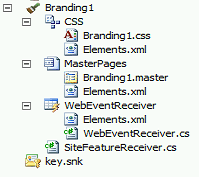
One main thing I did not know for not having developed in VS recently and will now add it to priority number 1 when opening Visual Studio 2010 on Sharepoint: install CKSDev, this will add additional tools for SharePoint into your Visual Studio. For instance a very useful Project Item is “Branding” which create master page, CSS and layout page, which will all be activated as a feature when deployed:
- What changed in deploying Solution to Sharepoint?
A must have as well is Powertool for 2010 to get additional tools for SharePoint.
Production deployment has not changed: give a WSP and deploy it via Powershell (or stsadm)
Development deployment has changed dramatically, to take advantage of sandboxed solution we can deploy directly Visual Studio to Sharepoint.
Pay attention at the option “view deployment configuration” in Visual Studio solution properties which allows us to configure all the steps that to be done at deployment time.
11:45. How we did it (about branding ) : Matt Hughes
- Download a custom masterpage and CSS from the community, some include comments and disable some feature by default which is useful for starting small and re-enabling features as needed.
example : http://freespmp.codeplex.com by Matt, or http://startermasterpages.codeplex.comby Randy Drisgill - One CSS class to note that I didn’t use : “S2-notdlg” anything within this class will not show in a Sharepoint modal dialog box, to use if we have a control to show everywhere but not duplicate its display in the dialog boxes.
Matt’ session was really interesting as a subject but I didn’t learn much except that it confirmed my experience in doing Sharepoint branding as he and Sam have had the same issues I had.
It was a little bit strange to focus on Matt’s face while he spoke, check the pic below, Movember Sharepoint style.

13:45. Why are we developing? : Nigel Price
I chose this session to check what others are doing Out-Of-The-Box in Sharepoint as opposed to building custom controls and webparts to reach business expectations. This is a rather vast subject because more often than not, my clients come to me and think that Sharepoint can do everything they want without the help of .net developers. The other side of the balance is that being a Sharepoint consultant I need to make sure that sites I design are not too far from Sharepoint architecture so that they will migrate easily and “anyone” (ie not developer) can maintain them, bringing a lot of out-of-the-box tools.
Again I mainly comforted what I usually do which is “Try OOB before going for managed code”, Nigel’s bullet list for “when do we have to develop” is :
- Need to action something with elevated privileges
- Use of an authentication mechanism outside AD
- LOB integration (BCS..)
- Write event receivers
- Custom Search protocol (if custom iFilter)
- Code repository, i.e. source versioning
15:00. Why branding intranet ? Gus Fraser (SharePoint 2010 Intranet Branding for Developers)
As we all know the main reason for branding an intranet site is so that it doesn’t look like SharePoint. This has been the subject of lots of discussion in the past weeks and surely will not end. Although my role is to advise my client in the concept of branding Sharepoint and why they should not remove all “Sharepoint-looking” features very often I just have to follow what the client’s creative agency (who never used Sharepoint) dictates.
Notes:
- Use prototyping tool like Balsamic more. specially that Balsamic includes “mockups to go” ribbons.

- Again : use Visual Studio 2010 CKSDev which includes branding item.
- Use control adapters.
- Use CSSReset by Kyle Schaeffer, which is a CSS to literally “reset” the existing style in Sharepoint 2010 so that we can start styling them as we want.
- Use ieTester tool to test your site with various IE versions
- Options in the Sharepoint Ribbon barre can be removed using Custom Action. Gus’ code to remove the font style option for instance can be downloaded here.
- Other link about branding in the pic below

Conclusion

Run SPD2010 workflows with impersonated permission
Today one of my users reported that “something is not happening as supposed to” on a site, which most IT professional would say is quite a typical call we receive…
ISSUE:
After a quick test I realised that a workflow meant to start on item submission of an InfoPath form was failing to complete and the workflow status would show “CANCELLED” (very misleading as nobody actually “cancel” that workflow… and this message “The workflow could not update the item, possibly because one or more columns for the item require a different type of information.”
CAUSE:
Basically the user’s permissions had changed on the site so that he could not anymore update items in the library but the site owner didn’t realise the knock-on effect this would have on existing workflows as well, especially if the workflow is meant to go search for other items in the library and update them. The user not authorised to edit them will fail the workflow.
SOLUTION:
A short Google on “SharePoint Designer workflow elevated permissions” and I was reminded by this blog articlehttp://is.gd/RdjmWH about impersonation in SPD 2010 Workflows (and not elevated as mentioned) which was new from SPD 2007.
But not any kind of permission, since it will the logged in user on SharePoint Designer so bear that in mind when releasing to Production environment.
STEPS
Make sure you are logged in SharePoint Designer with the correct user (one that will not disappear once you finish your development) [note: use the little “change user” icon on the bottom left corner of SPD2010 to switch user].
– Edit your workflow
– Within the steps of the workflow that require to be impersonated with your user insert an “Impersonation Step” by just typing the label

– Move all required steps into it (using Move Up or Down)

– Publish your workflow
– Test with the access level of your user
Et voila !
Note: This short blog article is my first attempt to participate to my colleague Giles‘ blog https://ghamson.wordpress.com as an author and therefore you may also see it on my other blog.


 SharePoint (and Project Server) Shenanigans
You must be logged in to post a comment.