Archive
SharePoint Security Bulletin – Critical
Microsoft Security Bulletin MS13-024 – Critical
Vulnerabilities in SharePoint Could Allow Elevation of Privilege (2780176)
Published: Tuesday, March 12, 2013
Executive Summary
This security update resolves four privately reported vulnerabilities in Microsoft SharePoint and Microsoft SharePoint Foundation. The most severe vulnerabilities could allow elevation of privilege if a user clicks a specially crafted URL that takes the user to a targeted SharePoint site.
This security update is rated Critical for all supported editions of Microsoft SharePoint Server 2010 and rated Important for all supported editions of Microsoft SharePoint Foundation 2010. For more information, see the subsection, Affected and Non-Affected Software, in this section.
The security update addresses the vulnerabilities correcting the way that Microsoft SharePoint Server validates URLs and user input. For more information about the vulnerabilities, see the Frequently Asked Questions (FAQ) subsection for the specific vulnerability entry under the next section, Vulnerability Information.
http://technet.microsoft.com/en-us/security/bulletin/ms13-024

SP2010, #PerformancePoint and Kerberos
I was recently involved in getting PerfomancePoint and the “Per User Identity” configuration working for a client running SharePoint 2010. The same configuration still holds true for SharePoint 2013, but for 2013 both PerformancePoint and Excel Services now introduce the new “EffectiveUserName” feature, which should make life a load easier.
In the world of SharePoint /PerformancePoint 2010 if you want to build an MI dashboard that shows user specific information in the reports the only way to do this effectively is to use the “Per-User Identity” option in the Data Source Connection setting, which in turn involves setting up Kerberos and specifically constrained delegation, in this article I will cover the broad steps needed.
Kerberos on Web App.
Firstly make sure that Kerberos is running on the Web App that will be hosting your PerformancePoint content, the best way to check this is in the Windows Security log, filter on 4624 events and find a logon event, make sure its a type 3 (Network) and the Process is Kerberos.

Kerberos on Target.
Make sure you have the correct SPNs registered against your target, typically with PerformancePoint this will be an SSAS cube, use SetSPN –S MSOLAPSvc.3/ServerName DomainName\SSASDomainAccount to create the SPNs, these will be key, so take your time and make sure you get them right.
Claims to Windows Token Service
PerformancePoint (along with Excel and Visio Services) relies on the C2WTS for Protocol Transition, so this must be running and configured correctly.
I would recommend running the C2WTS as a separate managed account, this account needs some specific requirements (local administrator, Logon as a service, Act as part of the operating system and Impersonate a client after authentication, set the last 3 in local security policy.)
If the C2WTS is not happy you will probably see something like the error below logged in the Windows Application log when trying to connect.

You also need to register a manual SPN for the C2TWS, something like SetSPN –S SP/C2WTS DomainName\C2WTSDomainAccount, this will allow the “delegation” tab on the user account domain object to become available.
Constrained Delegation.
This is the tricky part to get working, basically we are saying that “object A” is allowed to delegate to “service A” only in, our case it will be “object A & object B and object C”, are allowed to delegate to “Service A” in fact all the objects in the delegation chain, so to allow delegation we open our user object in AD, go to the “Delegation” tab, select “Trust this user for delegation to the specified services only” (This is setting constrained delegation)–> “Use any authentication protocol” (This is allowing protocol transition).
Use the Add… button to find the service account for the SSAS Domain account mentioned above and select the Service Type you setup earlier.
You will probably have to perform this for your Web Application account, C2WTS account, PerformancePoint account and any other managed service account that is involved, once finished each account should have a setting like this
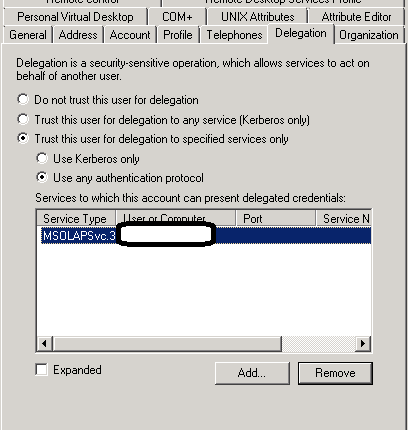
Remember that if the Delegation tab is not available on the user object you have to create a manual SPN.
If your data connection still refuses to connect with the “Per-User Identity setting”, have another look at the eventlog again and look for this error.

This probably means you still have an SPN missing or not configured correctly, the best way to deal with this is to install Network Monitor then run a trace while trying to connect and filter on the ‘KerberosV5’ events, and you are looking for any Kerberos error codes most likely you will see some kind of PRINCIPLE_UNKNOWN error being reported, normally associated with a user name or service account that has been missed in the constrained delegation settings.
Good luck and Happy SharePointing
Follow @NeilKing41
Microsoft releases Project Online

Last week Microsoft released Project Online. For me it has been a long wait as I have been playing around with Project Online since the preview version was available in July 2012.
So for people that don’t know Project Online it is basically the cloud version of Project Server. You now have the ability to provision it in the cloud and use it on a per user basis. In my opinion this will make Project Server functionality a lot more accessible and flexible to small and medium sized businesses.
I can image that a lot of businesses in the past didn’t choose for a PPM Solution like Project Server or any other PPM solution because of cost and effort that is needed to implement such a solution. Now with a few click of a button you have your own Project Online environment to support your projects. The per user basis of Project Online gives an organization a lot of flexibility in the use of the PPM solution.
So why should you and your business get excited about Project Online?
Project Online offers a centralized place for all your projects, a centralized resource pool to determine demand vs. capacity within your organization, it offers portfolio management, on demand reports and the list goes on. All you need to guide your projects to success.
In my opinion Project Online is a great step by Microsoft to make a PPM solution accessible to smaller markets. But it doesn’t stop there, it is also a great way for a bigger organizations to support program’s or specific departments. But don’t take my word for it, try it yourself http://office.microsoft.com/en-us/project/.
I am looking forward to see how the adaptation of Project Online will be in the coming months and the responds of the business that are using it.


via SpeakingSilent » Robin Kruithof http://speakingsilent.wordpress.com/2013/03/05/microsoft-releases-project-online/
   I am Robin Kruithof. I am working at CXS in the Netherlands as a Microsoft Project Consultant. My passion lies in Project Management and everything in the Project Management domain.
This article has been cross posted from speakingsilent.wordpress.com/ (original article) |

#ProjectServer #PowerView report in #Excel 2013 #PS2010 #PS2013 #Office2013
 I am a Project Server and SharePoint consultant but my main focus currently is around Project Server.
I have been working with Project Server for nearly five years since 2007 for a Microsoft Gold Certified Partner in the UK, I have also been awared with the Microsoft Community Contributor Award 2011. I am also a certified Prince2 Practitioner. This article has been cross posted from pwmather.wordpress.com (original article) |
This post will take a brief look at creating a map view of Project Server data – this does assume you tag your projects with a location!
For the purpose of this post I will use the example Excel file shown below – this pulls data from one of my test Project Server PWA instances, hence the project names!

In Excel 2013, click Insert > Power View Reports:

You will now see a Power View report:

To create a map with the projects plotted in the correct location by cost, see the steps below.
On the design tab, click Map and you will see the following:

Now click the map and modify the Power View fields shown below:

For this example, add ProjectCost to the size property, add Project Locations to the Locations property and set the colour property to ProjectName:

Increase the size of the map and add a title:

You can hover over the data circles and a tooltip will appear with the project details:

The data can be refreshed and the map updates.
A quick and simple report to show projects by location.


Enable Mobile Browser View for SharePoint Online public site
So you upgraded to SharePoint Online 2013. If you are like me, you might have been looking on your SharePoint Online public site for the mobile “Contemporary view“. However, you will NOT find it. “Manage Site Feature” does not exist in a public site.
You can use the mobile Contemporary view for your SharePoint Online private site collection. First you will need to enable the feature via Site Settings > Manage Site Features > Mobile Browser View.
The right image is the standard view. The image on the left is the mobile contemporary view.


#ProjectServer and #SharePoint 2010 / 2013 February 2013 Cumulative Update #PS2010 #SP2010 #PS2013 #SP2013 #MSProject
|
I am a Project Server and SharePoint consultant but my main focus currently is around Project Server.
I have been working with Project Server for nearly five years since 2007 for a Microsoft Gold Certified Partner in the UK, I have also been awared with the Microsoft Community Contributor Award 2011. I am also a certified Prince2 Practitioner. This article has been cross posted from pwmather.wordpress.com (original article) |
Now that the first CU’s for 2013 are available, I will include both 2010 and 2013 updates in the future posts.
The Office 2013 February 2013 Cumulative Updates are now available, please see the links below:
http://support.microsoft.com/kb/2802843
Project Server 2013 Server Roll up package February 2013 CU (Recommended):
(Delayed)
Project Server 2013 February 2013 CU (Included in the Server Roll up package):
(Delayed)
Project 2013 February 2013 CU:
http://support.microsoft.com/kb/2738031
The Office 2010 February 2013 Cumulative Updates are now available, please see the links below:
http://support.microsoft.com/kb/2800779
Project Server 2010 Server Roll up package February 2013 CU (Recommended):
http://support.microsoft.com/kb/2767794
Project Server 2010 February 2013 CU (Included in the Server Roll up package):
http://support.microsoft.com/kb/2760772
Project 2010 February 2013 CU:
http://support.microsoft.com/kb/2760778
Remember SP1 is a pre-requisite for the Office 2010 February 2013 CUs.
For more details please see:
http://blogs.technet.com/b/projectsupport/archive/2013/02/14/microsoft-project-server-2007-2010-and-2013-february-2013-cu-announcement.aspx
As always, test these updates on a replica test environment before deploying to production


SP2010 Corrupt BlobCache
Just a quick entry.
While running a client health check I spotted an error in the Event log that I have never seen before.
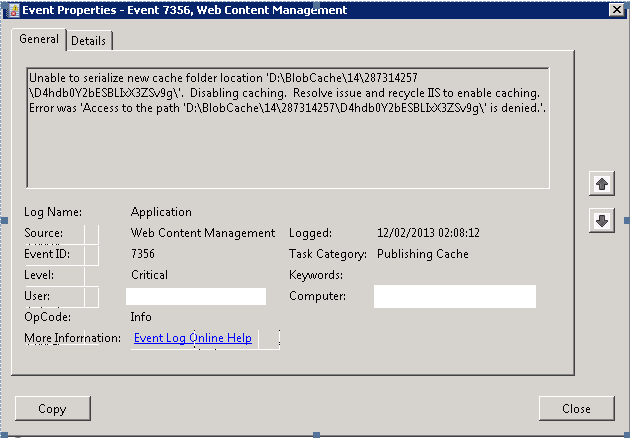
Googling the Event ID and text didn’t help as I couldn’t find anything online about this.
Clearly the BlobCache on this server had become corrupted somehow, upon closer inspection the folder \287314257 was missing from the location D:\BlobCache\14, hence the error.
The fix was to disable the BlobCache from the web.config, do an IIS Reset and delete the folder D:\BlobCache then re-enable the Blobcache.

Setting up a shared mailbox on #Office365
I know it has been a while since I have posted to the blog personally. Alas life has been busy after sorting out my presentation for SharePoint Saturday UK last December, then my Christmas break. Now that I am back in the UK and have got back to work, normal service can resume.
As part of this busy time in my life, a number of changes have happened and I find myself setting up an Office 365 account for my partner to aid with her HR consulting business. Office 365 was an obvious choice and the E1 plan seemed to be the most useful for the least per user cost in our situation. It provides the following:
- SharePoint Online (Enterprise)
- Exchange Online
- Lync Online
- Public Website
Although I had setup an Office 365 P1 plan before with ghamson.sharepoint.com, it had no real purpose, therefore it has just kind of sat there being used as file storage for this blog + a few other things.
Now however, I have a real purpose. My partner needs an online presence, a professional email address and it needs to be in a form that she is useful.
This blog post and probably the next series of blog posts will cover what I do to provide the setup my partner needs to run her business. She doesn’t know SharePoint very well, has no idea what Exchange is really but has used Outlook and Lotus Notes for most of her professional life.
So without further a-do… Our first task after the initial setup is: Creating a shared mailbox:

So if you are used to On-Premise Exchange, this is a fairly simple task, so imagine my surprise when I found out that I needed to use PowerShell to create the mailbox and set the appropriate permissions.
Useful articles:
- Install the Office 365 PowerShell cmdlets: http://onlinehelp.microsoft.com/en-gb/office365-enterprises/hh124998.aspx
- Connect Windows PowerShell to the Exchange Online Service: http://help.outlook.com/140/cc952755.aspx
- Update your PowerShell script execution policy to Remote: http://technet.microsoft.com/en-us/library/ee176949.aspx (by default, the script execution policy is set to: Restricted)
- Setting up a Shared Mailbox in Office 365 via PowerShell: http://help.outlook.com/en-us/140/Ee441202.aspx (please note that you need to have connected to the Exchange Online Service first and downloaded the cmdlets as outlined in the second link above (Connect Windows PowerShell to the Exchange Online Service).
- GUI Tool for Shared Mailbox setup: http://community.office365.com/en-us/wikis/exchange/1712.aspx
Once you have done the initial mailbox setup, you can then assign a distribution / security group to allow access to the contact mailbox
These instructions are outlined here (also available in the link above):
Create a security group for the users who need access to the shared mailbox In the Exchange Control Panel, create a security group for the staff who need access to the shared mailbox for Corporate Printing Services.
- Select My Organization > Users & Groups > Distribution Groups > New.
- Specify a display name, alias, and e-mail address. In this example, we’ll use Printing Services Staff,corpprintDG, and corpprintDG@contoso.com.
- Select the Make this group a security group check box.
- In the Ownership section, click Add to add an owner, if necessary.
- In the Membership section, click Add.
- In the Select Members page, select the users you want to add. When you are finished, click OK.
- On the New Group page, click Save.
Note After you create a security group, the membership is closed. When membership is closed, only group owners can add members to the security group, or owners have to approve requests to join the group. Additionally, only group owners can remove members from the security group.
You can then run the final PowerShell commands to setup the access rights.
And apparently we are done, and in general we are. However, my partner will not want to log into a separate mailbox to deal with the emails. So I also setup a forwarding rule within the Exchange Online Administration interface to forward any email to go directly to her and myself.
Rule:
Sent to ‘O&H Consulting Contact Mailbox’
If the message…
Is sent to ‘contact@oandhconsulting.com’
Do the following…
Redirect the message to ‘<username>@oandhconsulting.com‘ and ‘<username>@oandhconsulting.com‘
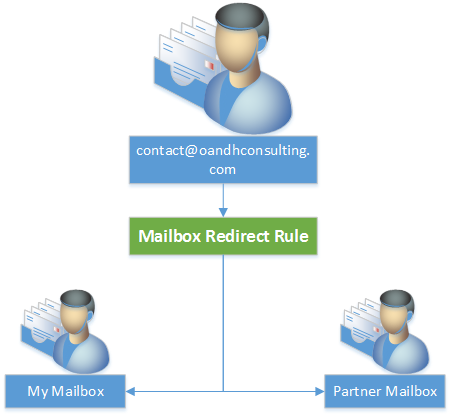
For those interested in the total PowerShell script I used to achieve the above:
//Download the Office 365 PowerShell Cmdlets
Get-ExecutionPolicy
Set-ExecutionPolicy RemoteSigned
$LiveCred = Get-Credential
//You will be asked to sign in here
$Session = New-PSSession -ConfigurationName Microsoft.Exchange -ConnectionUri https://ps.outlook.com/powershell/ -Credential $LiveCred -Authentication Basic -AllowRedirection
Import-PSSession $Session
//Exchange Online Cmdlets will download within the PowerShell command prompt.
New-Mailbox -Name "O&H Consulting Contact Mailbox" -Alias contact -Shared
Set-Mailbox contact -ProhibitSendReceiveQuota 5GB -ProhibitSendQuota 4.75GB -IssueWarningQuota 4.5GB
//Setup your distribution group in the interface
Add-MailboxPermission "O&H Consulting Contact Mailbox" -User contactDG -AccessRights FullAccess
Add-RecipientPermission "O&H Consulting Contact Mailbox" -Trustee contactDG -AccessRights SendAs
//Setup the forwarding rule in the interface

Custom Navigation in a SharePoint Hosted App in SharePoint 2013
I have been playing round with a SharePoint hosted app to learn about how it all works. This has been going well but i ran into more problems than i though i would when trying to implement a menu for my App.
If you are using the auto hosted or developer hosted app model then this is easy (ish) you use the new chrome control, create you menu links in JS and you are done. MS have some documentation on this that works great.
But i am creating a SharePoint hosted app. So this causes a few “problems”. The first one being that if i add a chrome control to my page i get 2 menu which is just silly.
Google wasn’t much help although i did find this post here
http://www.intrateam.com/gb/blogpost/sharepoint-2013-app-master-page
which pointed me in the right direction.
My first issue was actually getting hold of a copy of the master page that app’s use. I could not work out how to do this only having an office 365 tenant. In the end I grabbed the app.master and default.master from the GLOBAL folder in the hive on a on premise install.
The first thing i worked out is that the reference to “~masterurl/default.master” seems to translate to the app.master from the GLOBAL folder in the HIVE.
So i made a copy of the app.master and added it to my project. Changing the elements.xml file as per the post linked above.
I also changed the link in my ASPX pages from ~masterurl/default.master to ~site/_catalogs/masterpage/<Name of my master page>.master
This assumes you have you elements file setup like

While doing this I noticed that there is a content place holder with an id of PlaceHolderLeftNavBar. This isn’t hidden.
So I added

into my Default.aspx page and loaded it into SharePoint.

Bingo I have a menu in the standard place in SharePoint. What is also nice is that if the user hits the “Focus on Content” button then the menu gets hidden.
But wait a minute we just setup our own master page, what was the point? Well at the moment you do not need you own master page but this does now mean you could move any of the other Content Place Holders to put a menu in a different location. It also helps get rid of some of the warnings in visual studio as it now knows the master you are using.
I do have an issue that have to copy my <asp:menu> content onto all the pages. I tried using the XML data source but this appears to not be supported but there may be another way to store the menu logic centrally.
The next problem to solve was that we need to pass the query string values around the system, so these have to be added to the menu.
This can be done with some simple jQuery.

Just make sure this will run on all of the pages and your querystring values will be maintained between page loads
Sorry for the images but my code plugin was not working.
Hope this helps someone.

via Buzz Blog http://paulbuzzblog.wordpress.com/2013/02/10/custom-navigation-in-a-sharepoint-hosted-app-in-sharepoint-2013/
 Paul is a an expert SharePoint and Project Server developer and is responsible for designing and implementing custom solutions on client systems using the latest SharePoint and .NET technologies.
Paul has extensive experience with SharePoint systems across all sizes of implementation, ranging from small to large farms and has an excellent understanding of all the elements of SharePoint. This article has been cross posted from paulbuzzblog.wordpress.com (original article) |

Disable social features in SharePoint 2010
For most deployments clients want to use all the social features that SharePoint 2010 offers, but on a recent project I was working on, the client wanted all the social features disabled including.
– MySite Creation
– Use of My Profile link
– Page Personalization
– The use of ‘I Like It’ and ‘Tags & Notes’


As I have never had to do this it took a bit of googling to find all the correct settings.
Page Personalization
From CA – > Pick the Web app in question –> User Permissions

Unticking the last 2 items and the ‘Personalize this Page’ menu item is removed, but the users still have the ability to create personal views on lists and libraries, removing ‘Manage Personal Views’ will remove this option as well.
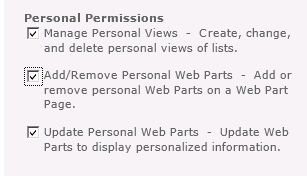
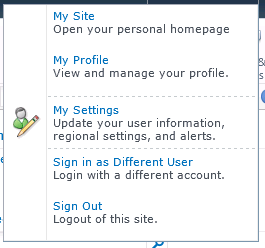
Another option to look at is ‘Edit Personal User Information’
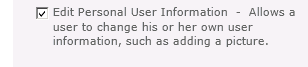
This removes the, Edit Item and My Regional Settings from the ‘My Settings’ link, via the ‘My’ Drop down menu.

My Site & My Profile
To Remove the My Site and My Profile links go to CA –> Manage service Applications –> User Profile Service Application –> Manage User Permissions
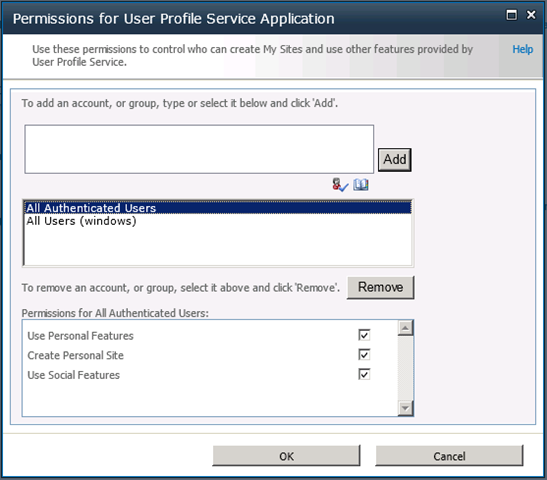
By default all authenticated users have access to all the ‘Personal’ features, see the link below for details on the specific feature sets.
http://technet.microsoft.com/en-us/library/ee721063(v=office.14).aspx.
Personally I quite like this feature as you can decide who has access to which feature set, for example you might not want external users or partners to be able to use these features.
A point to note here is that if you disable “Use Social Features”, any of the features that you might have deployed such as the Note Board or list ratings will disappear !
Finally, to remove the SocialRibbonControl (‘I Like It’ and ‘Tags & Notes’) it can be disabled at Farm Level as it is a Farm Scoped feature
http://technet.microsoft.com/en-us/library/ee721062(v=office.14).aspx
Now we have a very short ‘My’ menu.

Happy SharePointing !


 SharePoint (and Project Server) Shenanigans
You must be logged in to post a comment.