Archive
Practice makes Perfect Part 8 – Customizing the Ribbon
 I have been working with Microsoft Project for a decent amount of time now and I go to a lot of clients during my Project Server implementations. One thing I noticed with the average Project Manager that they never use the feature to customize their ribbon. For the people that do not know what the ribbon is, it is the action bar where all the buttons reside in Office products.

While most buttons you use in Project are already present in the ribbon, they sometimes are not in the place you like them to be. It is my experience that when working on your project plan you mostly use the “Task” tab in your ribbon. What I like to do, is to add a few buttons I use on regular basis in the other tabs to have them in available in the “Task” tab.
Because I work with Project Server a lot I always like to have the “Publish” button in my ribbon, the same goes for the “Set Baseline”, “Entire Project” and “Team planner” buttons.
So how do you do this?
That is the easy part. Go to “File” and select “Options”. In the options menu you can find “Customize Ribbon” and “Quick Access Toolbar”. For this post I will only customize my ribbon.

When you selected the “Customize Ribbon” option you are able to add button to all tabs. Here we will customize the “Task” tab.

Expand the “Task” tab. Now I advise you to make a custom tab for the buttons you want to add. To do this click on “New Group”.


So that is the group. Now that we have our group lets populate it with the extra buttons we want shall we.

Select the button you want to add in my case that is “Publish” and press add. Now select other buttons you want and press ok. Go back to the tab you customized to see the result.

It is that easy. Above the result. Having these buttons all in the “Task” tab saves me the hassle to go the other tabs for them. Everything you need one click away.


via SpeakingSilent » Robin Kruithof http://speakingsilent.wordpress.com/2012/11/01/practice-makes-perfect-part-8-customizing-the-ribbon/
   I am Robin Kruithof. I am working at CXS in the Netherlands as a Microsoft Project Consultant. My passion lies in Project Management and everything in the Project Management domain.
This article has been cross posted from speakingsilent.wordpress.com/ (original article) |

#SP2013 #PS2013 and Business Intelligence TechNet links
Just a few useful links from the newly released / updated TechNet articles around SharePoint, Project Server and BI in 2013
SharePoint 2013
- Hardware planning support: http://technet.microsoft.com/en-us/library/cc262485(v=office.15).aspx
- Browser support including activex controls http://technet.microsoft.com/en-us/library/cc263526(v=office.15).aspx
- Mobile device support: http://technet.microsoft.com/en-us/library/fp161353(v=office.15).aspx
- Software Boundaries and Limitations: http://technet.microsoft.com/en-us/library/cc262787(v=office.15).aspx
- Capacity / Performance Management: http://technet.microsoft.com/en-us/library/ff758647(v=office.15).aspx
- IPv4 / IPv6 Guidelines: http://technet.microsoft.com/en-us/library/cc748826(v=office.15).aspx
Project Server 2013
- Hardware and Software requirements: http://technet.microsoft.com/en-us/library/ee683978(v=office.15).aspx
- Performance and Capacity: http://technet.microsoft.com/en-us/library/ff646967(v=office.15).aspx
- Plan User Access
- Good overview video of the two different permission models and why you would use one over the other: http://technet.microsoft.com/en-us/library/fp161361(v=office.15).aspx
Business Intelligence within SharePoint 2013
- Software Requirements: http://technet.microsoft.com/en-us/library/jj219634(v=office.15).aspx
Excel Services
- Remember with Office Web Apps as a seperate SKU and install, things are a little different this time around…http://technet.microsoft.com/en-us/library/ee424405(v=office.15).aspx
- BI functionality within Excel Services for SharePoint 2013, SharePoint Online and interestingly, SkyDrive: http://technet.microsoft.com/en-us/library/jj219751(v=office.15).aspx
PerformancePoint
- PerformancePoint 2013 overview including migration!!!: http://technet.microsoft.com/en-us/library/ee424392(v=office.15).aspx
- PerformancePoint Strategy Maps: http://technet.microsoft.com/en-us/library/ff535783(v=office.15).aspx
Visio Services
- http://technet.microsoft.com/en-us/library/ee663482(v=office.15).aspx
- Download: http://www.microsoft.com/en-us/download/details.aspx?id=30375
- NB: Remember this is not for production environments yet.
Reporting Services / Power View / PowerPivot
Reporting Services 2012 SP1 CTP3 or higher required for PowerPivot functionality
2012 SP1 CTP4 is out and RS2012 installation details here:
SQL Server 2012 BI – includes links to Report Builder, Power View and PowerPivot help
Reporting Services 2012 Developers Reference
Hardware and Software requirements for Reporting Services and Power View
Supported Reporting Services with SharePoint combinations
Reporting Services add-in locations
Feature support for rs2012 Native vs. SharePoint
Reporting Services 2012 feature availability comparison with different SQL Server 2012 editions

Colour Scheme Designer on the web to help you with your designs or perhaps #SharePoint themes
Whilst my colleague Paul was working with some InfoPath forms for a client, we decided we needed some complimentary colours for table cell shading.
After some searches on Google, we found the following: http://colorschemedesigner.com/
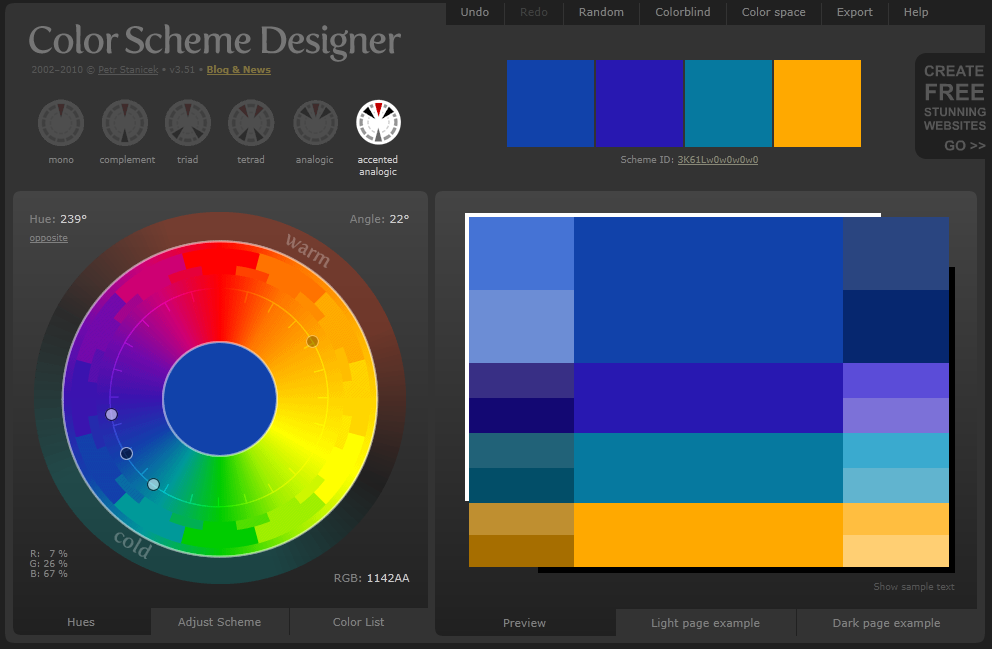
Very useful indeed.

My Outlook 2013 calendar is showing temperatures in Fahrenheit, but I want Celsius!
So, I have spent the day installing Office 2013 RTM onto my work laptop along with Visual Studio 2012 etc…
Now I haven’t used Outlook in earnest in the Technical Preview, but now that we are in RTM, it is full steam ahead to ensure the new interface becomes a part of normal working life.
So Outlook is installed (MSDN version) and I go to the calendar and the weather module is pointing to New York and is in Fahrenheit. This is no good at all, I am in the UK in “sunny” Marlow.
So changing the location was easy, clicking on New York and adding a location was all it took.

To change it Celsius, it is available in the options (Backstage (File) > Options) in the Calendar section right at the bottom.

Et voila! and we are back into a local state 


From Office 2013 Preview / Beta to RTM installation notes
Just a quick post to note down some of the things I noticed when upgrading my work laptop to the RTM version of Office 2013.
I chose to perform an upgrade rather than uninstall Office 2010 first since I am still working in a 2010 / 2013 environment for the time being.
Installation
- Download from MSDN
- Grab key for activation
- Click to run installations from Office 365 Preview and previous Preview installations need to be uninstalled first
MSDN Activation
- Go to backstage (File)
- Click Office Account
- Click activate product and on the pop up you are asked to sign in with your Windows Live account
- At the bottom of the pop up, there is activate via a product key (the windows live sign in, won’t work for MSDN subscribers)
- Enter the key and click ok
- Restart the product
- Product now activated
- Some foibles based on my company’s internal environment
Project Professional 2013
- We are currently running Project Server 2010 in the office, Microsoft Project 2013 will not connect to Project Server 2010
- You can run Project 2010 Professional side by side with Project 2013 Professional
- You cannot run Project 2013 Professional local with the click to run version (but you don’t need to
 )
)
Visio 2013
- Can run side by side with 2010
Lync 2013
- Installation is no longer separate install package
- Installed as part of Office 2013 Professional Plus
- Can connect to Lync Server 2010
SkyDrive 2013 Pro
- Can sync with SharePoint 2010

I didn’t know it would do that #sp2010 #docversion
Its always interesting when you see something that you never expected to happen or had forgotten about, this happened to me the other week while working with an internal colleague.
We were looking at the process surrounding internal process forms and templates, in this process the version of the form or template may not necessarily be the version number stored in the SharePoint document history, so as a way to display the version I added a simple version number column called Doc Version to the library and to my surprise the column populated with data !


A quick look in the document properties showed a custom property with the same name as the library column that I just created.

A nice little feature of Office and SharePoint integration that I had forgotten about

SharePoint 2013 Visio Services
One of the services that I hardly ever look at is Visio, so i decided to provision an instance on my SP2013 beta test server and take a look
Within Central Admin the provisioning process is pretty much the same as 2010.

For this Service Application I created a new managed account and app pool and provisioned the Service Application,
At first the service wouldn’t display a Visio web diagram (.vdw)
Not a very handy error
but the Event Log sheds more light on this

Go to Services on Server and start the Visio Service (it really bugs me that SharePoint 2010 doesn’t do this, looks like 2013 is the same)

After trying again, another error

Once again the event log shows what happened here, the managed account I created for the Visio Service Application has no access to the content db where the Visio diagram is.

so the same fix as SharePoint 2010 is needed here.
$webApp = Get-SPWebApplication http://teams
$webApp.GrantAccessToProcessIdentity("SP\SPSrvAcc")
A look in SQL shows that the Service Account SP\SrvAcc now has the SPDataAccess role on the database WSS_Content_Teams database

Finally we have a Visio Web Diagram available in the browser.

so not much different from 2010 from this Point of view.
Happy SharePointing.

Publish specified Projects in #ProjectServer using #PowerShell #MSProject #PS2010 #SP2010
 I am a Project Server and SharePoint consultant but my main focus currently is around Project Server.
I have been working with Project Server for nearly five years since 2007 for a Microsoft Gold Certified Partner in the UK, I have also been awared with the Microsoft Community Contributor Award 2011. I am also a certified Prince2 Practitioner. This article has been cross posted from pwmather.wordpress.com (original article) |
There have been several requests for publishing projects listed in a text file, this follows on from my post / publish all projects script found below:
http://gallery.technet.microsoft.com/scriptcenter/Server-2010-Publish-all-45ba385b
This script allows you to specify a list of projects in a text, then only those projects will be sent for publishing. For the purpose of this post I have a text file called projectstobepub.txt that contains a list of my test projects to be published:

The PowerShell script will need to be updated to reference the text file containing the list of projects that you wish to publish and also update the Project Server PWA URL. Comments have been added in the screen shot below to show what lines need to to be updated:

The script has my test PWA instance URL as highlighted below:
New-WebServiceProxy -uri “http://vm353/pwatest/_vti_bin/PSI/Project.asmx?wsdl” –useDefaultCredential
The strikethrough text will need to be updated with the correct URL for your environment.
The script can be downloaded from the Script Center following the link below:
http://gallery.technet.microsoft.com/scriptcenter/Server-2010-Publish-537857d8
Once the script has been executed, the projects listed in the text file will be sent for publishing.
The script can either be executed on demand or set on a schedule using Windows Tasks Scheduler. Execute the script with an account that has access to the projects listed in the text file.


Second session new release of Microsoft Project
 After a vacation of both authors we are back and recharged and ready for whatever the last two months of 2012 can throw at us. Blogs will start popping up again in a sort of regular fashion. To start this of, I would like to announce that I am again giving a Dutch presentation at Microsoft in the Netherlands about the new release of Microsoft Project on the 1ste of November.
I am really pleased that I can do this again. I will be giving a overview on what is new in Project Professional 2013 and show you the cloud based version of Microsoft Project Server “Project Online” This session will give you a good overview of the new enhancements and features in the new release that will help anyone that works with Microsoft Project.
It is a free session so if you are interested you can sign up at the link below. Please keep in mind this session is in the Netherlands and will be given in Dutch.
First Look new release of Microsoft Project

Hope to see you there

via SpeakingSilent » Robin Kruithof http://speakingsilent.wordpress.com/2012/10/22/second-session-new-release-of-microsoft-project/
|
I am Robin Kruithof. I am working at CXS in the Netherlands as a Microsoft Project Consultant. My passion lies in Project Management and everything in the Project Management domain.
This article has been cross posted from speakingsilent.wordpress.com/ (original article) |

Resetting a windows user password
I recently had to help a friend across the pond (Houston, TX) blindly over the phone to reset the administrator password on their laptop.
I came across the following excellent article to aid the situation:
http://4sysops.com/archives/forgot-the-administrator-password-the-sticky-keys-trick/
However, as usual, the situation was never quite as per the article.
She didn’t know how to boot from CD and the bios wasn’t showing it as a device available in the boot options (F12 on a Dell XPS M1530).
So talking her through the bios setup to enable the CD/DVD boot device, we got there in the in end, popped in the Windows Vista disk and booted into Recovery mode:
- Next on the language screen
- On the install now screen, click repair this install
- Let it find the install on the hard drive and click next
- Select command prompt and run through the options below (taken straight from the site above)
- Please note the instructions below work on the following operating systems:
– Windows XP (requires the admin password, so not much use here)
– Windows Vista
- – Windows 7
TO RESET A FORGOTTEN ADMINISTRATOR PASSWORD, FOLLOW THESE STEPS:
1. Boot from Windows PE or Windows RE and access the command prompt.
2. Find the drive letter of the partition where Windows is installed. In Vista and Windows XP, it is usually C:, in Windows 7, it is D: in most cases because the first partition contains Startup Repair. To find the drive letter, type C: (or D:, respectively) and search for the Windows folder. Note that Windows PE (RE) usually resides on X:.
3. Type the following command (replace “c:” with the correct drive letter if Windows is not located on C:):
copy c:\windows\system32\sethc.exe c:\
This creates a copy of sethc.exe to restore later.
4. Type this command to replace sethc.exe with cmd.exe:
copy /y c:\windows\system32\cmd.exe c:\windows\system32\sethc.exe
Reboot your computer and start the Windows installation where you forgot the administrator password.
5. After you see the logon screen, press the SHIFT key five times.
6. You should see a command prompt where you can enter the following command to reset the Windows password (see screenshot above):
net user your_user_name new_password
If you don’t know your user name, just type net user to list the available user names.
7. You can now log on with the new password.
8. Once you have logged on and you are happy that you can access what you need, we need to revert our changes.
I recommend that you replace sethc.exe with the copy you stored in the root folder of your system drive in step 3. For this, you have to boot up again with Windows PE or RE because you can’t replace system files while the Windows installation is online. Then you have to enter this command:
copy /y c:\sethc.exe c:\windows\system32\sethc.exe
Hopefully this account of resetting the password helps others as well and thank you to Michael Pietroforte for his article. My friend can access her business files again and all up and running.


 SharePoint (and Project Server) Shenanigans
You must be logged in to post a comment.