Colour Scheme Designer on the web to help you with your designs or perhaps #SharePoint themes
Whilst my colleague Paul was working with some InfoPath forms for a client, we decided we needed some complimentary colours for table cell shading.
After some searches on Google, we found the following: http://colorschemedesigner.com/
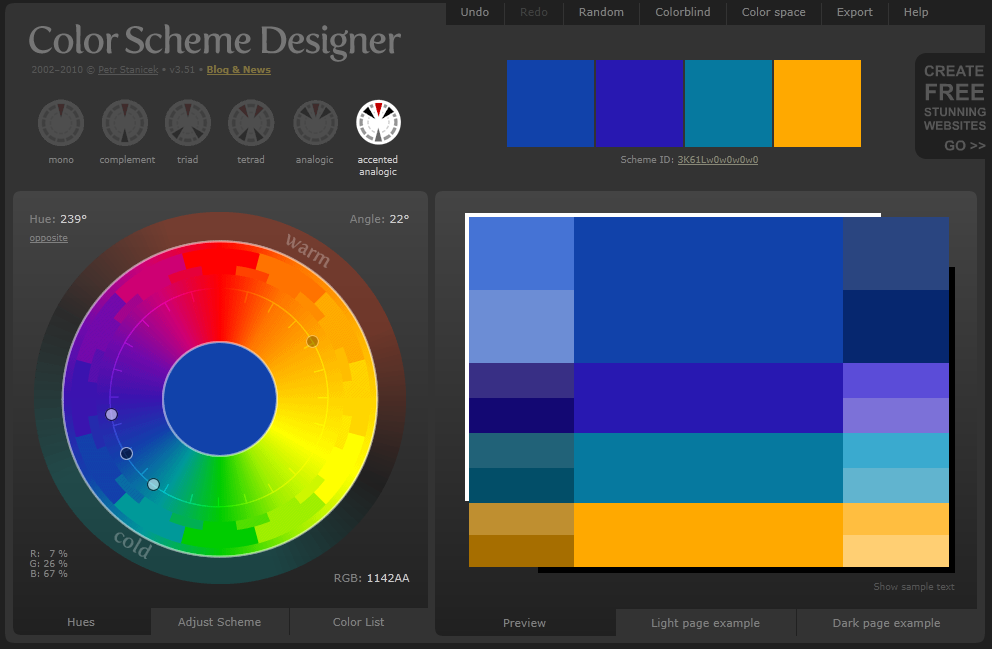
Very useful indeed.

My Outlook 2013 calendar is showing temperatures in Fahrenheit, but I want Celsius!
So, I have spent the day installing Office 2013 RTM onto my work laptop along with Visual Studio 2012 etc…
Now I haven’t used Outlook in earnest in the Technical Preview, but now that we are in RTM, it is full steam ahead to ensure the new interface becomes a part of normal working life.
So Outlook is installed (MSDN version) and I go to the calendar and the weather module is pointing to New York and is in Fahrenheit. This is no good at all, I am in the UK in “sunny” Marlow.
So changing the location was easy, clicking on New York and adding a location was all it took.

To change it Celsius, it is available in the options (Backstage (File) > Options) in the Calendar section right at the bottom.

Et voila! and we are back into a local state 


From Office 2013 Preview / Beta to RTM installation notes
Just a quick post to note down some of the things I noticed when upgrading my work laptop to the RTM version of Office 2013.
I chose to perform an upgrade rather than uninstall Office 2010 first since I am still working in a 2010 / 2013 environment for the time being.
Installation
- Download from MSDN
- Grab key for activation
- Click to run installations from Office 365 Preview and previous Preview installations need to be uninstalled first
MSDN Activation
- Go to backstage (File)
- Click Office Account
- Click activate product and on the pop up you are asked to sign in with your Windows Live account
- At the bottom of the pop up, there is activate via a product key (the windows live sign in, won’t work for MSDN subscribers)
- Enter the key and click ok
- Restart the product
- Product now activated
- Some foibles based on my company’s internal environment
Project Professional 2013
- We are currently running Project Server 2010 in the office, Microsoft Project 2013 will not connect to Project Server 2010
- You can run Project 2010 Professional side by side with Project 2013 Professional
- You cannot run Project 2013 Professional local with the click to run version (but you don’t need to
 )
)
Visio 2013
- Can run side by side with 2010
Lync 2013
- Installation is no longer separate install package
- Installed as part of Office 2013 Professional Plus
- Can connect to Lync Server 2010
SkyDrive 2013 Pro
- Can sync with SharePoint 2010

Hiding and showing fields using jQuery in SharePoint Designer 2010
Building forms using SharePoint Designer can be a bit tricky at times. What if you wanted to a text box to show only if a certain radio button value is selected? This video will show you how I acheived this using jQuery.
This post might also help:
Validating a SharePoint form field in SharePoint Designer 2010

Using jQuery to hide form elements based on drop-down value
Using jQuery to hide form elements based on drop-down value.
Populate a drop-down list with SharePoint list values
This video will demonstrate how to populate a asp.net drop down list control with SharePoint list column values. I’ve created a visual web part in Visual Studio 2010 and used the sever object model to demonstrate this. However, you can populate a drop down list with the client object model if you prefer.
Populate a drop-down list using SharePoint Client Object Model
This video will demonstrate how to populate an HTML drop down list control with SharePoint list column values. I’ve created a visual web part in Visual Studio 2010 and used the client object model to demonstrate this. Why would I need to use the client object model? When developing for sandboxed solutions, the whole server object model is not open for use. In some cases, such as developing for SharePoint Online, client object model will be useful if not absolutely necessary. However, you can populate a drop down list with the server object model if you prefer.
I didn’t know it would do that #sp2010 #docversion
Its always interesting when you see something that you never expected to happen or had forgotten about, this happened to me the other week while working with an internal colleague.
We were looking at the process surrounding internal process forms and templates, in this process the version of the form or template may not necessarily be the version number stored in the SharePoint document history, so as a way to display the version I added a simple version number column called Doc Version to the library and to my surprise the column populated with data !


A quick look in the document properties showed a custom property with the same name as the library column that I just created.

A nice little feature of Office and SharePoint integration that I had forgotten about

SharePoint 2013 Visio Services
One of the services that I hardly ever look at is Visio, so i decided to provision an instance on my SP2013 beta test server and take a look
Within Central Admin the provisioning process is pretty much the same as 2010.

For this Service Application I created a new managed account and app pool and provisioned the Service Application,
At first the service wouldn’t display a Visio web diagram (.vdw)
Not a very handy error
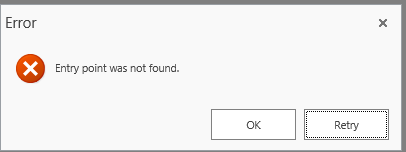
but the Event Log sheds more light on this

Go to Services on Server and start the Visio Service (it really bugs me that SharePoint 2010 doesn’t do this, looks like 2013 is the same)

After trying again, another error

Once again the event log shows what happened here, the managed account I created for the Visio Service Application has no access to the content db where the Visio diagram is.

so the same fix as SharePoint 2010 is needed here.
$webApp = Get-SPWebApplication http://teams
$webApp.GrantAccessToProcessIdentity("SP\SPSrvAcc")
A look in SQL shows that the Service Account SP\SrvAcc now has the SPDataAccess role on the database WSS_Content_Teams database

Finally we have a Visio Web Diagram available in the browser.

so not much different from 2010 from this Point of view.
Happy SharePointing.

Publish specified Projects in #ProjectServer using #PowerShell #MSProject #PS2010 #SP2010
   I am a Project Server and SharePoint consultant but my main focus currently is around Project Server.
I have been working with Project Server for nearly five years since 2007 for a Microsoft Gold Certified Partner in the UK, I have also been awared with the Microsoft Community Contributor Award 2011. I am also a certified Prince2 Practitioner. This article has been cross posted from pwmather.wordpress.com (original article) |
There have been several requests for publishing projects listed in a text file, this follows on from my post / publish all projects script found below:
http://gallery.technet.microsoft.com/scriptcenter/Server-2010-Publish-all-45ba385b
This script allows you to specify a list of projects in a text, then only those projects will be sent for publishing. For the purpose of this post I have a text file called projectstobepub.txt that contains a list of my test projects to be published:

The PowerShell script will need to be updated to reference the text file containing the list of projects that you wish to publish and also update the Project Server PWA URL. Comments have been added in the screen shot below to show what lines need to to be updated:

The script has my test PWA instance URL as highlighted below:
New-WebServiceProxy -uri “http://vm353/pwatest/_vti_bin/PSI/Project.asmx?wsdl” –useDefaultCredential
The strikethrough text will need to be updated with the correct URL for your environment.
The script can be downloaded from the Script Center following the link below:
http://gallery.technet.microsoft.com/scriptcenter/Server-2010-Publish-537857d8
Once the script has been executed, the projects listed in the text file will be sent for publishing.
The script can either be executed on demand or set on a schedule using Windows Tasks Scheduler. Execute the script with an account that has access to the projects listed in the text file.


 SharePoint (and Project Server) Shenanigans
You must be logged in to post a comment.