TechEd Europe Day One #TEE12
So I am here in Amsterdam having completed day one of TechEd Europe 2012 and once again, the conference is an awesome experience. There is one major difference however…
Now I actually know some people from the last conference I went to (MSPC12). So I am catching up with some colleagues (Alex Burton – Nintex and Ben Howard – Applepark) as well as getting to know new colleagues (Robin Kruithof – CXS and Mike Wϋbbold – SolutionTime).
The focus of the conference is very much about the cloud:
- Innovations in Windows Server 2012 to support private and public clouds
- Windows Azure advances with websites, Hyper-V, SSRS to truly support private and public cloud infrastructure in anyway you can imagine.
- And of course Office 365 incorporating SharePoint Online, Exchange Online and Lync Online
Day One Keynote
The keynote was an impressive site with equally bold statements on how Microsoft are not only in the cloud, but mature in the cloud with innovation on how it should be done!!!

Very bold statements indeed but with one difference… evidence!
Discussions on how Microsoft have achieved the scalability of Azure through the use of automation technologies such as PowerShell.
How Microsoft have worked with storage and network vendors to ensure optimum throughput on the Windows Server 2012 platform.

Copying a 10GB file is seconds across the network in seconds! I couldn’t take a picture fast enough…
And lastly, how Hyper-V has come of age as a true competitor to VMWare in the virtualisation market with IOPS stats they can only dream of…

That’s 1,026,020.31 IOPS and only limited by current hardware, not the software!
Azure Reporting Services
Moving on from this and after catching up with colleagues. I moved into Azure SSRS which was launched at the North America TechEd event at the beginning of June.
SQL Server Reporting Services is now available in the cloud and we can finally say that Business Intelligence is starting to become available in a public cloud environment.
Some key things to note:
The API interfaces of SSRS are available:

However, some restrictions to the current launch do apply:
|
 |
These are some serious limitations, but we are assured that this is being worked on and we will see improvement in future.
No word or official comment on integration with Office 365 but it wouldn’t surprise me if SharePoint Online integration is not coming down the line.
Staffing the Microsoft Project – Technical Learning Centre (TLC)
To gain attendance to one of the biggest Microsoft conferences, some of us have to pay our way in kind. 🙂
This humble bloggers approach is through presentations (more on that tomorrow…) and staffing the Microsoft Project booth at TechEd to help customers understand how Microsoft Project 2010 and Microsoft Project Server 2010 fit into the Office Server eco-system with SharePoint and other products.
We also provide help to anyone who would like to pose us with problems… almost like a live MSDN forum answer session.
It is also a good opportunity to catch up fellow colleagues in the EPM space and discuss approaches to client implementations etc…:

Ben, Mike, Robin and me
As part of the TLC Office stand some other cool and geeky items:
The Azure datacentre in Lego.
 |
 |
 |
A cool Office 365 Lego giveaway…

and the most elaborate Microsoft Flight Simulator you will ever see…

And towards the end of the day I caught up with the Nintex crew to discuss Nintex Workflow for Project Server.

Thanks for the catch up guys.
So that just about wraps up day one. Presentations and flights home tomorrow… till the next post – Good evening – Goedenavond

In a hotel with wired and no wireless? No problem with Windows 7 #TEE12
Let me give you a handy tip whilst working in a hotel.
The scenario…
You are in a hotel that does have internet access but doesn’t have wifi, or in this case, the wifi is so hammered with all the TechEd attendants that it just isn’t worth it.
However, you do have a wired connection, but now my tablet / mobiles are useless since they rely on wifi and I don’t want data roaming charges.
Well a quick Google / Bing and I found this:
How to turn your laptop into a wireless hotspot:
It talks about some software, but for the command line steps on my Windows 7 laptop worked a treat:
- Start > Search… CMD
- Right click on the command prompt and select “Run as administrator…”
- Type: netsh wlan set hostednetwork mode=allow ssid=<My Network Name> key=<My Password>
- netsh wlan start hostednetwork
- Go to Change Adaptor Settings, right click on the network adaptor connected to the internet and select Properties
- Sharing Tab
- Check: Allow other network users to connect…
- Select the new network adaptor
- Click OK

Ta daa, instant wireless hotspot from a wired connection and no 3rd party software installed to achieve.
Now back to the work I missed whilst at TechEd Europe 2012!

Help – SharePoint is throttling me !
Recently we have been working on a SharePoint 2007 to 2010 upgrade project, the title of this blog article is not quite the error we got from the user, but it wasn’t far off !

As part of the upgrade process we connected the 2007 content DB’s to the 2010 farm, and found some very large lists that were hitting the List View Threshold (LVT), which is part of the Resource Throttling settings in 2010 Central Administration.


30.000,000 items per list is the limit in 2010 http://technet.microsoft.com/en-us/library/cc262787#ListLibrary but 5000 is the LVT for best performance.
Some excellent materials about dealing with large lists are
http://technet.microsoft.com/en-us/library/cc262813.aspx and http://blogs.msdn.com/b/dinaayoub/archive/2010/04/22/sharepoint-2010-how-to-change-the-list-view-threshold.aspx
As for our problem, we decided to create some indexed columns and new views on the list to reduce the number of items coming back.
Happy SharePointing !
Follow @NeilKing41
Passed my MOS #SharePoint #PowerPoint 2010 exams #SP2010 #PS2010 #ProjectServer #MSProject
A quick post to say that I have started my journey to becoming a Microsoft Office Master and I am now officially a Microsoft Office Specialist in SharePoint and PowerPoint 2010.

Now you may be wondering why I would be taking the Microsoft Office Specialist exams when I have SharePoint and Project Server server certifications and I work as a consultant. Surely I know this stuff and how does it help my career?
Well I’m glad you asked! There are several reasons why I am interested in the MOS Specialist and Master exams:
- When you become too deep into the technical, you sometimes need a refresher on how out of the box items work. This is my way of keeping my hand in.
- For users we train at Corporate Project Solutions, I wanted to know how well our courses prepared them for the exam (very well it would appear!).
- For our trainee’s within CPS, would it help them to becoming a well rounded SharePoint / Office professional in the marketplace (yes, it definitely would).
- Lastly (and possibly the most important), SharePoint solutions are not just about SharePoint. It is about the integration with the Microsoft ecosystem (Office, Project Server, Team Foundation Server, SQL Server). By understanding the surrounding technologies, solutions I design and implement will be more supportable and upgradeable in future.
For revision material, I used the following book and of course practiced on the applications themselves:
 |
 |
I will be working on the Word and Excel Expert exams next (a fair bit more prep to do first) and then I may take the Office 365 exam when it is released also, just to see how it compares to the SharePoint 2010 exam.
The Office 365 Study Guide is due out soon and I expect receive my copy in the next week or two from my pre-order.
 |
As an interesting thing to note, during my research I found it difficult to find an examination centre that would allow me to just take the exam. However, one place in London was very good, professional and I would recommend:
- Good facilities
- Helpful staff
- Flexible time scales
- Central location (near Holborn)
- There is a coffee shop outside for last minute revision before you go in
- What more could you want!
Full details about the all the exams can be found here:
|
Certification |
Exam number |
|---|---|
|
MOS: Microsoft Office Word 2010 |
|
|
MOS: Microsoft Office Word 2010 Expert |
|
|
MOS: Microsoft Office Excel 2010 |
|
|
MOS: Microsoft Office Excel 2010 Expert |
|
|
MOS: Microsoft Office PowerPoint 2010 |
|
|
MOS: Microsoft Office Outlook 2010 |
|
|
MOS: Microsoft Office Access 2010 |
|
|
MOS: Microsoft SharePoint 2010 |
|
|
MOS: Microsoft Office OneNote 2010 |
|
|
MOS: Microsoft Office 365 |
Exam 77-891* |
To learn more about the MOS Master certification, details are here:

And lastly as a shameless plug for the company I work for… If you would like to learn more about the training Corporate Project Solutions provides, click on the image below:

If anybody has any questions about the details above, get in contact

Presenting and staffing at TechEd Europe 2012 next week #TEE12
Just a quick blog post to say that I will be presenting at TechEd Europe 2012 next week with my slide deck:
Integrating Project Server & SharePoint 2010
Deployment Approaches, Integration Options
& making the most of the SharePoint Enterprise Features

Code: OSP02-LNC
- Level: 300
- Category: Office, Office 365 & SharePoint
- Presenter: Giles Hamson
- Date: Wednesday, June 27th 2012
- Time: 13:30 to 14:15 (45 mins)
- Location: Hall 2
The key focus of this session is to understand three popular approaches to implementing SharePoint and Project Server together and the key benefits to each method.
In addition you will also learn:
- Understanding how SharePoint and Project Server work together
- Using the enterprise features of SharePoint to leverage Project Server data
- How SharePoint and Project Server techniques differ and can cause issues with implementation
I will also be staffing the Microsoft stand to discuss Project Server, Project, SharePoint & Office with anyone who stops by. So if you have any questions about the product set or you just want to say hello, come along.
My Schedule:
- Tuesday: Booth 13:30 till 15:30
- Wednesday: Presentation 13:30 till 14:15 (link)
- Flight out Wednesday night – Airport for 7pm ish.
Look forward to seeing you there!

SharePoint Page Performance
Recently I have been asked to take a look a couple of client SharePoint systems that have been experiencing a few random performance issues with the odd slow page load times. So I thought I would highlight a few tools that can be used to help with this.
Task Manager
The first and most simple tool to use is Task Manager, run this on your servers to monitor general CPU and memory usage also drill down into individual process memory and CPU usage, if you show processes from all user, you will be able see the w3wp.exe processes and user names (Managed accounts) running those processes. This can help you in a multi-server, multi-web environment, where an app pool on a single server may not have started.
From a command line run c:\Windows\System32\Inetsrv\appcmd list WP to see the app pools currently running, each of these will have a PID.

If you add the PID column in task manager you can tie both together and see what’s going on with your app pools on each server.

Developer Dashboard
The developer dashboard is a real bonus in SP2010 for looking at page load issues, run it in ‘OnDemand’ mode, and use the icon next to your name to view the output.

This will tell you everything about your page execution time
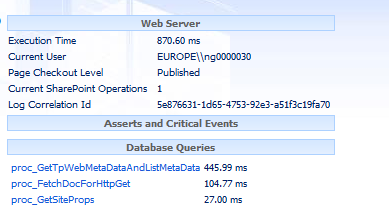
to enable the developer-dashboard run
Stsadm –o setproperty –pn developer-dashboard –pv “OnDemand”
An excellent article about the developer dashboard is here
Output Cache
SharePoint server can use the ASP.NET output cache, which can help can help improve page response times by caching ASPX pages in memory, this only works for Publishing pages, use Site Collection Administration settings to get to the Output cache settings page.

Once you have enabled the cache switch on “Enable debug cache information on pages” this will add an extra comment at the end of the HTML markup of a web page indicating if the cache has been used.
<!– Rendered using cache profile:Extranet (Published Site) at: 2012-06-07T12:11:42 –>
or not used
<!– 8 Output cache not used. Reason: User can view an unpublished version of the current page. –>
Object Cache
Enabled by default at 100 MB, you can make this larger but remember your memory allocations !
Blob Cache
This is probably the most over looked, but most useful cache available in SharePoint
The BlobCache this is disabled by default, but it allows files and images to be stored in a folder on your WFE server rather then being fetched from the SQL Server for each request.
This is of particular value for large image and movie files, to enable the BlobCache pick a non-system drive on your WFE for your store, then locate the line below in the web.config for the Web App in question and update the drive location and set the enabled value to true
<BlobCache location="C:\BlobCache\14" path="\.(gif|jpg|jpeg|jpe|jfif|bmp|dib|tif|tiff|ico|png|wdp|hdp|css|js|asf|avi|flv|m4v|mov|mp3|mp4|mpeg|mpg|rm|rmvb|wma|wmv)$" maxSize="10" enabled="false" />
Don’t forget to backup your web.config before making changes as it a quick way to break SharePoint, also no need for an IIS reset as SharePoint will re-read the web.config as soon as its saved.
for more information about SharePoint caching, see the white paper at this location.
http://www.microsoft.com/en-us/download/details.aspx?id=12768
Happy SharePointing !
Follow @NeilKing41
Take control of your log files
Everyone knows about SharePoint’s ULS logs, these are written by the SharePoint tracing service.
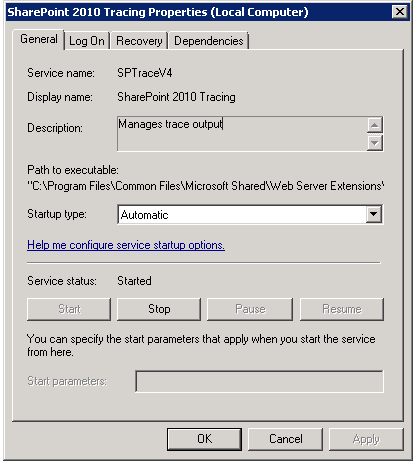
To the location set in Central Admin –> Monitoring –> Configure Diagnostic logging

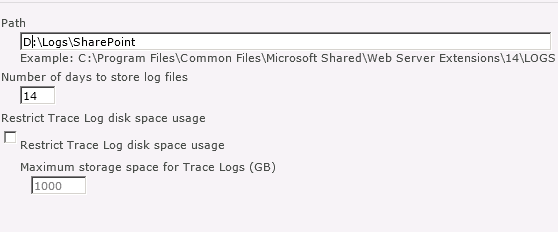
You also have a couple of options to control the number of logs created and /or the amount of space used making SharePoint log space friendly, you should be writing the logs to a non-system drive.
But what about IIS ? In IIS logging can either be on or off, and you can change their location, but that’s about it.
From the IIS console select Logging and open the feature
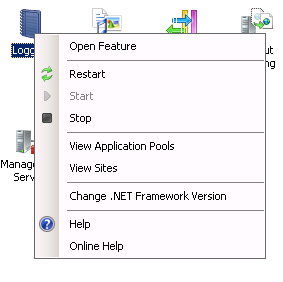
From here you can set the location for the IIS logs, a location set here will be used for all the sites on the server, and it should be on a non-system drive.
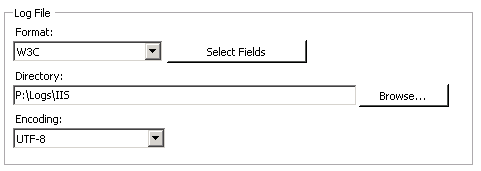
The IIS log location will look something like this, with a number of sub-folders, one for each web application.
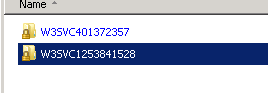
the folder names (after the W3SVC) will tally with web site id shown in IIS

each folder will contain a number if log files, normally one created per day.

This folder names will be the same on all your servers as the site ids are replicated, the only problem with this is that the IIS logs never get cleaned-up. To help address this I have written a quick PowerShell script, that will delete log files over 30 days old.
# PS script used to delete IIS logs from sub folders
# set the location to start from
# $location = "D:\logs\iis" use the lines below to read in a location from the command line
$location = $args[0]
if (! $location)
{$location= Read-Host "Enter location to cleanup"}
# get a reference to each file from each subfolder by using the -recursive switch.
foreach ($File in get-childitem $location -Recurse -Include *.log)
# check the lastwrite time and delete if necessary
{if ($File.LastWriteTime -lt (Get-Date).AddDays(-30))
{del $File}}
The location can either be set in the script or read in when you run it, the –Recuse argument causes Get-Child item to walk through nested folders, with the –Include argument putting a filter on log files, with the –30 value specifying how old a file has to be in days to be deleted.
This can wrapped in a simple batch file and called from a weekly scheduled task to keep your IIS files under control.
Follow @NeilKing41
Forefront 2010 Protection for SharePoint
Recently I have looking at some performance issues relating to Forefront 2010 Protection for SharePoint (FPSP).
Most people will be be familiar with Forefront Endpoint Protection (FEP) for Windows clients and servers, but with FPSP installed on your SharePoint servers you can benefit from the following features.
- Stops malware more effectively through integration of multiple industry-leading scanning engines
- Blocks dangerous attachments from being posted or downloaded with file filtering
- Prevents the upload or download of out-of-policy content with keyword filtering
In essence FPSP sits in-between your SharePoint service and its content and can scan content on upload and download, and this can can have an impact on both server performance and content upload and download times, it does this by installing its own API (VSAPI) ISAPI filter into IIS.
Another thing to be aware of is that the service account used by FPSP has some specific permission needs
1) Member of local Admins on each SharePoint server
2) Member of Farm Administrators
3) Member of the SQL Sysadmin role on the database server.
Watch out for number 3 as your DBA’s might have something to say.
By default FPSP installs with 4 scanning processes (this can be changed).
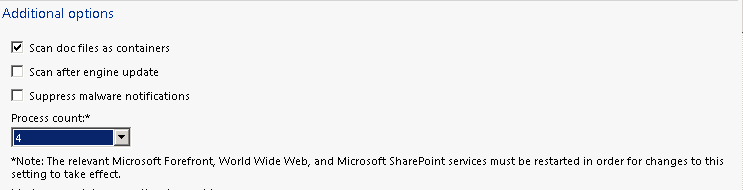
The scanning process show up in Task manager as FSCRealtimeScanner.exe, and they can consume quite a lot of memory.

and by default SharePoint will create 10 AntiVirus threads (again this can be changed) for each w3wp process SharePoint creates.
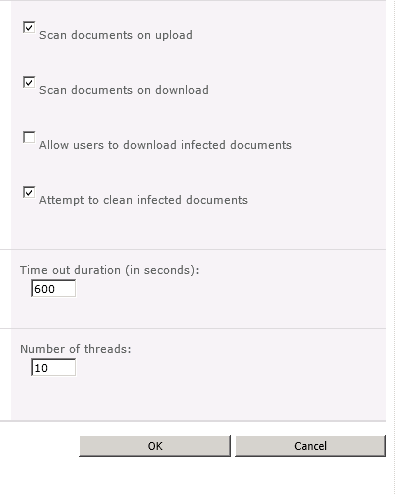
So if SharePoint is using 3 W3wp processes there will by default be 30 threads of execution served by 4 in memory processes, so you may need to play with these numbers to if you are seeing some performance issues.
Also don’t forget to add the appropriate folder exclusions in FEP for your SharePoint servers. If your using using SCCM to control FEP policies the following exclusions will be added automatically.

These are okay for a standard SharePoint 2007 or 2010 install, but if your install uses other locations don’t forget to add these.
A full list of location exclusions please see this article

Found an issue [WITH FIX] with SP2010 April 2012 CU : incoming emails not going to SharePoint
Issue :
Incoming emails to SharePoint are all configured properly and emails are being received in the server’s SMTP Drop folder but they stay there and are not picked up by SharePoint.
Troubleshooting :
Looking at ULS Logs the following error is showing :
E-mail cannot be delivered because site is over quota or locked for editing. Site URL: http://xxxx.
Researching :
A quick Google and it seem that CU April 2012 has raised this issue: http://blogs.msdn.com/b/george_bethanis/archive/2012/05/25/sps2010-cannot-send-incoming-emails-to-lists-libraries.aspx
SharePoint incoming email Fix :
Following the steps fixes the issue except for Nintex:
-> SharePoint Central Administration > Application Management > Configure quotas and locks > on the Site Quota Information section > set a limit (i.e: 5000 MB) on this setting: “Limit site storage to a maximum of:” > and then press “OK”.
Nintex issue :
I now work a lot with Nintex workflow and one of the greatest feature in the product is the ability to approve a task via email response called “Lazy Approval”.
The issue with the above is that Nintex drops the Lazy Approval emails in to a HIDDEN library under the Central Administration, therefore we need to set a quota to the Central Admin site as well but as you will experience there no way to select the Central Administration Web app when setting Quota.
Nintex Lazy Approval Fix :
I found the fix on the Nintex connect forum here.
1) get the storagemaximumlevel for Central Administration using PowerShell :
$ca = get-spsite -identity http://sharepointserver:portnumber
$ca.quota.storagemaximumlevel
Result should be 00000 since no quota is usually set for Central Admin site.
2) set a maximum quota
$ca.quota.storagemaximumlevel=80000000

No IISRESET is required and email will leave SMTP DROP Folder to be treated by Nintex Lazy Approval in a few seconds once Timer Job restarts.
Conclusion :
Seems that either not many environment use Incoming Emails to Sharepoint libraries or not many have upgraded to April 2010 CU since there isn’t much articles about this, hopefully the next CU will fix this issue otherwise make sure you include this workaround in your Sharepoint and Nintex configuration.
[Update] April 2012 CU was removed and re-releaed however it still does not fix the incoming email, making this look like a definite move to disable it by default.

#SharePoint 2007 full crawl schedule failing #in
So one of the members of support came over to discuss one of our managed service clients and their SharePoint 2007 implementation yesterday.
Now this client uses document management in a big way with a full crawl index taking approximately 40 hours to run. So understandably it is scheduled to run once a week over the weekend with incremental crawls scheduled every 20 minutes or so to bring new files into the search results.
The Problem
Although the incremental crawl was scheduling and completing as expected. The full crawl was missing the schedule time.
However, upon testing a manual full crawl the weekend before, this completed without issue.
The Solution
It would appear that the OWS Timer Service cache had corrupted in some way and had to be cleared out using the following method:
- Stop the OWSTIMER service on the problem SharePoint WFE server in the farm.
- On the problem server, navigate to:
Server 2003 location: Drive:\Documents and Settings\All Users\Application Data\Microsoft\SharePoint\Config\GUID and delete all the XML files from the directory.
Server 2008 location: Drive:\ProgramData\Microsoft\SharePoint\Config\GUID and delete all the XML files from the directory. - Delete all the XML file in the directory. NOTE: ONLY THE XML FILES, NOT THE .INI FILE.
- Open the cache.ini with Notepad and reset the number to 1. Save and close the file.
- Start the OWSTIMER service on the server and wait for XML files to begin to reappear in the directory.
- IIS Reset (just for good measure)
- Thanks to this blog post for some much need guidance:
http://blogs.tamtam.nl/duarte/2008/12/19/SharePoint2007TimerJobsNotWorking.aspx
If you remember way back to October last year, we solved a different issue with the same method in SharePoint 2010 when a web front-end was not responding properly after a content database restore:
And that’s it. Another problem solved…


 SharePoint (and Project Server) Shenanigans
You must be logged in to post a comment.