Archive
#SharePoint 2010 setup error: Cannot connect to database master at #sp2010 #ps2010 #sp2013
The issue occurred while running SharePoint 2010 setup, after installing pre-requisites, and following first few initial screens of setup wizard. Once reached to the point where you can enter SharePoint database server name, and credentials which can be used to talk to database server. You may see this error:
Cannot connect to database master at SQL Server at <server_name>. The database might not exist, or the current user does not have permission to connect to it.
Now if you have followed the recommended technet article to setup service accounts and permission, this error might be little misleading at the start. But root cause of the issue is completely valid.
There is already a very detailed and helpful blog is available for you to follow to start troubleshooting:
http://blogs.technet.com/b/tothesharepoint/archive/2011/01/12/troubleshooting-sharepoint-configuration-error-cannot-connect-to-database-master-at-server-name.aspx
The possible causes of that error are as follows, first 2 are available in this blog, and the 3rd is the one i found and is the reason of this post:
- Permissions of the account used to configure has correct permission within SQL based on technet article.
- SQL Server in windows firewall required port, by default its 1433, is allowed to receive traffic from SharePoint application server.
- Verify that user through which you are running setup has got permissions to login to SQL Server. Yes, its very common in production or customer environments that you use different credentials to login to server than to the one you use to for deployment. Now either allow that user login permission to SQL Server by going to SQL Server and adding that user under logins within security of SQL Server. Or, run the setup as an administrator. In fact a good practice, is to always run the setup as an administrator to avoid such glitches.
Have a good day at work.
via All about Enterprise Project Management (EPM) http://khurramjamshed.blogspot.com/2014/01/sharepoint-2010-setup-error-cannot.html
   The author of the blog has an extensive experience of working as an EPM Consultant. Currently he is located in Dubai, UAE and working for Microsoft partner organization as Project Server specialist. He has a thorough experience of providing Project Management technical/functional consultancy to all sort of organizations. He is a certified PMP, a Project Server MCITP, and also received a MS community contributor award 2011.
This article has been cross posted from khurramjamshed.blogspot.com/ (original article) |

Year 2013 Passed, A new to come..
For me the year starts with some big fireworks display, as Dubai has plan to create a world record of biggest fireworks at new year. It was fun to witness such historic moment, at the same time a little guilt that this enormous amount of money could be used to something more useful.

via All about Enterprise Project Management (EPM) http://khurramjamshed.blogspot.com/2014/01/year-2013-passed-new-to-come.html
|
The author of the blog has an extensive experience of working as an EPM Consultant. Currently he is located in Dubai, UAE and working for Microsoft partner organization as Project Server specialist. He has a thorough experience of providing Project Management technical/functional consultancy to all sort of organizations. He is a certified PMP, a Project Server MCITP, and also received a MS community contributor award 2011.
This article has been cross posted from khurramjamshed.blogspot.com/ (original article) |

#ProjectServer 2013/2010 Dec CU is available #sp2013 #ps2013
You can find the details of Project Server 2013/2010 installation package here: http://blogs.technet.com/b/projectsupport/archive/2013/12/12/microsoft-project-server-2010-and-2013-december-cu-announcement.aspx
Note, as usual, that this should be applied to test environment first prior to production. Also Mar 2013 CU is been set as baseline for all Project Sever 2013 CUs, so install Mar 2013 CU first.
Dec CU includes fix to one of the commonly encountered issue:
- Assume that you change values for fields such as Project Owner and Name on a Project Detail Page (PDP) in Project Web App. When you save and refresh the page, the values are reverted to what they were before the change.
Happy patching and Happy New Year to everyone ….
via All about Enterprise Project Management (EPM) http://khurramjamshed.blogspot.com/2013/12/projectserver-20132010-dec-cu-is.html
|
The author of the blog has an extensive experience of working as an EPM Consultant. Currently he is located in Dubai, UAE and working for Microsoft partner organization as Project Server specialist. He has a thorough experience of providing Project Management technical/functional consultancy to all sort of organizations. He is a certified PMP, a Project Server MCITP, and also received a MS community contributor award 2011.
This article has been cross posted from khurramjamshed.blogspot.com/ (original article) |

Bulk Import tool – (401) Unauthorized error #ProjectServer #PS2010 #SP2010
Before i proceed, please note that Bulk Import tool was released along with the release of Project Server 2010 and to be used with Project Server 2010. Till date, i am not sure, if Bulk Import tool without modification will work with Project Server 2013. This issue, and its resolution, is for Project Server 2010 environment.
Some time back Andrew Lavinsky had discuss Bulk Import tool feature in great detail through his blog, a blog worth every minute of your time. Please go through these blog posts if you are interested to use Bulk Import tool:
My post is to highlight the following issue you may come across while trying validating Site URL:
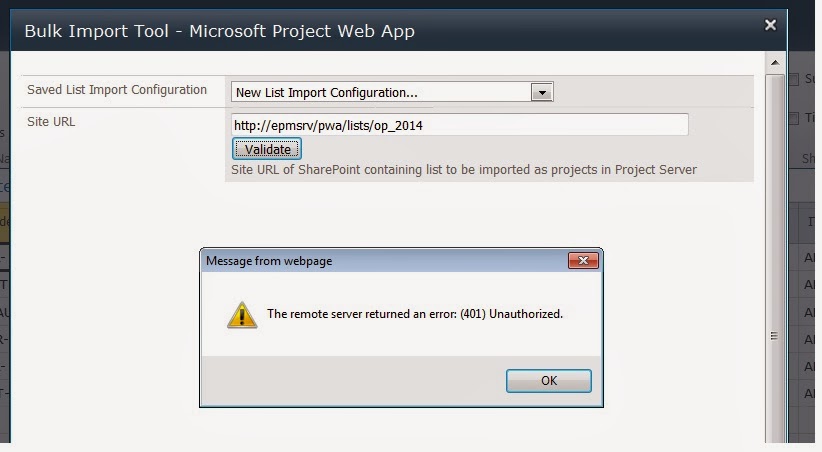
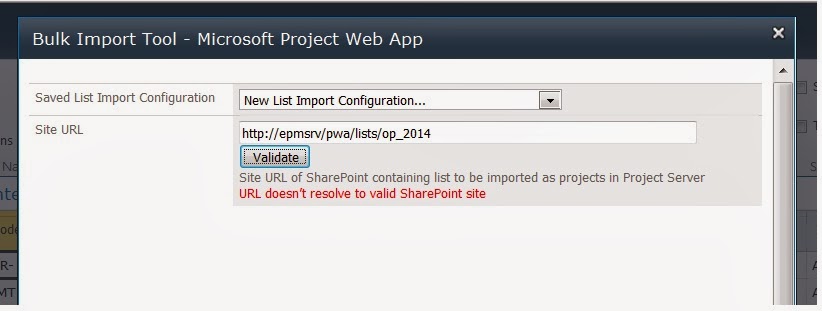
via All about Enterprise Project Management (EPM) http://khurramjamshed.blogspot.com/2013/12/bulk-import-tool-401-unauthorized-error.html
|
The author of the blog has an extensive experience of working as an EPM Consultant. Currently he is located in Dubai, UAE and working for Microsoft partner organization as Project Server specialist. He has a thorough experience of providing Project Management technical/functional consultancy to all sort of organizations. He is a certified PMP, a Project Server MCITP, and also received a MS community contributor award 2011.
This article has been cross posted from khurramjamshed.blogspot.com/ (original article) |

#SharePoint 2013 SP1 on the way … #SP2013 #Office2013
via All about Enterprise Project Management (EPM) http://khurramjamshed.blogspot.com/2013/11/sharepoint-2013-sp1-on-way-sp2013.html
|
The author of the blog has an extensive experience of working as an EPM Consultant. Currently he is located in Dubai, UAE and working for Microsoft partner organization as Project Server specialist. He has a thorough experience of providing Project Management technical/functional consultancy to all sort of organizations. He is a certified PMP, a Project Server MCITP, and also received a MS community contributor award 2011.
This article has been cross posted from khurramjamshed.blogspot.com/ (original article) |

Improvise #ProjectServer 2013 #CU installation time #SP2013 #PS2013 #CU
Just before this blog, a normal time i have experienced to install any CU on Project Server 2013 servers, were some where between 4-5 hrs and some time more than that as well 😦 and this duration is for 1 CU only, imagine if you have to install more than 1 CU which is common as March CU is a pre-requiste for any new CUs to be installed.
Which means, that either you plan to start the installation at day end, so that next day when you will resume work you only have to wait for configuration wizard to be finished
you can sit idle and stare at that progress bar on your screen, moving as slowly as any slowest turtle exist on planet earth, and curse yourself that why have you started the installation at this time.
I have been look for ways to improvise the duration of installation of CU, and the good news is that there is a way to install the same CU with the duration time of between 30-45 mins … yea you are reading it rite, its mins NOT hrs 🙂
Credit for this goes to Russ Maxwell, who brought this solution forward. And i am re-posting this good to spread to Project server community, because its equally painful for us as well 🙂
From the start the suspect in this whole case, i.e. why CU takes so long, are the SharePoint services running on the server such as App fabric/search etc. As they consume most part of CPU, and push windows installer to a lower priority to consume CPU time.
So here is a Power-Shell script to automate and speed up the installation process by disabling SharePoint server services gracefully. The scirpts performs the following steps:
- Disable the IISAdmin and SPTimerV4 service
- Shut down IIS Admin and Timer Services if they are running
- Give you the option to Pause the Search Service Application (see search notes below)
- Stop Search Services (see search notes below)
- Install the patch in passive mode (No user interaction required but will witness the patch install in the UI). Note: Power Shell should remain open in the background while patch is running.
- Upon completion of the patch, the Power Shell script, services in step 1 are set to Automatic
- Starts up IIS Admin and Timer Services
- Starts up Search Services
- Resume the Search Service Application if it was paused
- Finally, the script will display the Start Time and End Time for patch install
The script can be downloaded from the script gallery below:
http://gallery.technet.microsoft.com/scriptcenter/Server-2013-automate-and-833aeb0b
A walkthrough using the script is below:
Copy the script and CU in the same folder, note that only one CU should be placed in the folder and file extension should be .exe.
Open the power shell and run the script, i recommend to pause search service application here by choosing 1. The screen shots below are of Project Server 2013 JUN CU installation on my server:
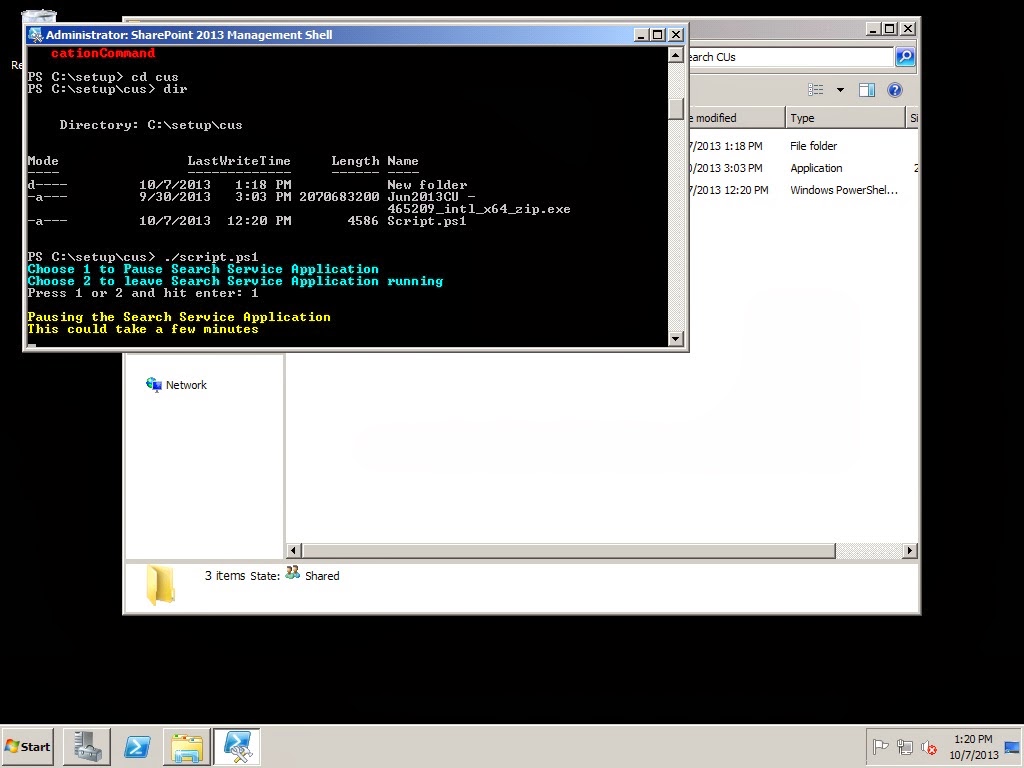
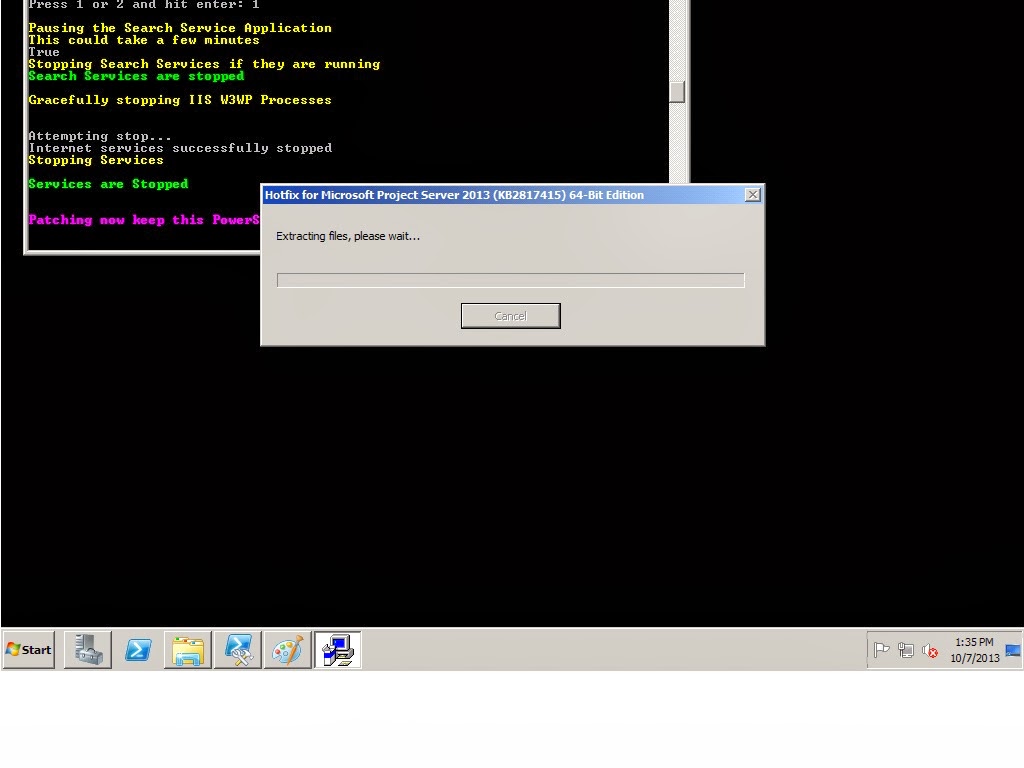
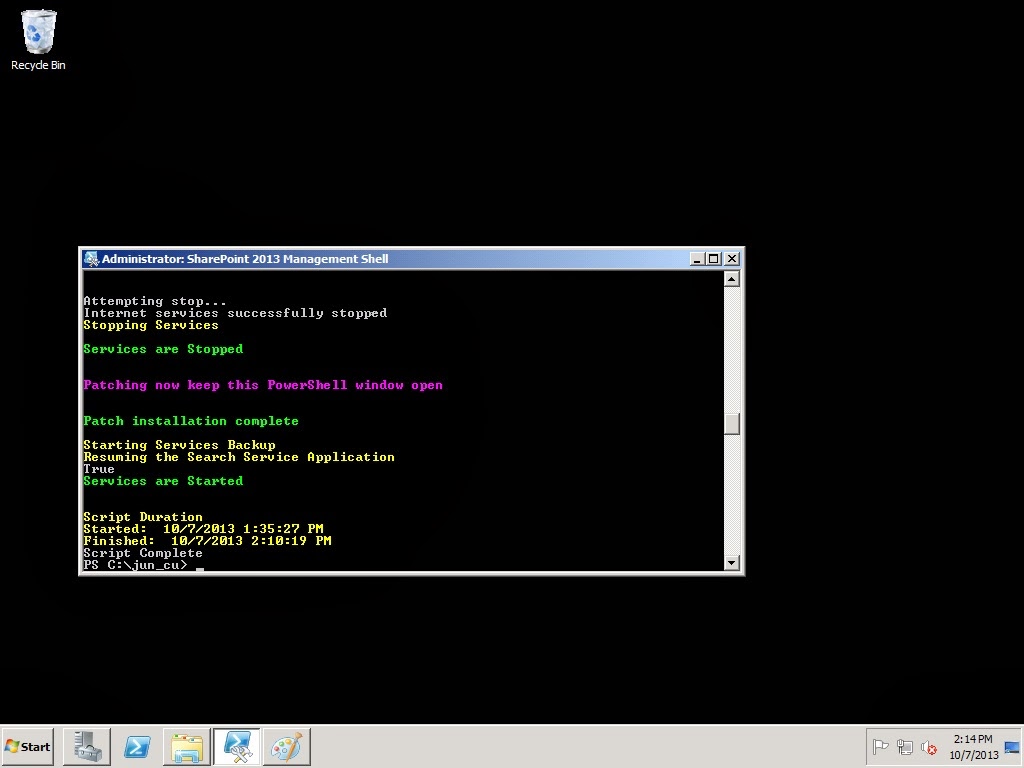
Notice the installation time of JUN CU, 35 mins, voila 🙂
Happy patching.
via All about Enterprise Project Management (EPM) http://khurramjamshed.blogspot.com/2013/10/improvise-projectserver-2013-cu.html
|
The author of the blog has an extensive experience of working as an EPM Consultant. Currently he is located in Dubai, UAE and working for Microsoft partner organization as Project Server specialist. He has a thorough experience of providing Project Management technical/functional consultancy to all sort of organizations. He is a certified PMP, a Project Server MCITP, and also received a MS community contributor award 2011.
This article has been cross posted from khurramjamshed.blogspot.com/ (original article) |

Office Web Apps Server 2013 – Unable to preview/create/edit through web #SP2013 #PS2013 #OWA2013
Follow these very detailed and helpful TechNet article in order to prepare Office Web App server , and then bind it with your SharePoint server later to make it work.
- Plan office Web Apps Server
- Deploy Office Web Apps Server
- Configure SharePoint 2013 to use Office Web App Server
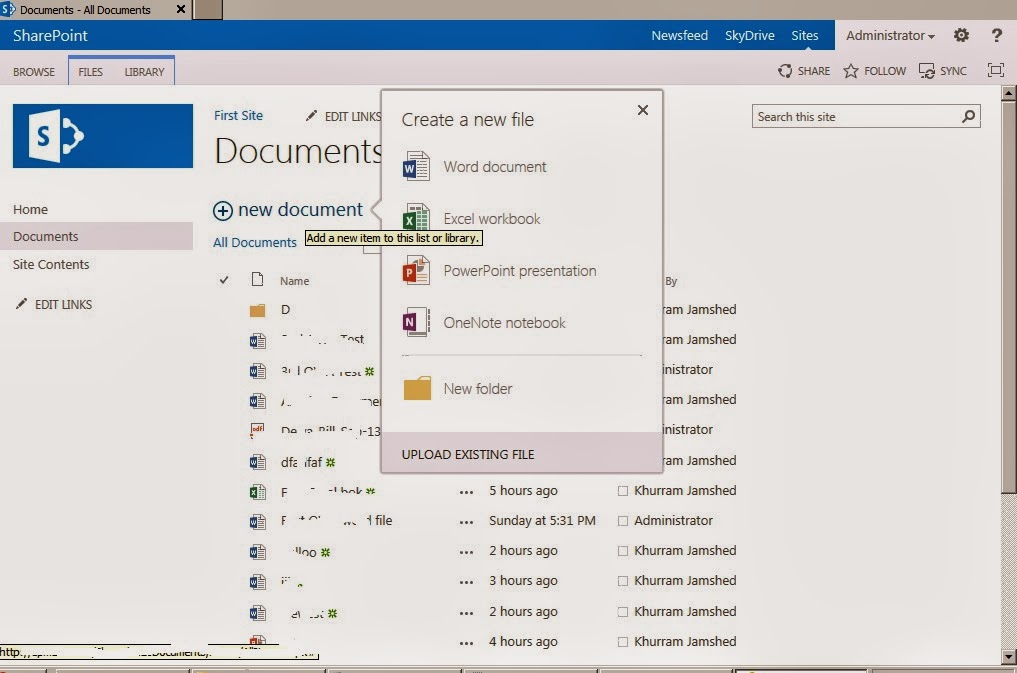
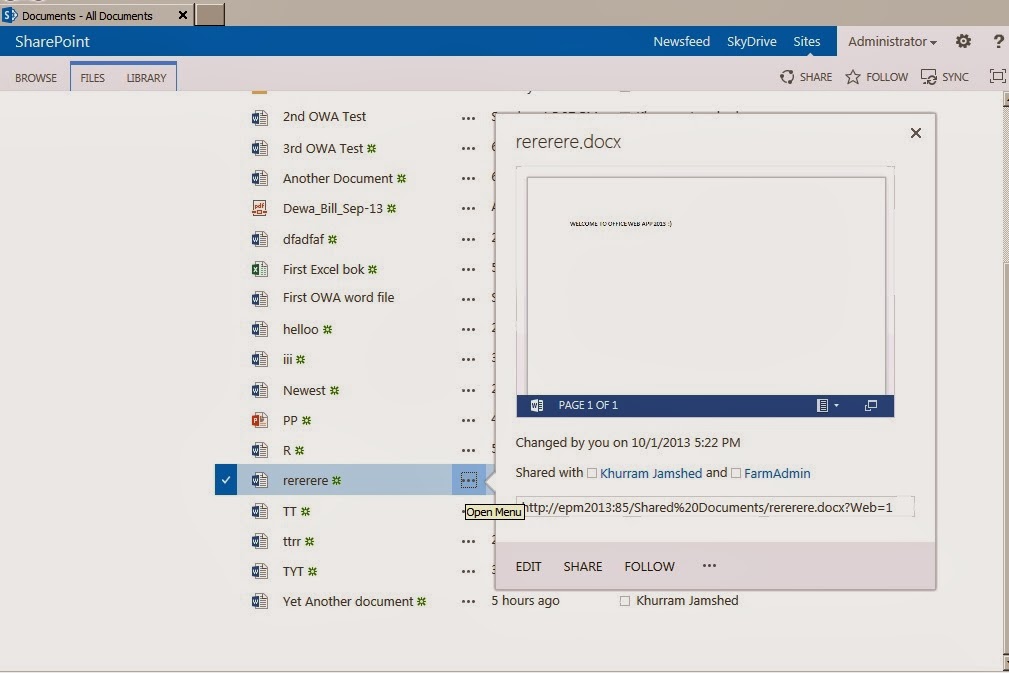
via All about Enterprise Project Management (EPM) http://khurramjamshed.blogspot.com/2013/10/office-web-apps-server-2013-unable-to.html
|
The author of the blog has an extensive experience of working as an EPM Consultant. Currently he is located in Dubai, UAE and working for Microsoft partner organization as Project Server specialist. He has a thorough experience of providing Project Management technical/functional consultancy to all sort of organizations. He is a certified PMP, a Project Server MCITP, and also received a MS community contributor award 2011.
This article has been cross posted from khurramjamshed.blogspot.com/ (original article) |

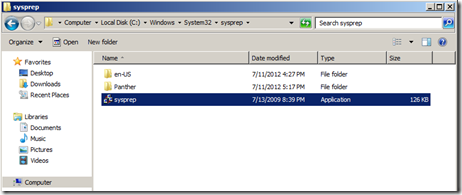
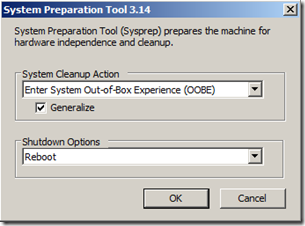
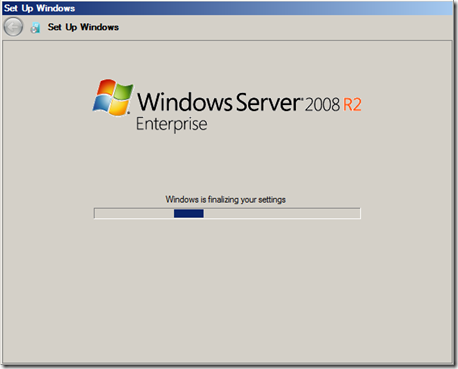
Virtual Machine – Duplicate SID issue #VM #Clonning #SID #SP2013 #PS2013
No mapping between account name and security SIDs was done


via All about Enterprise Project Management (EPM) http://khurramjamshed.blogspot.com/2013/09/virtual-machine-duplicate-sid-issue-vm.html
|
The author of the blog has an extensive experience of working as an EPM Consultant. Currently he is located in Dubai, UAE and working for Microsoft partner organization as Project Server specialist. He has a thorough experience of providing Project Management technical/functional consultancy to all sort of organizations. He is a certified PMP, a Project Server MCITP, and also received a MS community contributor award 2011.
This article has been cross posted from khurramjamshed.blogspot.com/ (original article) |

#Project and #ProjectServer 2010 SP2 released #PS2010 #SP2010 #Project2010
The Service Packs contain all cumulative fixes since SP1, starting with the June 2011 Cumulative Update (CU) and the July 2011 Public Update (PU) all the way through to the April 2013 CU and May 2013 PU. The Service Packs also contain previously unreleased fixes. In addition to general product fixes, these fixes include improvements in stability, performance, and security.The complete list of fixes is available here.
All the download are available through Microsoft download center, and the link to each download is as below:
More details related to update are here.
via All about Enterprise Project Management (EPM) http://khurramjamshed.blogspot.com/2013/07/project-and-projectserver-2010-sp2.html
|
The author of the blog has an extensive experience of working as an EPM Consultant. Currently he is located in Dubai, UAE and working for Microsoft partner organization as Project Server specialist. He has a thorough experience of providing Project Management technical/functional consultancy to all sort of organizations. He is a certified PMP, a Project Server MCITP, and also received a MS community contributor award 2011.
This article has been cross posted from khurramjamshed.blogspot.com/ (original article) |

#ProjectServer 2013 Issue: The Server was unable to save the form at this time. Please try again. #PS2013 #SP2013 #SPS2013
After successfully completing the configuration wizard, i was browsing project site to relate document to particular task in project to verify if the absence of icon issue is resolved. So first to confirm that its not resolved by Apr CU, i.e. document indicator still not appearing along with the task in project views, however document indicator will appear in project center views along with the project name.
But this is not the issue i am blogging it about 🙂
While verifying this issue, i came across another issue i.e. when trying creating risk/issue i found this message at the bottom of the page:
The Server was unable to save the form at this time. Please try again.
via All about Enterprise Project Management (EPM) http://khurramjamshed.blogspot.com/2013/06/projectserver-2013-issue-server-was.html
|
The author of the blog has an extensive experience of working as an EPM Consultant. Currently he is located in Dubai, UAE and working for Microsoft partner organization as Project Server specialist. He has a thorough experience of providing Project Management technical/functional consultancy to all sort of organizations. He is a certified PMP, a Project Server MCITP, and also received a MS community contributor award 2011.
This article has been cross posted from khurramjamshed.blogspot.com/ (original article) |


 SharePoint (and Project Server) Shenanigans
You must be logged in to post a comment.