Archive
Take control of your log files
Everyone knows about SharePoint’s ULS logs, these are written by the SharePoint tracing service.
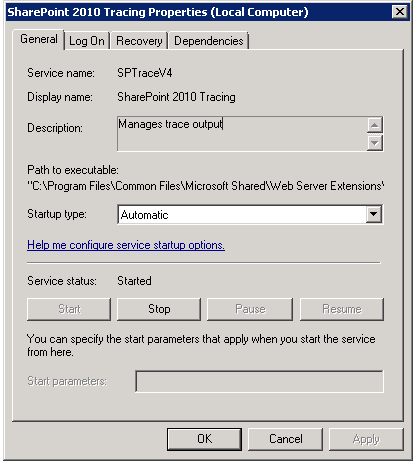
To the location set in Central Admin –> Monitoring –> Configure Diagnostic logging

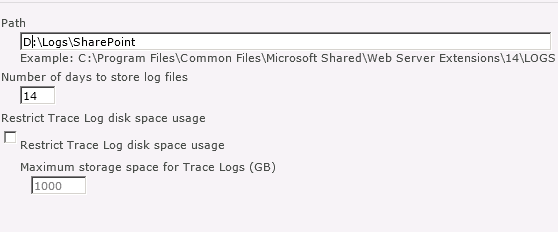
You also have a couple of options to control the number of logs created and /or the amount of space used making SharePoint log space friendly, you should be writing the logs to a non-system drive.
But what about IIS ? In IIS logging can either be on or off, and you can change their location, but that’s about it.
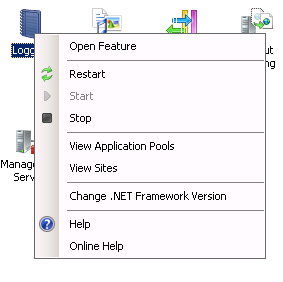
From the IIS console select Logging and open the feature
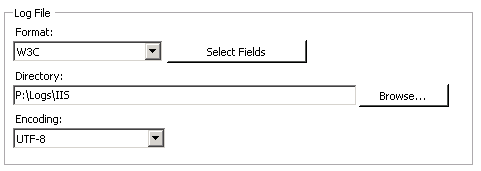
From here you can set the location for the IIS logs, a location set here will be used for all the sites on the server, and it should be on a non-system drive.
The IIS log location will look something like this, with a number of sub-folders, one for each web application.
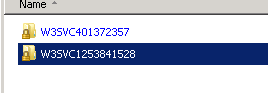
the folder names (after the W3SVC) will tally with web site id shown in IIS

each folder will contain a number if log files, normally one created per day.

This folder names will be the same on all your servers as the site ids are replicated, the only problem with this is that the IIS logs never get cleaned-up. To help address this I have written a quick PowerShell script, that will delete log files over 30 days old.
# PS script used to delete IIS logs from sub folders
# set the location to start from
# $location = "D:\logs\iis" use the lines below to read in a location from the command line
$location = $args[0]
if (! $location)
{$location= Read-Host "Enter location to cleanup"}
# get a reference to each file from each subfolder by using the -recursive switch.
foreach ($File in get-childitem $location -Recurse -Include *.log)
# check the lastwrite time and delete if necessary
{if ($File.LastWriteTime -lt (Get-Date).AddDays(-30))
{del $File}}
The location can either be set in the script or read in when you run it, the –Recuse argument causes Get-Child item to walk through nested folders, with the –Include argument putting a filter on log files, with the –30 value specifying how old a file has to be in days to be deleted.
This can wrapped in a simple batch file and called from a weekly scheduled task to keep your IIS files under control.
Follow @NeilKing41
Useful virtualisation links #SP2010 #SharePoint #in
Once again, writing tenders and needed to provide evidence of supported platforms for virtualisation:
Virtualisation support and licencing (SharePoint Server 2010)
Supported virtualisation platforms – listed here:
Virtualisation planning (SharePoint Server 2010)
Virtualisation notes (SharePoint Server 2010 – Bill Baer)

Office 365 / #SharePoint 2010 Accessibility Compliance Links #O365 #SP2010 #in
As part of responding to a tender, I needed to do some research on SharePoint 2010 / Office 365 and accessibility compliance. Here are some links that I found…
Office 365 / SharePoint 2010 – Accessibility Compliance
- http://blogs.technet.com/b/whymicrosoft/archive/2012/01/19/why-microsoft_3f00_-office-365-is-accessible.aspx
- http://sharepoint.microsoft.com/blog/Pages/BlogPost.aspx?PageType=4&ListId=%7b72C1C85B-1D2D-4A4A-90DE-CA74A7808184%7d&pID=431
Office 365 Help:
Conformance statement AA-level (SharePoint Foundation 2010)
Office Web Apps:
#SP2010 #PS2010 Performance Links
Some useful links for Capacity Performance and Management
SharePoint 2010
Capacity management and sizing overview
http://technet.microsoft.com/en-us/library/ff758647.aspx
Software boundaries and limits
http://technet.microsoft.com/en-us/library/cc262787.aspx
Performance and capacity test results / recommendations
http://technet.microsoft.com/en-us/library/ff608068.aspx
Performance and capacity technical case studies
http://technet.microsoft.com/en-us/library/cc261716.aspx
InfoPath Form Services – performance and capacity requirements
http://technet.microsoft.com/en-us/library/gg576954.aspx
Project Server 2010
Plan hardware architecture
http://technet.microsoft.com/en-us/library/hh297440.aspx
Software Boundaries (Project Server 2007)
http://technet.microsoft.com/en-us/library/cc197693(v=office.12).aspx
SSRS Web Part Performance 2008 R2 vs. 2012 Initial Results #SharePoint #SP2010 #in
On one of my client projects, we heavily use SQL Server Reporting Services in SharePoint integration mode.
The benefits in comparison to Native mode are primarily around the RS SharePoint Add-in which allows us to use query string (URL) filter web parts to pass parameters to reports and create powerful dynamic dashboards as well as using SharePoint to permission and store the reports.
There is an issue however. Performance in this mode is not amazing, as detailed here:
- http://sqlcat.com/sqlcat/b/technicalnotes/archive/2010/11/03/reporting-services-performance-in-sharepoint-integrated-mode-in-sql-server-2008-r2.aspx
- http://connect.microsoft.com/SQLServer/feedback/details/635080/ssrs-2008-r2-and-sharepoint-2010-performance-issues
- http://www.sqlchick.com/entries/2011/1/25/whats-up-with-the-slow-ssrs-r2-rendering-in-sharepoint-2010.html
- http://blogs.msdn.com/b/prash/archive/2011/06/11/performance-of-ssrs-in-sharepoint-mode-reports-in-full-page-view-in-sharepoint-2010.aspx
Now that SQL Server 2012 has gone to RTM, we can start to get a measure of how well the new web part performs and I am pleased to say that the improvements appear to be great so far…
The Scenario
- SharePoint Version: 2010 SP1 – December 2011 CU with Project Server
- DB Server: SQL Server 2008 R2 SP1
- SSRS Version: 2008 R2 SP1
- SSRS Add-in: 2012 (Denali) – RTM
- Server Architecture: 1 x WFE / App Server (Virtual) + 1 x SQL Server (Virtual)
NB: All testing has been carried out on our DEV server, please always try out new software on a development / test environment first to ensure the benefits and to safe guard production from issues.
The Reports:
Table based reports rolling up Project Server and SharePoint data based on parameters provided by the end user (Cannot show due to client confidentiality I’m afraid).
The Results:
Now this is just a teaser really since we will be doing full testing on our master development environment, but for now…
Project Portfolio Table Report
- Number of returns items: 17 rows
- Number of parameters: 1 (Portfolio ID)
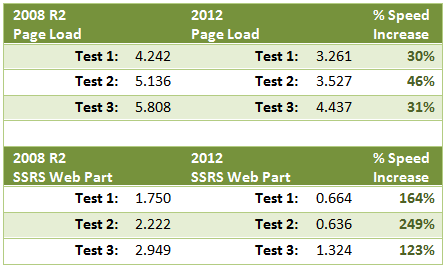
NB: All time taken in seconds using Fiddler2
 |
 |
 |
 |
As you can see, we are seeing significant time increases with the new web part and within my client we have the go ahead to carry out further testing.
More useful links:
- SSRS 2012 Installation – Liam Cleary: http://blog.helloitsliam.com/Lists/Posts/Post.aspx?ID=66
- Installing SSRS 2012 without upgrading your DB Server: Todd Klindt: http://www.toddklindt.com/blog/Lists/Posts/Post.aspx?ID=324
- MSDN: http://technet.microsoft.com/en-us/library/hh231671.aspx

#SP2010 web part rounded corners #SharePoint #PS2010 #ProjectServer #MSProject #in
At one of my clients I was asked to document how we achieved rounded corners on web parts. So as a result, I figured a blog post about it would be useful.
Now when I first implemented this (almost 2 years ago!) as the 2010 product RTM’d, I based it on the only blog post around at the time:
- The end result looks like this:

NB: Please note that this version is slightly modified from the version supplied on the blog link above.
In my implementation I was using the jQuery version available at the time:
- jQuery 1.5.1
- jQuery UI 1.8.13
Although jQuery UI is not required, it is always good to have for those awesome calendar pop-ups just in case.
This may work with the newer versions of jQuery, but I haven’t tried it out yet.
Example CSS, JavaScript and rounded corner image files are provided at the bottom of the post.
So without further ado, lets go through how to achieve the rounded corners in SharePoint 2010:
What does the code actually do?
With every page refresh, the JavaScript code, determines where all the web parts on the page are and injects appropriate mark up (<DIV>) above and below each web part, ready to be styled by CSS.
Step 1. Upload your reference files
Personally I like to store all my custom files within the Style Library within SharePoint, but they can live anywhere within SharePoint as long as all users have read access to them.
So lets take a look at what we are storing.
Standard Plug-In Files:
- jquery-ui-1.8.13.custom.css
- jquery-1.5.1.min.js
- jquery-ui-1.8.13.custom.min.js
You can download this version here:
- jQuery: http://docs.jquery.com/Downloading_jQuery#Past_Releases
- jQueryUI: http://jqueryui.com/download
The latest versions are available here:
Custom Files
- <custom JavaScript file>.js
- <custom CSS file>.css
These files are where we will implement the JavaScript and CSS code to produce the rounded corners on each web part.
Corner Image Files
The following files are used to create the rounded corner affect. To keep multi-browser support we are using this method, but you could replace them with CSS3 styling by changing the CSS code to achieve the same result.
- WPBottomLeft.gif
- WPBottomRight.gif
- WPTopLeft.gif
- WPTopRight.gif
Example files are provide below.
Step 2. Add your Master Page file references
Initially add the following references into <head> section of your Master Page, preferably just before the end tag </head>
<link type="text/css" href="/Style Library/jquery-ui-1.8.2.custom.css"
rel="Stylesheet" />

<script src="/Style Library/jquery-1.4.2.min.js"
type="text/javascript"></script>

<script src="/Style Library/jquery-ui-1.8.2.custom.min.js"
type="text/javascript"></script>
Now the above references are just standard plug-ins available from the jQuery website, but we also need to add some of our own JavaScript / jQuery magic, which of course needs its own reference file.
<script src="/Style Library/<customJavaScriptFile>.js" type="text/javascript"></script>
We also need to reference a custom CSS file, so that we can associate the corner images we will be using etc…
Publishing Feature enabled?
Now if you are using the Publishing feature, you can place your custom CSS via the Site Settings interface:
Site Actions > Site Settings > Under Look and Feel – Click “Master Page”
- (http://<server url>/_Layouts/ChangeSiteMasterPage.aspx)
Under the “Alternate CSS URL”, enter the URL for your custom CSS file, for example:
- /style library/<customCSSFile>.css
- NB: This will ensure it is the last CSS file referenced within the Master Page to allow for overrides.
Publishing Feature not-enabled?
If you you do not have the publishing feature enabled (Office 365 P1 or SharePoint Foundation 2010 for example), you can add the reference into the Master Page also.
<link type="text/css" href="/Style Library/{customCSSFile}.css"
rel="Stylesheet" />
Step 3. Adding the code
So now that we have our JavaScript, jQuery and CSS files setup in the Master Page, we can edit out custom files with the following code:
CSS Code (customCSSFile.css)
/* Web Part Chrome Styles – START */
.wpContainer {
padding-bottom:0px !important;
}
.wpTitleBorder, .wpBorderOnly {
background-color:#fff !important;
border-left:1px solid #c6c6c5 !important;
border-right:1px solid #c6c6c5 !important;
}
.ms-WPHeader td {
background-color:#ffffff !important;
border:0 !important;
padding:0 !important;
padding-top: 3px !important;
border-bottom: 1px #CECFCE solid !important;
}
h3.ms-WPTitle {
/* color:#36424a !important; */
font-size:15px !important;
font-weight:normal !important;
margin:-3px 0 0 0px !important;
padding:0 14px 4px 4px !important;
}
h3.ms-WPTitle a {
/* color:#36424a !important; */
font-size:15px !important;
font-weight:normal !important;
}
h3.ms-WPTitle nobr {
white-space:normal !important;
}
.ms-WPHeader td div.ms-HoverCellInActive {
margin:0 !important;
*padding:0 0 2px 0 !important; /* IE <8 fix */
}
.ms-WPHeader td .ms-HoverCellInActive {
margin:0 !important;
*padding:0 0 2px 0 !important; /* IE <8 fix */
}
.ms-WPHeader td .ms-HoverCellInActive img {
margin:0 0 2px 0 !important;
*margin:0 !important; /* IE <8 fix */
}
.ms-WPHeader img.ms-HoverCellInActive { /* Firefox */
padding:0 0 2px 0 !important;
}
.ms-WPHeader td .ms-HoverCellActiveDark {
border:0 !important;
margin:0 !important;
padding:0 0 2px 0 !important;
}
td.ms-WPBorder, td.ms-WPBorderBorderOnly {
border:0 !important;
padding:0px 0px !important;
}
.ms-WPBody {
font-family:Tahoma, arial, sans-serif !important;
font-size:11px !important;
padding:0 !important;
}
.ms-WPBody td, .ms-WPBody TD DIV, .ms-WPBody TD DIV A {
font-family:Arial, Tahoma, sans-serif !important;
font-size:11px !important;
}
.wpCornersTop {
background:url('/blog/Style Library/Images/WPTopRight.gif')
 top right no-repeat !important;
height:10px !important;
padding-right:10px !important;
}
.wpCornersTop div {
background:url('/blog/Style Library/Images/WPTopLeft.gif')
 0 0 no-repeat !important;
height:10px !important;
}
.wpCornersBtm {
background:url('/blog/Style Library/Images/WPBottomRight.gif')
 bottom right no-repeat !important;
height:11px !important;
padding-right:11px !important;
}
.wpCornersBtm div {
background:url('/blog/Style Library/Images/WPBottomLeft.gif')
 0 0 no-repeat !important;
height:11px !important;
}

/* Web Part Chrome Styles - STOP */
JavaScript / jQuery Code (customJavaScriptFile.js)
function wrapWebParts() {

//Find all divs (div.ms-WPBody) with an ID beginning
//with "WebPart". All web parts have unique IDs assigned
//to them, and they begin with "WebPart". Then traverse up
//the HTML document 4 levels and add the class "wp".

  $('td[id*=MSOZoneCell_WebPart]').children("table").addClass("wp");

//For web parts with the Title and Border chrome,
//add the class "wpTitleBorder" to the element
//with class "wp".

  $(".ms-WPBorder").parents(".wp").addClass("wpTitleBorder");

//For web parts with the Border Only chrome, add the class
//"wpBorderOnly" to the element with the class "wp".

  $(".ms-WPBorderBorderOnly").parents(".wp").addClass("wpBorderOnly");

//Find all table cells that have an ID beginning with
//'"MSOZoneCell" and add the class "wpContainer".

  $("td[id^=MSOZoneCell]").addClass("wpContainer");

//For web parts with the chrome type Title and Border or Border Only,
//add containers that can be used for rounded corners and other
//treatments

  //alert($(".wpTitleBorder").length);
  $(".wpTitleBorder").before('<div class="wpCornersTop"><div></div></div>')
     .after('<div class="wpCornersBtm"><div></div></div>');

  $(".wpBorderOnly").before('<div class="wpCornersTop"><div></div></div>')
     .after('<div class="wpCornersBtm"><div></div></div>');

  $("img[src*=/_layouts/images/blank.gif]")
    .attr("style", "display: none;");

  $('div[class=wpCornersBtm]').each(function() {
    var mainWPTable = $(this).prev();
    var inlineWidthStyle = mainWPTable.attr("style");
    var realWidthSplit = "";
    var realWidth = "";

    if (inlineWidthStyle != undefined) {
      realWidthSplit = inlineWidthStyle.split(":");
       realWidth = realWidthSplit[1].toLowerCase();
       realWidth = realWidth.replace("px", "");
       realWidth = parseInt(realWidth, 10);
       realWidth = realWidth + 13;

       $(this).attr("style", "width: " + realWidth + "px");
       $(this).prev().prev().attr("style", "width: "
          + realWidth + "px");
    }

  });

}

$(document).ready(function(){
   wrapWebParts();
});
And Finally…
The end result is this:

If we break this down, the jQuery code has discovered each web part on the page, added a <div> above and below the web part and then the CSS has styled it with the supplied image files referenced in the style sheet.

The code also takes into account the chrome type being used on the web part:
This results in the following:
Chrome Type: None

Chrome Type: Title and Border

Chrome Type: Title Only

Chrome Type: Border Only

Code Downloads:

SharePoint and Document Versioning within Word.
I was working with a client recently and looking at how they were using (or not in this case) versioning in document libraries, they were still in the NTFS mind-set, as shown by the example below.

To client was using the versioning that Word supplies and manually updating the document version number in the title each time a new version was uploaded into SharePoint.
I introduced them to the Major / Minor versioning settings within a document library, so we could at least get document versions working.

The only problem with this was that the client still wanted to have a version number on the document, as these were quite often printed.
This is a problem that I have seen before with SharePoint 2007 and have addressed with Information Management Policies, this is the first time I have had to set this up for SharePoint 2010, but the steps are similar. From your Doc Lib, go to Library Settings, –> Information management policy settings.


In this example I am using the Document content type, but you should be looking to use your own custom content type, to make the final solution more flexible.
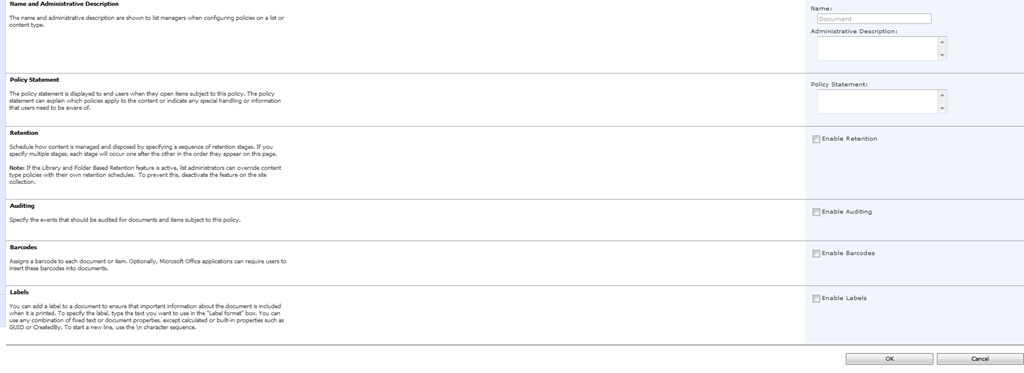
Tick the Enable Labels box, and in the label format type {Version}, click the Refresh button and make sure you see {_UIVersionString} in the Preview box.


We have now created a custom Label that will appear as a Quick Part within Word (the Word Doc has to be opened from SharePoint) that contains the SharePoint Version number.
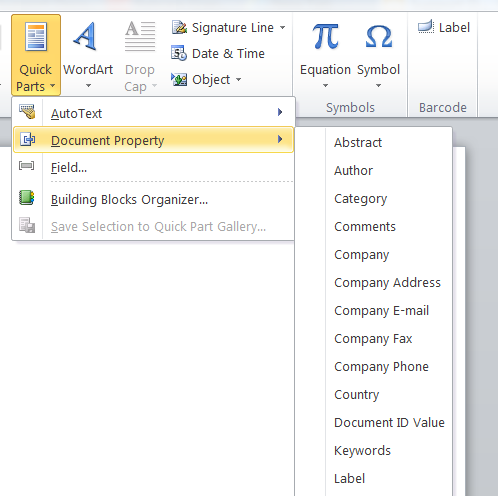

Once you have saved and re-opened your document you will now have a Label field linked to your SharePoint Version Number.
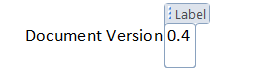
Enjoy the SharePoint Goodness.

#SP2010 and #PS2010 versions and the associated KB articles #SharePoint #ProjectServer #in
Following on from my colleagues post on finding the SharePoint Build Version via PowerShell (Link), I would just like to draw your attention to a list of SharePoint / Project Server versions that I maintain.
Links to the KB articles are also available along with the build version and the Cumulative Update / Service Pack that they are associated with.
How to access:
In the top menu of the site:

Screenshot:

I know that other people maintain similar lists, this is just my way of keeping on top of the versions for SharePoint and in particular Project Server.
Hopefully this is useful for others also.
Enjoy!

SharePoint 2010 Calendar Features
The SharePoint 2010 calendar has some interesting features for those clients NOT using exchange.
In the calendar General Settings page, there is a sharing option, this seems to change the calendars default view to the one shown below
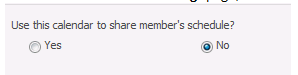

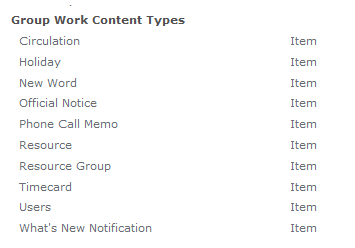
If you then activate the site feature Group Work Lists, you will see 3 more lists, and a load more content types

Also the Calendar General Settings page now has an option for resource reservation.
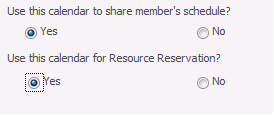
So if we add some resources to our resource list

We can then book a meeting and add a resource and check availability


Not a bad little solution for someone not using Exchange Calendars.

Showing the Audience Target field in an EditModePanel #SharePoint #SP2010 #in #ProjectServer #PS2010
I have been meaning to blog about this since the public beta of 2010 but never quite got round to it until now!
I was reminded of the functionality we implemented for a client recently that allowed the Audience Target field to appear in the Edit Mode Panel of a Publishing page layout.
You would think that it would be easier, but after lots of digging around we finally found a solution.
Firstly in the Page Layout we need to register a new reference at the top of the page:
<%@ Register
   TagPrefix="OfficeWebControls"
   Namespace="Microsoft.Office.Server.WebControls.FieldTypes"
   Assembly="Microsoft.Office.Server.UserProfiles, Version=14.0.0.0, Culture=neutral, PublicKeyToken=71e9bce111e9429c"
%>
With this new reference in place we can now implement the field in a standard EditModePanel way like so:
<PublishingWebControls:EditModePanel runat="server" PageDisplayMode="Edit">
   <table>
      <tr>
         <td>
            <span>
               Use if you wish to ‘push’ this content to a particular
               audience select here. Leaving it blank will make it
               available to all site users.
            </span>
            <br />
            <OfficeWebControls:SPFieldTargetToControl
               ID="Audience"
               runat="server"
               FieldName="Audience"
            />
         </td>
      </tr>
   </table>
</PublishingWebControls:EditModePanel>
Have fun!


 SharePoint (and Project Server) Shenanigans
You must be logged in to post a comment.