Archive
SharePoint its 1 step forward 2 steps backwards..
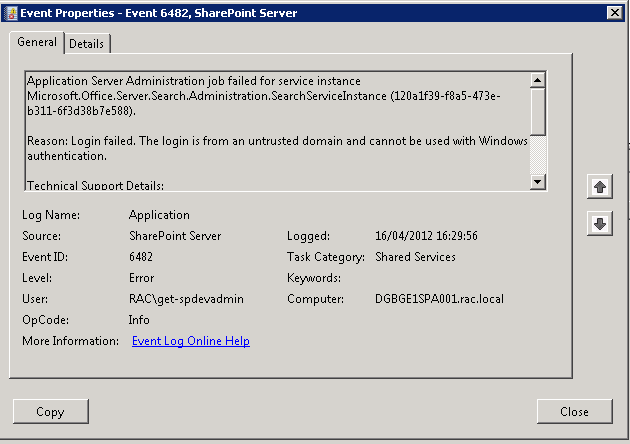
I was looking at a SharePoint 2010 farm recently to check out the Web-analytics reports and was quite shocked to not be able load the CA site I was simply getting a “Cannot connect to configuration database” error in the browser, and masses of Critical and Error warning messages in the WFE event logs, like the one below
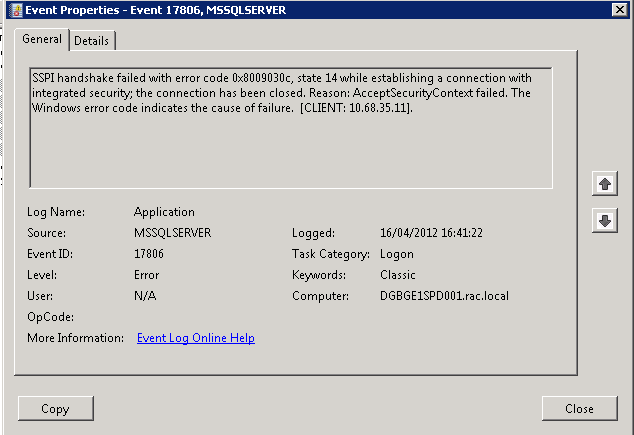
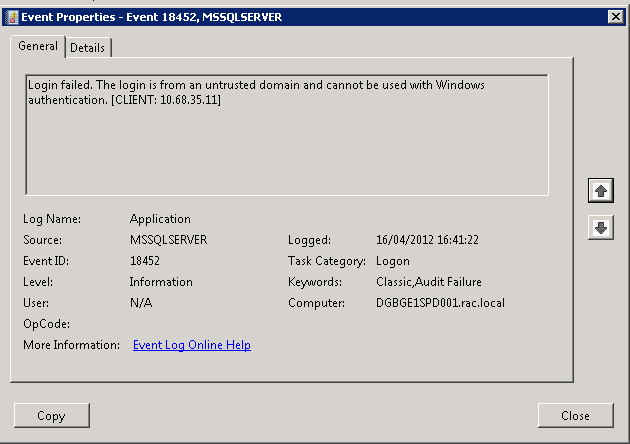
and mass of 17806 & 18452 SQL server errors in the application log on the SQL Server all for “untrusted domain” errors
But strangely enough the Portal site on this farm was still running so the users were unaware.
After much head scratching and several hours later we realised that the password for the account running the CA web app, the Farm account , had expired.. ( one of my colleagues logged on to one of the WFE’s as the farm account was prompted to change its password).
Once we had resolved that issue (changed the password back to its previous value and set it to non expiring ), I could get on and look at Web-Analytics..

SharePoint and PDFs
Everyone knows that the Adobe PDF iFilter can be used to index PDF files, so I was quite surprised to look at an SP2010 farm last week that was only sometimes showing the PDF icon, and sometimes a blank icon.
Of course the solution to this was obvious, this farm had 2 WFE servers and the icon file and DOCICON.XML file had only been updated on one server, so a couple a minutes later everything was working once I had updated the 2nd server.
Here are the Microsoft instructions on how to install the PDF iFilter http://support.microsoft.com/kb/2293357
but personally I prefer the Nick Grattan instructions.
http://nickgrattan.wordpress.com/2010/06/14/adobe-pdf-ifilter-indexing-with-sharepoint%C2%A02010/

SharePoint Patching and “Action Required”
The last 2 SharePoint 2010 systems I have looked at have displayed the “Action Required” status for one or more servers in the farm in the “Manage Servers in this Farm” page, which is normally caused by incorrect server patching.
When you apply a Service Pack or CU to your SP2010 farm, you are normally looking at performing a quite straight forward 3 stage process.
Stage 1: Obtain patch:
Download the latest Service Pack or CU from here:
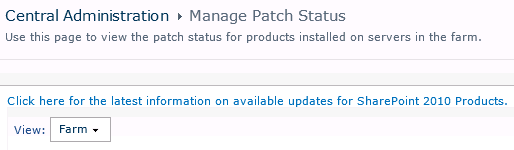
http://technet.microsoft.com/en-us/sharepoint/ff800847#LatestUpdates or use the “Use this page to view the latest patch status for products installed on servers in the farm” link on the CA site in Central Administration > Manage Patch Status
Stage 2: Install Patch
Once you have your Service Pack or CU, you will need to run it on each of the servers in your SharePoint Farm that has the SharePoint binaries installed, there is no special order to do this, but personally I like to run the patch on each WFE in turn, then on the application servers.
Once the patch has installed you will normally be prompted to run the Config wizard, if you are working on a single server farm, run the Config Wizard at this point, if you are working with a multi server farm cancel the Config Wizard and run the patch on each server on your farm.
Stage 3: Config Wizard
If you are running a single server system and have followed the instructions in stage 2, you should be finished. If you are running a multi-server farm you now need to run the Config Wizard to finalize the patch install. I like to run the wizard on the 1st server I patched and let it run to completion, then run the wizard on the rest of the servers in the farm, again there is no particular order to this but personally I like to run the wizard in the same order as I patched the servers, Once finished a quick reboot all round and we are done, and your status should be “No Action Required”


Why a picture is worth 1000 words
I have recently been working with a colleague on a new client implementation, putting together some options for a farm design. We came up with three different options, all with differing server layouts and SQL configurations. Trying to articulate these designs to a non technical audience can be almost as challenging as building the final solution, if you are with the client you can always sketch out your ideas on a whiteboard or flipchart, but documenting your design for a distributed audience is always a problem.
This is when Visio comes to your aid, Microsoft have some specific Visio shapes available for SharePoint and Project Server.
You can download the shapes from here http://www.microsoft.com/download/en/details.aspx?id=21480
These allow you to create your own TechNet style diagrams for SharePoint, below is an example I made earlier…


Why you should use a SQL Alias with SharePoint
Recently I was asked to take a look at a SharePoint 2007 system that was having a few problems after an IP readdressing project.
The 2007 Farm was stretched across 2 domain, the main farm was working fine after the readdressing, but one server in the 2nd domain was having problems connecting to SQL.
When trying to connect to a web application hosted in the 2nd domain we were getting the ever helpful “An unexpected error has occurred” message in the browser.
The ULS Logs were full of database connection errors, but we could ping the database server okay, we could TELNET to port 1433 okay. We had all the firewalls checked for dropped packets but could not see an faults.
After many hours of checking and rechecking we decided to re-run the SharePoint Config Wizard, which timed out and failed but left these entries in the PCDiagnostic log file.
03/13/2012 12:11:44 1 INF Found a v3 confidb in the registry. configdb SharePoint_Config, server xx.xx.xx.xx
…
03/13/2012 12:12:14 1 INF Calling SPFarm.Local and SPServer.Local to get the local farm objects
03/13/2012 12:23:24 1 INF SPFarm.Local returned null. This usually means that the server is not joined. But, you can delete a server from the configdb without unjoining, which would mean that this machine still thinks it is joined.
…
03/13/2012 12:23:24 1 ERR Discovered a v3 connection string and SPFarm.Local indicates that this machine is not joined. Therefore we failed to determine if we were joined to a server farm.
This finally shed some light onto the problem, the IP highlighted above was the previous address of the SQL server, not its new address, or its name, so we checked the registry and found that the dsn for the SharePoint SQL server has the SQL servers previous IP address, as soon as we updated this to the SQL servers name SharePoint sprang into life.
[HKEY_LOCAL_MACHINE\SOFTWARE\Microsoft\Shared Tools\Web Server Extensions\12.0\Secure\ConfigDB]
"dsn"="Data Source=xx.xx.xx.xx;Initial Catalog=SharePoint_Config;Integrated Security=True;Enlist=False;Connect Timeout=300"
"Id"="4990697d-8893-43f4-8422-206622797eaa"
SharePoint 2010 Calendar Features
The SharePoint 2010 calendar has some interesting features for those clients NOT using exchange.
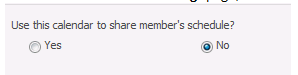
In the calendar General Settings page, there is a sharing option, this seems to change the calendars default view to the one shown below
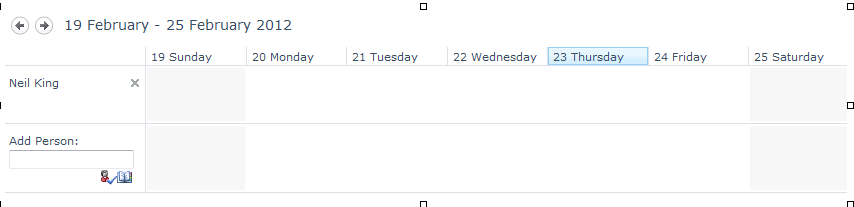
If you then activate the site feature Group Work Lists, you will see 3 more lists, and a load more content types

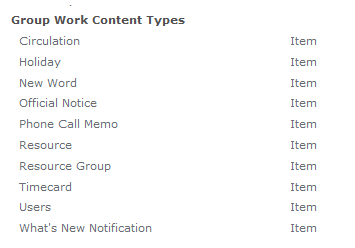
Also the Calendar General Settings page now has an option for resource reservation.
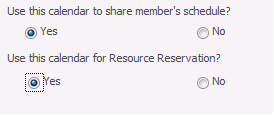
So if we add some resources to our resource list

We can then book a meeting and add a resource and check availability


Not a bad little solution for someone not using Exchange Calendars.

Finding a SharePoint Farm build version
At some point you will need to know the build version of your SharePoint 2010 system, this might be for patching, feature checking or even raising a ticket with Microsoft.
In the world of SharePoint 2007 you could get the build number from any site collection administration page, (not really, that’s the content database schema build number, if you have a 2007 farm and the build number changes between site collections then some of your content db’s have not been updated and you need to rerun the config wizard)
In the world of 2010, build versions are now displayed in Central Administration under Upgrade and Patch Management > Check Product and Patch Installation Status.

You are then presented with a list of the installed components in your farm and their installed version and install status, from this list you will look for the highest install version number, and that will be your build, Service Pack or CU number depending on your patch status.
There is also a neat little link at the top of the page that will take you to the SharePoint 2010 updates page.

but there is also a neat way to get the same information from Power Shell with 3 simple lines
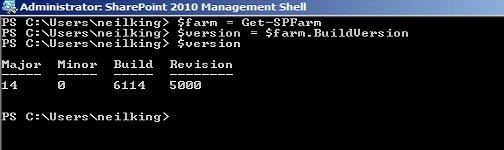
Simply open the SharePoint 2010 Management Shell and type the 3 lines as above, to simplify matters even further you can put the 3 lines into a notepad file, save this with a .ps1 extension in your documents folder and you call it directly from within Power Shell.
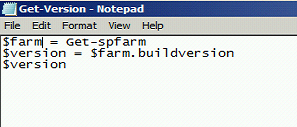
In this example I called the script Get-Version.ps1, then I can call it directly from PowerShell
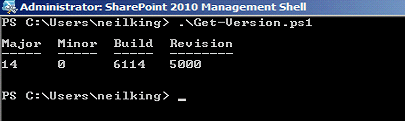
Simple.

Managing Content Types in a Document Library
I was recently asked about the best way to manage large numbers of content types in a document library. The most simple way that I know of is to just add more document libraries and spread the content types among them, but what if your requirement is to only have one document library, in this scenario folders can help you.
When you set “Allow Management of content types” to Yes:

an extra item “Change New Button Order” is added to the bottom of the ECB menu for folders

This takes you to a “Change New Button Order” screen for the current folder not the document library.

You can now create logical groups of content types in separate folders, also as permission levels can be broken as folder level you can now create permissions at folder level and indirectly control who can use which content type in a document library.
** NOTE **
If you want to create a document library template or site template with content types in folders remember to tick the “Include Content”, button when you save your template or your folders will not be saved.


SharePoint 2007 6641 Errors : Logon Type 4
Recently I was asked to look at SharePoint 2007 install that was throwing 6641 “Logon failure: the user has not been granted the requested logon type at this computer” errors every few minutes and filling up the Application log.

We went through he normal steps of checking the service and SSP accounts, we did find that the Office Search Service had hung, but this wasn’t the problem, we checked various blogs on the web that seemed to point towards Kerberos being the problem, but this particular farm was only using NTLM. Thinking about the error “the user has not been granted the logon type at this computer”, got me thinking about logon types and failures, so a look in the Security log turned up these errors that were coinciding with the 6641’s in the Application log.

Logon type 4 is a Batch logon, the farm account was calling this but the User Name called was for a secondary SSP that we didn’t think was used. The best way to fix this would be to give the secondary SSP account the ‘Logon as a batch Job’ right via local security policy, so preserving the principle of least rights for a service account, unfortunately we couldn’t do this so a temporary measure we added the secondary SSP account to the local admins group and the 6641 errors immediately stopped.
An unfortunate side effect of the above that that we started getting the IIS WAMREG DCOM activation errors in the System event log while not a problem in itself we fixed those as well, steps outlined here for Windows 2003 / WSS 3.0 (as this system was), just make sure ALL your accounts are in the WSS_WPG group.
Once those steps were taken all 3 event logs were error free.

Documenting a SharePoint Farm
Anyone involved with the building / running / supporting of a SharePoint system will know how important documenting the original build configuration is.
If you build farms using the excellent AutoSPIntaller, then most of your work is already done as you have to plan things like your service accounts and database names for the inputs.xml file.
But what if you are called into look at a system that you know nothing about ?. in this case the equally excellent SPSFarmReport will come to your help.
The download zip file has versions for both WSS 3.0 / MOSS (32 & 64 bit) and SharePoint Foundation / SP2010 / Project Server 2010.
Once downloaded onto one of your servers with the binaries installed, simply run the appropriate executable under Farm account credentials, once ran you can delete the executable if needed.
The report output file is a nicely formatted HTML document that covers just about every single aspect of your farm configuration, this can be used to create your documentation guide, and as a timed snapshot of your configuration for future comparison.


 SharePoint (and Project Server) Shenanigans
You must be logged in to post a comment.