Archive
Using Custom list entries to create Enterprise Projects
 I have been playing around with Project Server 2013 for a while now and there is a specific, for the lack of a better term feature (I will refer it as a feature for the rest of this post) that from my point of view is easy to use and can add a lot of value. In Project Server 2013 you are able to make a site and in this site you are able to make a custom list. While that is not that interesting, it becomes a lot more interesting when you know that new items in that custom list can be promoted to Enterprise Projects.
Being able to promote custom list items to Enterprise Projects and able to map these list items to a specific Enterprise Project Type gives an organization a lot of options like:
Idea Center:
Letting employees fill the custom list with ideas that would benefit the organization in some way. When one of these idea’s is chosen to be implemented and is big enough to be a project you are able to easily take that idea and promote it to an Enterprise Project so that a Project Manager can start managing that project.
Proposal Center:
A sales department of an organization can enter all the proposals that are sent out to clients in the custom list. When a client accepts a proposals it can be immediately be promoted to an Enterprise Project.
I think people can think up a lot more ways to use this feature then these two example but it just shows how it can be used in an organization.
So how does it work?
I will start with the immediate drawback. To be able to promote custom list items from a site it needs to be a site that is under the /PWA site collection. The reason why I call this a drawback is that I rather see it being a SharePoint site like an intranet to make it easier for users to contribute idea’s for instances.
The site you create doesn’t really matter and for this example I am using a Team Site.

When done making a new site the next step is making a custom list. When you created a custom list you can fill it with the columns you need.

As you can see in the screenshot I created some Project Idea’s. Now if you want to promote a idea to a Enterprise Project select the item in the list and under the tab items select “Create Projects”. You will now get a screen that allows you to map info to custom fields that are present in Project Server 2013. Select your Enterprise Project Type and click on ok.

Project Server 2013 will take the information you entered and will start making it an Enterprise Project Type and will be creating everything that is defined under that Enterprise Project Type for example: Workflows will be started and the Project Site and Project Plan Template will be created.
When Project Server 2013 is done the Project Manager can go to work on the project like you do with regular projects. This feature gives an organization another option to create projects and works really well and easy to use and I hope most of you will agree.


via SpeakingSilent » Robin Kruithof http://speakingsilent.wordpress.com/2013/06/06/using-custom-list-entries-to-create-enterprise-projects/
   I am Robin Kruithof. I am working at CXS in the Netherlands as a Microsoft Project Consultant. My passion lies in Project Management and everything in the Project Management domain.
This article has been cross posted from speakingsilent.wordpress.com/ (original article) |

#ProjectServer 2013 environment migration / rollover steps update #PowerShell #PS2013 #SP2013
 I am a Project Server and SharePoint consultant but my main focus currently is around Project Server.
I have been working with Project Server for nearly five years since 2007 for a Microsoft Gold Certified Partner in the UK, I have also been awared with the Microsoft Community Contributor Award 2011. I am also a certified Prince2 Practitioner. This article has been cross posted from pwmather.wordpress.com (original article) |
Something to consider when following the rollover steps outlined in the post below.
If the target farm (Test / Dev) is a later patch level than the Content database and Project Web App database, they will need to be upgraded after mounting.
Upgrade the content database using the Upgrade-SPContentDatabase command and the Project Web App using the Upgrade-SPProjectDatabase. In 2010 the 4 PWA databases used to upgrade when provisioning the PWA site, in 2013 this process fails due to the Project Web App database being in compatibility range. The error found in the upgrade log can be seen below:
OWSTIMER (0x27C4) 0x467C SharePoint Foundation Upgrade SPUpgradeSession aloop DEBUG Entering upgrade for [ProjectSite Name=8d511428-9d61-4731-96bd-28be45bfba6b] 72be219c-e53a-b0d0-1951-87ac137d4659
OWSTIMER (0x27C4) 0x467C SharePoint Foundation Upgrade SPUpgradeSession ajxnf ERROR Cannot upgrade [ProjectSite Name=8d511428-9d61-4731-96bd-28be45bfba6b]. 72be219c-e53a-b0d0-1951-87ac137d4659
OWSTIMER (0x27C4) 0x467C SharePoint Foundation Upgrade SPUpgradeSession ajxng DEBUG Skip upgrading [ProjectSite Name=8d511428-9d61-4731-96bd-28be45bfba6b]. 72be219c-e53a-b0d0-1951-87ac137d4659
OWSTIMER (0x27C4) 0x467C SharePoint Foundation Upgrade SPUpgradeSession alooy DEBUG Exiting upgrade for [ProjectSite Name=8d511428-9d61-4731-96bd-28be45bfba6b]. Elapsed Time=[00:00:00] 72be219c-e53a-b0d0-1951-87ac137d4659


Per-User Identity for Performance Point exhibits intermittent behavior

This week I had to troubleshoot a strange problem on SharePoint 2010 (But also applies to SharePoint 2013) of a client regarding PerformancePoint. The reason of this post is that it took a while to figure out the resolution and I have seen multiple people asking for a resolution for the same problem without a clear answer.
This specific client uses a lot of PerformancePoint Dashboards showing users their required information. All the dashboards are configured with “Per-User Idenitity” authencation. The reason I tell you this is that “Per-User Idenity” authencation needs to be Kerberos on the SharePoint farm to function correctly. The client had a double two-tier SharePoint farm. So they had two databases and two application servers that also function as the web servers. All of a sudden out of nowhere all dashboards stopped working.
The client started to see the following errors:
"This action cannot complete because PerformancePoint Services is not configured correctly. Additional details have been logged for your administrator."
This error was displayed on almost all the dashboards. The strange thing is that if you refresh the page, sometimes a dashboard would show correctly. After searching through all the logs that didn’t give me a idea where the problems where coming from I opened one of the dashboards in the Dahsboard Designer and tested the connection there.
My results:

I tried again:

Whenever I tested my connection I got a successful connection once and then a error the next try. The above behavior points to a problem with authentication and so I went on a search on the internet to look for what I was missing. I found the following:
When running kerberos the account that run the Claims to Windows Token Service needs the following rights:
- Local administrator on the application server running PerformancePoint
Local Security Policy
- Act as part of the operating system
- Impersonate a client after authentication
- Log on as a service
As stated above the client had two application servers and there was the problem. For some reason still unknown the Claims to Token Windows Service account had the above rights removed on one of the servers.
I re-added the right for the account on that server, restarted the Claims to Token Windows Service and all the dashboards started working again like expected.
The moral of this story is: Check the configuration of both servers first before going on a wild goose chase.
The reason why the rights for the Claims to Token Windows Service where removed is unknown but it can only be that they have been removed manually or removed via a group policy so check with your IT Department so this does not happen again!
I hope this post helps people with a similar problem in the future as it can really take forever to figure out why this is not working.

via SpeakingSilent » Robin Kruithof http://speakingsilent.wordpress.com/2013/06/03/per-user-identity-for-performance-point-exhibits-intermittent-behavior/
|
I am Robin Kruithof. I am working at CXS in the Netherlands as a Microsoft Project Consultant. My passion lies in Project Management and everything in the Project Management domain.
This article has been cross posted from speakingsilent.wordpress.com/ (original article) |

#Skype and #Lync seamless harmony? My experience of getting them working #O365 #Office365
So I’ve come into work today all happy because I am actually on some time booked out for management time and learning.
Given that Microsoft have opened up the interoperability between Skype and Lync, what better thing to try for 20 mins. (Articles from Skype here and from Microsoft here)
I happen to be in a lucky scenario:
- My company has just moved to using Lync Online (as part of a general move to Office 365).
- We are also in a transition between Lync 2010 and Lync 2013.
- We also use Skype heavily for clients who do not have Lync.
- I also have a Windows Live Messenger account that is linked to Skype
- I have a personal version of Office 365 that I use as well.
- So pretty much, with no setup time, I can test all the scenarios without any of the pain.
Initial Setup – Server (Office 365)
So my initial setup in Office 365, Lync Online Admin is as follows:
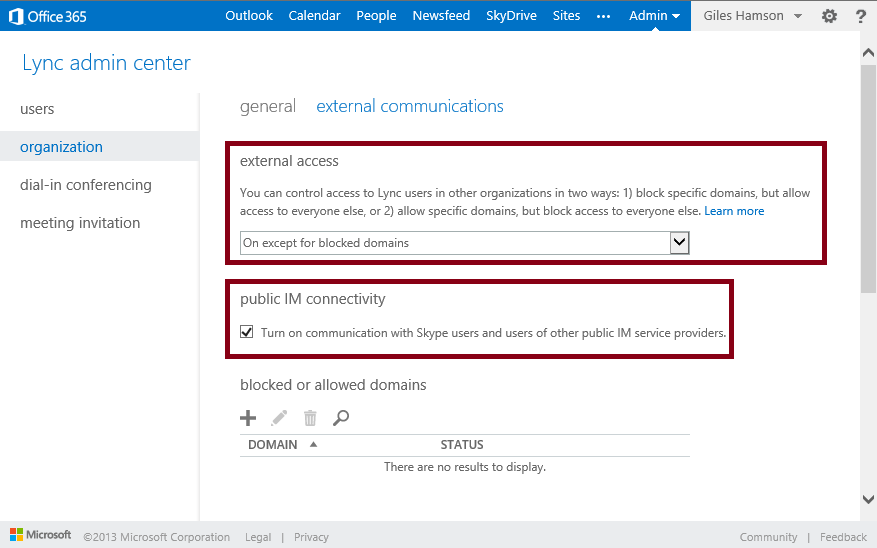
- External access: On except for blocked domains
- Public IM connectivity: checked (Turn on communications with Skype users and users of other public IM service providers)
- Initial Setup – Client
So after playing with it today, here are some facts that you need to know.
Ensure that you are logged into Skype as your Microsoft account.
|
|
|
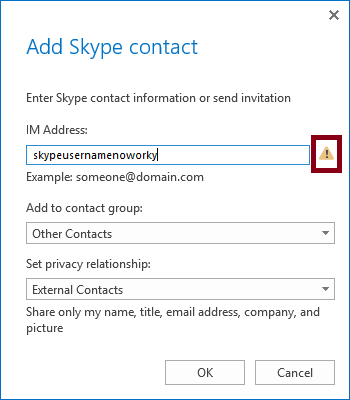
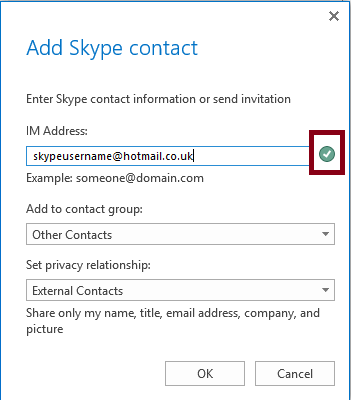
You do not appear to need to update your clients, I am using Lync 2013 (RTM) and haven’t updated Skype in a while (there is certainly an update pending, but it is working).
Other than that, we are good to go.
Scenario One – Lync 2013 to Skype
- So load up Lync as per normal and go to add a user:
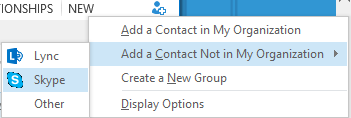
- Enter the Microsoft Account username and click OK:
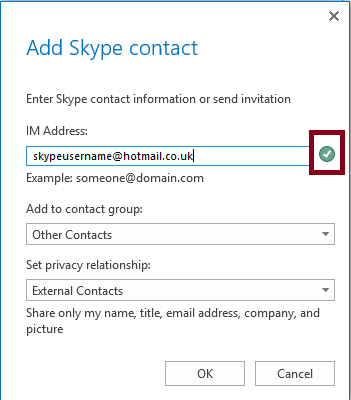
- On clicking ok, after a little while (couple of minutes), the Skype account will get a contact request:


- Click Add to Contacts and away we go…

Scenario Two – Lync 2010 to Skype
- Very similar to Scenario One, but instead of searching of a contact “Outside of your organisation”, just type in the Microsoft Account address, click the plus and add to the appropriate group.
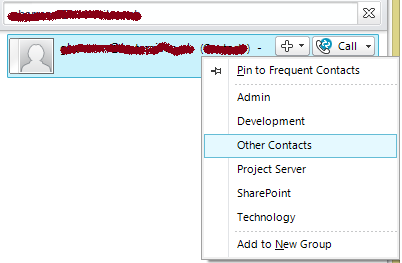
- Upon adding the user the group, a contact request is sent to Skype and after a couple of minutes you can chat away.
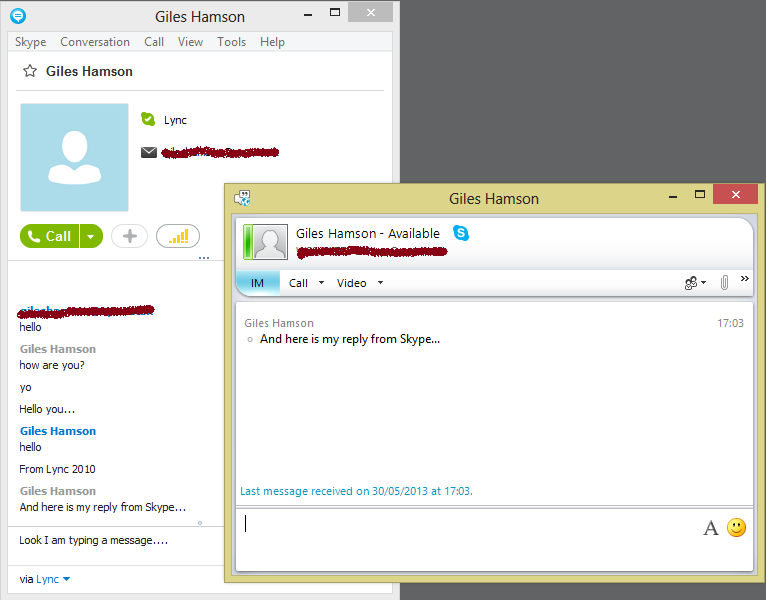
Scenario Three – Skype to Lync
- Fairly simple again in this scenario.
- Click Add Contact button
- Type the Office 365 Account Name
- Add them to the appropriate List in Skype

Now in order for it to kick in (and this maybe a timing issue), I had to send an instant message to receive a connection invite within Lync. Other than that, we are cooking on gas!.
Windows Live Messenger, Huh?
Why did you mention Windows Live Messenger, isn’t it supposed to be dead?
Well as an interesting thing to note, I used to separate my personal and business IM activities, therefore WLW was the personal and Skype / Lync was the business.
However, now that WLW is almost no more, I found that logging into my Skype account with my Microsoft Account brought my personal status message into the Lync contact list. Not the most professional thing I could have done, potentially.
So surely, we can just go into Skype and change it… right? Well apparently no, as this only controls the Skype status message… so I downloaded Windows Live Messenger, logged in and changed it and all was well with the world again.
And Finally…
So there you have it. Skype, Lync working together with a bit of Windows Live Messenger thrown in for good measure.
Voice calls work well too, as does IM via mobile.
Enjoy!

Group has Full Control but you cannot add a user to the group? #SharePoint
So we had an interesting support call come in today which had us stymied for about 5 minutes until we realised the obvious.
Essentially the user was in a SharePoint group that had a Permission Level with Full Control of the SharePoint site, however they could not add users to the group.
Site Collection Administrators of course could add users without issue.
The answer is of course to update the Group Settings to allow Group Members to edit.
In detail
- Go to the group “Portal Administrators” in this case (Site Actions (or Cog in SP2013) > Site Settings > Site Permissions)
- Under Settings select Group Settings
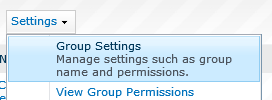
- Under the Group Settings section
- Who can edit the membership of this group? Group Members
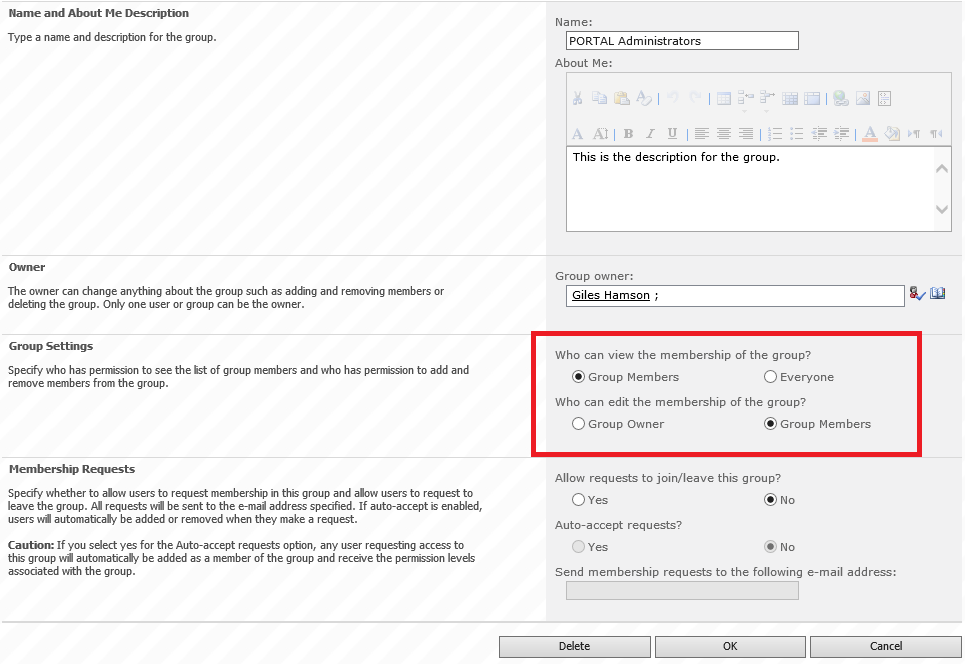
And we’re done… just a little tidbit for today… till the next time.

Project Professional 2013 Reports Revisit
 A long while ago I wrote about the new reports functionaly avialable in Project Professional 2013. When I wrote that piece I was still working with the preview version now with Project Professional being realease for a while now I just want to quickly revist the report functionality in Project Professional 2013.
In Project Professional 2013 there is a new reports tab with quite a few reports that can benefit any Project Manager.
The report tab is divided in subjects with corresponding reports:
– Dashboards (Project Overview, Burndown, ect.)
– Resources (Overallocated Resources, Resource Overview)
– Cost (Cash Flow, Earned Value Report, ect.)
– In Progress (Critical Task, Late Task, ect.)

As you can see Microsoft did their best to give a Project Manager alot of differant options to report on thier project. These reports are really usefull to share information about your project and the reports are easily custimizable and make them accesable for any project manager.
All reports are easy to copy and past to other office products making it easy to use them for instance in PowerPoint.
If you are still working with Project Professional 2010 and thinking of going to Project Professional 2013 my advice just go for it the new functions and features make Project a lot better.

via SpeakingSilent » Robin Kruithof http://speakingsilent.wordpress.com/2013/05/27/project-professional-2013-reports-revisit/
|
I am Robin Kruithof. I am working at CXS in the Netherlands as a Microsoft Project Consultant. My passion lies in Project Management and everything in the Project Management domain.
This article has been cross posted from speakingsilent.wordpress.com/ (original article) |

If Edgar Allan Poe wrote JavaScript
This is something I came across that is a little more light-hearted than usual.
Taken from Twitter Engineer Angus Croll’s blog.
Once upon a midnight dreary, while I struggled with JQuery,
Sighing softly, weak and weary, troubled by my daunting chore,
While I grappled with weak mapping, suddenly a function wrapping
formed a closure, gently trapping objects that had gone before.Ah, distinctly I remember, it was while debugging Ember,
As each separate dying member left its host for ever more.
Eagerly I wished the morrow–vainly I had sought to borrow
(From my bookmarked trail of sorrow), APIs from Underscore.There I sat engaged in guessing the meaning of each cursed expression,
Endless callbacks in procession; nameless functions, nothing more,
This and more I sat divining, strength and spirit fast declining,
Disclose the value we’re assigning! Tell me – tell me, I implore!
via Chris on SharePoint http://spchris.com/2013/05/if-edgar-allan-poe-wrote-javascript/
 SharePoint and Project Server Consultant
This article has been cross posted from spchris.com (original article) |

The #Office365 Upgrade Experience
So the magic email finally arrived recently. Microsoft have finished upgrading my Office 365 (2010 version) to the new 2013 (Wave 15) version (both the E1 and P1 plans that I have).

Now as some of you know already, I have created a new Office 365 tenant for my partner who has recently entered the world of HR consulting. It is just a small endeavour at the moment whilst we sort out other personal to do’s like weddings etc…
Anyway, we needed a good email system, Lync is useful and a site for document collaboration. Office 365 fits the bill perfectly.
I also created a very basic public website and sorted out all the DNS entries etc…
Anyway, enough of the background stuff – lets talk about the upgrade went?
Well Exchange & Lync is all done for you behind the scenes. This worked perfectly for us and the new Outlook Web App interface is great (very similar to Outlook.com) and now includes Lync presence information with the ability to control your online status.
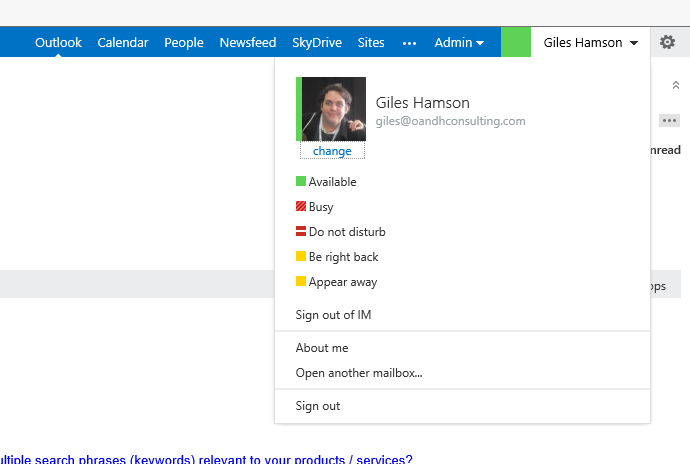
Lync is of course changed in look and feel and the user interface is certainly a lot nicer than Lync 2010 and Office Communicator 2007 R2.
It is nice to see this all working together. More on this in a minute!
Now for the interesting bit – The SharePoint Online upgrade:
So logging into any of your site collections you will see the following message on the top of the site:

Clicking on Start now takes you to this…

And given that I have a pretty much blank sites at this point (a few document libraries here and there), I went straight for the upgrade.
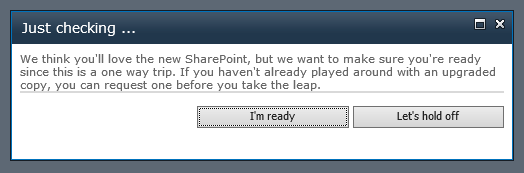
Even after this warning, you still get the chance to stop the process:

In my case, for the main site collection, there seemed to be a warning around task lists, which presumably is not upgraded from the 2010 version, since they are all new in 2013 with great integration with Microsoft Project 2013.
Now after all that, go back to the root of the site collection and you are done!
A few things to note
This needs to be done on every site collection. By every site collection, they mean every one – including:
- Team Site
- My Site (each individual)
- My photo had to be re-uploaded but otherwise details stayed the same. The photo also took quite sometime to propogate to Lync and Exchange, however this is a huge improvement. One picture to fit them all!
- My Site Host
- Interesting this had to be upgraded separately to the My Site Content
- Although technically this makes sense, I know that some of the non-technical business using Office 365 won’t understand this.
- Search
- Upgraded without issue but left old search symbol in place.
- Interestingly, search box is no longer centred but the page layout could be updated as required.
That is about it, so nothing major to an experienced SharePoint and Office 365 techy like myself but I know that a number of my friends who use their Office 365 for their small business will be giving me a call when the time comes.
Anyway… lets start talking about some of the new unexpected features that come with the upgrade:
New Features
We now have new Mobile Apps
- Lync 2013
- Works as per Lync 2010 but contains the new style and options about video / voice over 3G connections etc…
- SharePoint Newsfeed
- A new mobile app that relies upon My Sites being used. Here are some screenshots…
|
|
|
|
|
|




And last but not least…Outlook Web Access
New look and feel but mostly the same but some new capabilities that caught my eye:
- Lync presence capability is built in
- Offline Access – which works a treat in IE and Chrome
 |
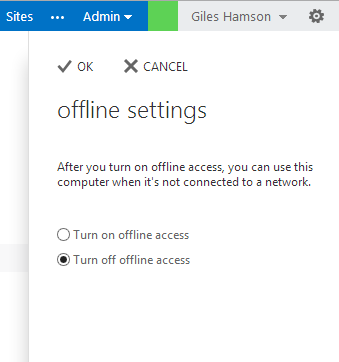 |
That’s it for now, but expect more as I come across it!

SQL Server Reporting Services Reports error when large numbers of parameters are selected
You may encounter an exception when running certain SQL Server Reporting Services (SSRS) reports.
The exception message will generally say something along the lines of Operation is not valid due to the current state of the object.
You may encounter this either in reports with a large number of parameters, or in reports where the parameter counts are low but the parameters themselves are multiple choice and have a large number of items selected.
The cause of this is a security fix released by Microsoft under Security Bulletin MS11-100. The fix, among other things, limits the number of keys that ASP.NET applications can parse as part of a request; large numbers of keys could potentially allow a denial of service to occur.
Unfortunately the effect of this is that our large parameter set is blocked, causing the exception and presenting a nasty error to our end users.
Luckily there is a solution to this.
The trick is to add a section to your web.config inside the <appSettings /> section.
<appSettings>
	...
	<add key="aspnet:MaxHttpCollectionKeys" value="5000" />
	...
</appSettings>
The actual value used should reflect the number of keys you believe will be used, but 5000 is a reasonable starting point.
If you are using SSRS in native mode, the web.config file is located within the reporting services installation path, usually C:\Program Files\Microsoft SQL Server\MSSQL\Reporting Services\ReportServer.
If you are using SSRS in SharePoint integration mode, the modification needs to be made to the web.config of the application pool where you are running your reports. For this I would recommend that you create a solution that utilises the SPWebConfigModification class as part of a feature receiver, rather than making the changes directly. This will ensure that the change is made across your SharePoint farm simultaneously without the human error that could come from doing the change manually on multiple servers.
Note: In both cases, these modifications either require a restart of the reporting server or in the case of SharePoint a recycle of the Application Pool. This will result in short outages so you will want to schedule this as part of maintenance accordingly.
For more information I would recommend reading the relevant KB article.
via Chris on SharePoint http://spchris.com/2013/05/sql-server-reporting-services-reports-errors-when-large-numbers-of-parameters-are-selected-2/
|
SharePoint and Project Server Consultant
This article has been cross posted from spchris.com (original article) |

Managing path context in SharePoint
When working with SharePoint’s UI, it is often difficult to work out where in the URL structure you are.
You may for instance be working at the root of a site collection, but that itself may be several layers deep.
Take the following example.
You have a site collection for your company, but each team maintains its own site collection under the managed path (with wildcard inclusion) /teams.
Some of the team sites use a template that includes a master page that references an image gallery script. This gallery script has to load images out of a document library local to each team site.
The problem of course is determining the URL to the code and images, when they could be located at /teams/team-a/gallery images or /teams/team-b/gallery images
Of course in a server-side solution this is simple, SharePoint provides the handy shortcut of ~sitecollection. This works both directly in master pages:
<SharePoint:ScriptLink runat="server" Name="~sitecollection/Style Library/js/galleryscript.js" Language="javascript"/>
Or using a custom action within a SharePoint solution, sandboxed or otherwise:
<?xml version="1.0" encoding="utf-8"?>
<Elements xmlns="http://schemas.microsoft.com/sharepoint/">
	<CustomAction
		ScriptSrc="~sitecollection/Style Library/js/galleryscript.js"
		Location="ScriptLink"
	/>
</Elements>
But how do we achieve the same within the front end itself?
Introducing _spPageContextInfo
The _spPageContextInfo object is a really wonderful little thing. It is added by the SPWebPartManager control, which is included in all of the out of the box master pages (including default.master and system.master) and I really strongly recommend is added to any custom master pages you create.
Because of it’s essentially omnipresent nature it makes using _spPageContextInfo a really simple matter of, well, using it.
It is a small object, containing only a few properties of the page, the site and the site collection it is part of. Here is a JSON representation of what it contains.
{
	alertsEnabled: true,
	allowSilverlightPrompt: "True",
	currentLanguage: 1033,
	pageItemId: 1,
	pageListId: "{6300d68a-4512-49f0-85b9-d3671855e31c}",
	siteServerRelativeUrl: "/teams/team-a",
	userId: 1,
	webLanguage: 1033,
	webServerRelativeUrl: "/teams/team-a/subsite",
	webUIVersion: 4
}
Here’s a brief explanation of the properties in it.
alertsEnabled
This one is simple, is SharePoint’s alerts email notification service enabled for the current web application. This maps to the SPWebApplication.AlertsEnabled property.
allowSilverlightPrompt
Will the user be prompted to download Silverlight if they do not already have it when they attempt to use Silverlight based UI elements. This maps to the SPWebApplication.AllowSilverlightPrompt property.
currentLanguage
This is the current locale being used by the user, if they have not changed it to a custom one, then this maps to the SPWeb.Language property.
pageItemId
This is the ID of the current page’s item within the document library containing it.
pageListId
This is the GUID of the document library containing the current page.
siteServerRelativeUrl
This is the path of the site collection, relative to the web application.
userId
This is the user’s ID for the current site collection.
webLanguage
This is the default language for the current web. This maps to the SPWeb.Language property.
webServerRelativeUrl
This is the path of the web, relative to the web application.
webUIVersion
This is the UI version of the current web, determining if the master page and components in use and available is compatible with SharePoint 2007 (3), SharePoint 2010 (4) or SharePoint 2013 (5)
Note: The actual properties available varies depending upon where you happen to be. For instance the pageItemId and pageListId properties do not exist within system pages, as they do not have IDs and do not live within document libraries.
That’s pretty cool, but how do we use it?
Well, as they are properties we can pretty much use them however we wish. Let’s take a look at a simple way of referencing files in our gallery images document library, for example referencing a logo to use on the homepage.
(function() {

	// The path to the image.
	var imagePath = '/gallery%20images/logo.jpg';

	// The relative URL is usually without the trailing /
	// however if we are on the root site collection then it
	// is simply / on its own and must be handled.
	if (_spPageContextInfo.siteServerRelativeUrl == '/') {
		imagePath = imagePath.substring(1);
	}

	// Build our full image path.
	imagePath = _spPageContextInfo.siteServerRelativeUrl + imagePath;

	// Finally set our image's source to the images path
	$('img#logoImage').attr('src', imagePath);

})();
Of course this is a rather contrived example, and you should probably be using the client side object model (CSOM) to pull items from a document library. However I hope it demonstrates how the object can be used.
A common use I use this for is is actually with the CSOM.
var ctx = new SP.ClientContext(_spPageContextInfo.webServerRelativeUrl);
I do it this way because I have had issues with concurrency when using the get_Current() method in SP.ClientContext when there is other code in use on pages that I do not have control over.
via Chris on SharePoint http://spchris.com/2013/05/managing-path-context-in-sharepoint/
|
SharePoint and Project Server Consultant
This article has been cross posted from spchris.com (original article) |


 SharePoint (and Project Server) Shenanigans
You must be logged in to post a comment.