SharePoint and fun with SP1
Recently I was asked to take a look at a SharePoint 2010 system that was having a few problems. Looking at the patching status it was still running SPS2010 RTM, so the 1st job was to at least get SP1 installed, then the latest CUs on top, and so the fun started…
I downloaded the appropriate service packs, and kicked off the foundation SP1 install and got the following.

The error appeared straight away, no upgrade log was written, nothing in the ULS logs and nothing in the Windows logs.
I used /? switch on the end on the Service Pack file to get the usage options.
sharepointfoundation2010sp1-kb2460058-x64-fullfile-en-us.exe /?
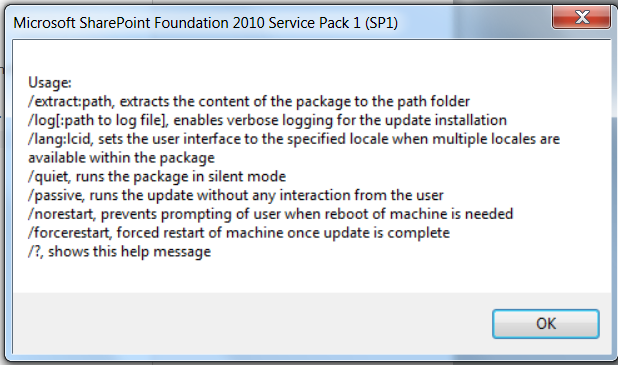
Next I used the log option to have a look at the output of the Service Pack install
C:\patches>sharepointfoundation2010sp1-kb2460058-x64-fullfile-en-us.exe /log:c:\
patches\sp.log
There is quite a lot of information written to the log file, but nothing that pointed to the reason of the failure, next was to extract the patch and see which patch file was causing a problem.
C:\patches>sharepointfoundation2010sp1-kb2460058-x64-fullfile-en-us.exe /extract
:c:\patches\sp
the c:\patches\sp folder now contains the extracted patch files and the EULA text file

Running the patch wsssp1-x-none.msp was giving the following error.

So the Service Pack wouldn’t install because one of the patches inside it didn’t realise that SharePoint was installed, interesting as the error I would have expected to if SharePoint wasn’t installed would have been this one…

I tried running the Config Wizard, but that didn’t help either, after checking with one of colleagues who knows all about packaging software he thought that the failing msp was probably looking for a specific registry key or value.
So I decided to try running a repair from Control Panel, to reset all the original Server settings while not effecting the content or configuration databases (this process ran for quite a long while)


Then I re-ran the Config Wizard, (which now asked about removing the server from the farm).
Finally, after all this the Service Pack would finally install.
Another day done in the world of SharePoint.
Follow @NeilKing41
SSRS Web Part Performance 2008 R2 vs. 2012 Initial Results #SharePoint #SP2010 #in
On one of my client projects, we heavily use SQL Server Reporting Services in SharePoint integration mode.
The benefits in comparison to Native mode are primarily around the RS SharePoint Add-in which allows us to use query string (URL) filter web parts to pass parameters to reports and create powerful dynamic dashboards as well as using SharePoint to permission and store the reports.
There is an issue however. Performance in this mode is not amazing, as detailed here:
- http://sqlcat.com/sqlcat/b/technicalnotes/archive/2010/11/03/reporting-services-performance-in-sharepoint-integrated-mode-in-sql-server-2008-r2.aspx
- http://connect.microsoft.com/SQLServer/feedback/details/635080/ssrs-2008-r2-and-sharepoint-2010-performance-issues
- http://www.sqlchick.com/entries/2011/1/25/whats-up-with-the-slow-ssrs-r2-rendering-in-sharepoint-2010.html
- http://blogs.msdn.com/b/prash/archive/2011/06/11/performance-of-ssrs-in-sharepoint-mode-reports-in-full-page-view-in-sharepoint-2010.aspx
Now that SQL Server 2012 has gone to RTM, we can start to get a measure of how well the new web part performs and I am pleased to say that the improvements appear to be great so far…
The Scenario
- SharePoint Version: 2010 SP1 – December 2011 CU with Project Server
- DB Server: SQL Server 2008 R2 SP1
- SSRS Version: 2008 R2 SP1
- SSRS Add-in: 2012 (Denali) – RTM
- Server Architecture: 1 x WFE / App Server (Virtual) + 1 x SQL Server (Virtual)
NB: All testing has been carried out on our DEV server, please always try out new software on a development / test environment first to ensure the benefits and to safe guard production from issues.
The Reports:
Table based reports rolling up Project Server and SharePoint data based on parameters provided by the end user (Cannot show due to client confidentiality I’m afraid).
The Results:
Now this is just a teaser really since we will be doing full testing on our master development environment, but for now…
Project Portfolio Table Report
- Number of returns items: 17 rows
- Number of parameters: 1 (Portfolio ID)
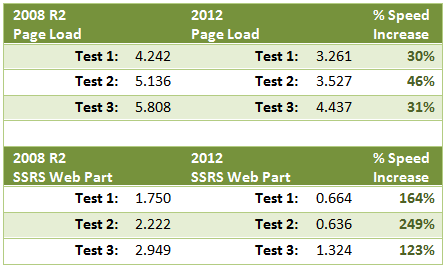
NB: All time taken in seconds using Fiddler2
 |
 |
 |
 |
As you can see, we are seeing significant time increases with the new web part and within my client we have the go ahead to carry out further testing.
More useful links:
- SSRS 2012 Installation – Liam Cleary: http://blog.helloitsliam.com/Lists/Posts/Post.aspx?ID=66
- Installing SSRS 2012 without upgrading your DB Server: Todd Klindt: http://www.toddklindt.com/blog/Lists/Posts/Post.aspx?ID=324
- MSDN: http://technet.microsoft.com/en-us/library/hh231671.aspx

#SP2010 web part rounded corners #SharePoint #PS2010 #ProjectServer #MSProject #in
At one of my clients I was asked to document how we achieved rounded corners on web parts. So as a result, I figured a blog post about it would be useful.
Now when I first implemented this (almost 2 years ago!) as the 2010 product RTM’d, I based it on the only blog post around at the time:
- The end result looks like this:

NB: Please note that this version is slightly modified from the version supplied on the blog link above.
In my implementation I was using the jQuery version available at the time:
- jQuery 1.5.1
- jQuery UI 1.8.13
Although jQuery UI is not required, it is always good to have for those awesome calendar pop-ups just in case.
This may work with the newer versions of jQuery, but I haven’t tried it out yet.
Example CSS, JavaScript and rounded corner image files are provided at the bottom of the post.
So without further ado, lets go through how to achieve the rounded corners in SharePoint 2010:
What does the code actually do?
With every page refresh, the JavaScript code, determines where all the web parts on the page are and injects appropriate mark up (<DIV>) above and below each web part, ready to be styled by CSS.
Step 1. Upload your reference files
Personally I like to store all my custom files within the Style Library within SharePoint, but they can live anywhere within SharePoint as long as all users have read access to them.
So lets take a look at what we are storing.
Standard Plug-In Files:
- jquery-ui-1.8.13.custom.css
- jquery-1.5.1.min.js
- jquery-ui-1.8.13.custom.min.js
You can download this version here:
- jQuery: http://docs.jquery.com/Downloading_jQuery#Past_Releases
- jQueryUI: http://jqueryui.com/download
The latest versions are available here:
Custom Files
- <custom JavaScript file>.js
- <custom CSS file>.css
These files are where we will implement the JavaScript and CSS code to produce the rounded corners on each web part.
Corner Image Files
The following files are used to create the rounded corner affect. To keep multi-browser support we are using this method, but you could replace them with CSS3 styling by changing the CSS code to achieve the same result.
- WPBottomLeft.gif
- WPBottomRight.gif
- WPTopLeft.gif
- WPTopRight.gif
Example files are provide below.
Step 2. Add your Master Page file references
Initially add the following references into <head> section of your Master Page, preferably just before the end tag </head>
<link type="text/css" href="/Style Library/jquery-ui-1.8.2.custom.css"
rel="Stylesheet" />

<script src="/Style Library/jquery-1.4.2.min.js"
type="text/javascript"></script>

<script src="/Style Library/jquery-ui-1.8.2.custom.min.js"
type="text/javascript"></script>
Now the above references are just standard plug-ins available from the jQuery website, but we also need to add some of our own JavaScript / jQuery magic, which of course needs its own reference file.
<script src="/Style Library/<customJavaScriptFile>.js" type="text/javascript"></script>
We also need to reference a custom CSS file, so that we can associate the corner images we will be using etc…
Publishing Feature enabled?
Now if you are using the Publishing feature, you can place your custom CSS via the Site Settings interface:
Site Actions > Site Settings > Under Look and Feel – Click “Master Page”
- (http://<server url>/_Layouts/ChangeSiteMasterPage.aspx)
Under the “Alternate CSS URL”, enter the URL for your custom CSS file, for example:
- /style library/<customCSSFile>.css
- NB: This will ensure it is the last CSS file referenced within the Master Page to allow for overrides.
Publishing Feature not-enabled?
If you you do not have the publishing feature enabled (Office 365 P1 or SharePoint Foundation 2010 for example), you can add the reference into the Master Page also.
<link type="text/css" href="/Style Library/{customCSSFile}.css"
rel="Stylesheet" />
Step 3. Adding the code
So now that we have our JavaScript, jQuery and CSS files setup in the Master Page, we can edit out custom files with the following code:
CSS Code (customCSSFile.css)
/* Web Part Chrome Styles – START */
.wpContainer {
padding-bottom:0px !important;
}
.wpTitleBorder, .wpBorderOnly {
background-color:#fff !important;
border-left:1px solid #c6c6c5 !important;
border-right:1px solid #c6c6c5 !important;
}
.ms-WPHeader td {
background-color:#ffffff !important;
border:0 !important;
padding:0 !important;
padding-top: 3px !important;
border-bottom: 1px #CECFCE solid !important;
}
h3.ms-WPTitle {
/* color:#36424a !important; */
font-size:15px !important;
font-weight:normal !important;
margin:-3px 0 0 0px !important;
padding:0 14px 4px 4px !important;
}
h3.ms-WPTitle a {
/* color:#36424a !important; */
font-size:15px !important;
font-weight:normal !important;
}
h3.ms-WPTitle nobr {
white-space:normal !important;
}
.ms-WPHeader td div.ms-HoverCellInActive {
margin:0 !important;
*padding:0 0 2px 0 !important; /* IE <8 fix */
}
.ms-WPHeader td .ms-HoverCellInActive {
margin:0 !important;
*padding:0 0 2px 0 !important; /* IE <8 fix */
}
.ms-WPHeader td .ms-HoverCellInActive img {
margin:0 0 2px 0 !important;
*margin:0 !important; /* IE <8 fix */
}
.ms-WPHeader img.ms-HoverCellInActive { /* Firefox */
padding:0 0 2px 0 !important;
}
.ms-WPHeader td .ms-HoverCellActiveDark {
border:0 !important;
margin:0 !important;
padding:0 0 2px 0 !important;
}
td.ms-WPBorder, td.ms-WPBorderBorderOnly {
border:0 !important;
padding:0px 0px !important;
}
.ms-WPBody {
font-family:Tahoma, arial, sans-serif !important;
font-size:11px !important;
padding:0 !important;
}
.ms-WPBody td, .ms-WPBody TD DIV, .ms-WPBody TD DIV A {
font-family:Arial, Tahoma, sans-serif !important;
font-size:11px !important;
}
.wpCornersTop {
background:url('/blog/Style Library/Images/WPTopRight.gif')
 top right no-repeat !important;
height:10px !important;
padding-right:10px !important;
}
.wpCornersTop div {
background:url('/blog/Style Library/Images/WPTopLeft.gif')
 0 0 no-repeat !important;
height:10px !important;
}
.wpCornersBtm {
background:url('/blog/Style Library/Images/WPBottomRight.gif')
 bottom right no-repeat !important;
height:11px !important;
padding-right:11px !important;
}
.wpCornersBtm div {
background:url('/blog/Style Library/Images/WPBottomLeft.gif')
 0 0 no-repeat !important;
height:11px !important;
}

/* Web Part Chrome Styles - STOP */
JavaScript / jQuery Code (customJavaScriptFile.js)
function wrapWebParts() {

//Find all divs (div.ms-WPBody) with an ID beginning
//with "WebPart". All web parts have unique IDs assigned
//to them, and they begin with "WebPart". Then traverse up
//the HTML document 4 levels and add the class "wp".

  $('td[id*=MSOZoneCell_WebPart]').children("table").addClass("wp");

//For web parts with the Title and Border chrome,
//add the class "wpTitleBorder" to the element
//with class "wp".

  $(".ms-WPBorder").parents(".wp").addClass("wpTitleBorder");

//For web parts with the Border Only chrome, add the class
//"wpBorderOnly" to the element with the class "wp".

  $(".ms-WPBorderBorderOnly").parents(".wp").addClass("wpBorderOnly");

//Find all table cells that have an ID beginning with
//'"MSOZoneCell" and add the class "wpContainer".

  $("td[id^=MSOZoneCell]").addClass("wpContainer");

//For web parts with the chrome type Title and Border or Border Only,
//add containers that can be used for rounded corners and other
//treatments

  //alert($(".wpTitleBorder").length);
  $(".wpTitleBorder").before('<div class="wpCornersTop"><div></div></div>')
     .after('<div class="wpCornersBtm"><div></div></div>');

  $(".wpBorderOnly").before('<div class="wpCornersTop"><div></div></div>')
     .after('<div class="wpCornersBtm"><div></div></div>');

  $("img[src*=/_layouts/images/blank.gif]")
    .attr("style", "display: none;");

  $('div[class=wpCornersBtm]').each(function() {
    var mainWPTable = $(this).prev();
    var inlineWidthStyle = mainWPTable.attr("style");
    var realWidthSplit = "";
    var realWidth = "";

    if (inlineWidthStyle != undefined) {
      realWidthSplit = inlineWidthStyle.split(":");
       realWidth = realWidthSplit[1].toLowerCase();
       realWidth = realWidth.replace("px", "");
       realWidth = parseInt(realWidth, 10);
       realWidth = realWidth + 13;

       $(this).attr("style", "width: " + realWidth + "px");
       $(this).prev().prev().attr("style", "width: "
          + realWidth + "px");
    }

  });

}

$(document).ready(function(){
   wrapWebParts();
});
And Finally…
The end result is this:

If we break this down, the jQuery code has discovered each web part on the page, added a <div> above and below the web part and then the CSS has styled it with the supplied image files referenced in the style sheet.

The code also takes into account the chrome type being used on the web part:
This results in the following:
Chrome Type: None

Chrome Type: Title and Border

Chrome Type: Title Only

Chrome Type: Border Only

Code Downloads:

Issue Downloading SharePoint 2010 Prerequisite Installer Files
Strictly speaking this quick article doesn’t really have anything to with SharePoint, but hopefully it might help-out someone out there in SharePoint land.
One of the projects I’m currently working on is a 2010 Farm build, we are just getting the media set ready to install SharePoint with AutoSPInstaller, and of course need to download the Pre-Requisite Installer Files. For this particular project I have no local access to the servers so everything is being done by RDP on the server. So to download the Pre-Requisite Installer Files I’m was using this script from codeplex, but it was failing with a really wierd error
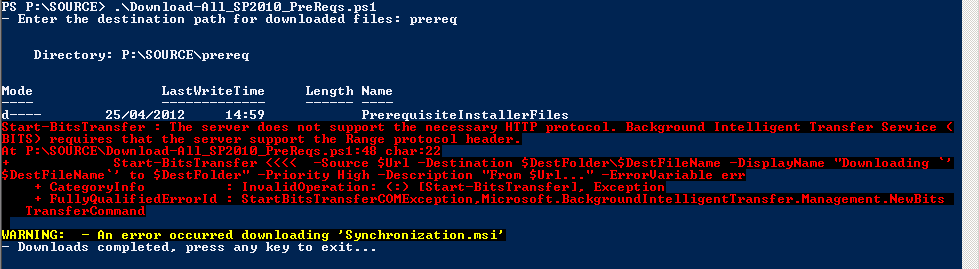
I tried it on a few different servers, but they all had the same problem.
I could of course simply open the script, grab the URL’s and paste them into a browser, but where is the fun in that.
This KB article talks about foreground / background transfers, and this being a problem when using background transfers and that foreground should be okay.
This article describes the cmdlet references for BITS and the –Priority switch that controls the foreground / background transfer setting
So the fix was to change this line
Start-BitsTransfer -Source $Url -Destination $DestFolder\$DestFileName -DisplayName "Downloading `’$DestFileName`’ to $DestFolder" -Priority High -Description "From $Url…" -ErrorVariable err
to this line
Start-BitsTransfer -Source $Url -Destination $DestFolder\$DestFileName -DisplayName "Downloading `’$DestFileName`’ to $DestFolder" -Priority Foreground -Description "From $Url…" -ErrorVariable err
and Voilá, pre-reqs downloaded . 

Last day at the International Conference in London
*** UPDATE – If you would like to see more information about #ISCLondon, take a look at Matthew Hughes’ blog Engage in SharePoint.
The #ISCLondon is a 3 days intense knowledge sharing, specially on the third day it feels like the end of a marathon, may be something to do with the late party last night too!
Today on that last day a few delegate I spoke to had the same feelings: it felt like we are running out of topics for the ones like us who have attended the conference in the previous year or just used SP2010 since the beta version. The topics being discussed seems to be more about SharePoint overview or something we have already seen at other conference.
I did mention in my previous posts some disappointment regarding “mySite demo” that didn’t show anything new already.
I am sure next year will be much more exciting and 3 days will not even be enough.
Now here is a summary of the sessions I have attended today.
Search Center with Matthew McDermott http://www.abbleblue.com/blog
Form this session I will try to use search web parts more in other pages than search Center, they are quite powerful and work farm wise which may potentially replace querycontent web parts.
Few things i jotted down:
– Only picture library returns thumbnails in search Center.
– Queries you should know:
Contenttype:picture
Fileextension:jpg
Responsibilities:”SharePoint”
ContentClass:STS_Site –> will show a list of all sites that current user has access too.
Isdocument:1 –> will return only document
AssignedTo:username
ContentClass:STS_ListItem_Issue –> show list of only issues
ManagedProperty:value
– Those terms are OOB but can be made user friendly, by mapping them in Central Admin (creating managed metadata)
Tip:
– How to re-order the tabs on a result page
Open the tabs list settings, Change the URL “edit list” to “reorder”
– Refinement panel: avoid editing the XML in the dialog box, copy-paste it in an editor like notepad++, before copy-paste back to SharePoint, use the “unwrap effect” in notepad++ so that code goes back into a 1 line format.
Matthew showed a nice custom search result page for his customers scope showing custom refinement, a Bing map next to each person and links to the presence (Lync) information, change the phone number column to a hyperlink if you have Skype or IP phone. All his code will be available on his blog after the conference.
Tips:
– use Best Bets for important content. (central admin, search keywords)
– create a search keyword with some “bad” words so that you can redirect the result to a special article / text explains the company code of conduct.
Matthew showed us a search Center entirely customised that he called “Bingo” in reference to Bing and his dog 😉 and really looks like Bing with pretty search field and dynamic backgrounds. Proving that you can do a very advanced search interface that doesn’t even feel like SharePoint.
– Matt says the question he likes to ask clients most is “why?.. like a 4 years old”. Because too often customers want something but did not really evaluate the reason behind. For instance a department may want a list of contact alphabetically but why would they? “Well that’s how we always did”. Challenging the why sometimes helps them realise better of way of delivering information, may be through search.
– By inserting a people search core results web part to a home page, adding “responsibilities:”SharePoint” ” on the “fixed query” field of that web part setting will show the list of people having responsibility in SharePoint in the company. This way Matt showed how to display a list of item on a page by using search without being in search Center.
– create a list of the last documents uploaded by a user:
Drop the Search Core Results web part to a page. Use the fixed keyword query field and type exactly what to be retrieved, for instance the contenttype:SalesDocuments, sort the search web part by modified date and show only the last 5 documents.
The great advantage comes if sales people do not upload documents at the right location, it will still show on that page.
Bing and REST services :
Once you have a bing maps developer account. You can send an address and additional parameters such as size of maps and options to dev.virtualearth.net/rest…
Bing will return the image of the map at that location..
In Matt’s example he has a page with a search results of the latest pictures uploaded to a farm, an iFilter extracted the longitude and latitude, then jquery extracts the data from the search results and input them in the bing map on that same page.
Tip: use iFilter view tool from iFilterShop free download. This allows you to see the content of a file as the iFilter will see it, ie. all properties.
– How to add a new property to search results (for instanc coming from a new iFilter):
In central admin the new metadata crawled by the iFilter needs to be mapped to a managed property in “enterprise search service application”, re-crawl the search index, and add the extra columns to the search results web part XML.
Final point from Matt to information worker who wants to improve search : “make friend with IT”, you NEED someone in IT (it pros) who is going to help you to do all that pre-work of adding iFilter, indexing etc..
Resources:
Basic search Center editing : http://bit.ly/pCHMaW
Get the iFilterview: iFilterShop.com/downloads/ifilterView.zip
_____
SharePoint query content web part By Lori Gowin.
Although I have used this web part for years, I am always amazed that Microsoft expects the power user to do this customisation, I believe they run away as soon as they see XSL code, so I am here to see if Lori can show power user a better way that I may have missed.
– Query content WP can query a whole site collection or narrow down to site or list under.
The only way to filter them is inside the web part settings, they cannot use connected web parts.
Filter keywords can be used : [me] and [today].
Main issue of a content query web part is that there is no paging option, so if only 5 items showing the additional are not accessible.
Lori edits the default CQWP to show all tasks items in her site collection and changes the format to group by site, and add Status instead of the Comments value in the Description field. this shows a little bit more data in your page, but the style is still not great, as we all have seen it.
Now let’s talk XSL.
Don’t modify the OOB style sheet tags, make a copy of an existing one and edit them
-ItemStyle.xsl is to design the item
-Header.xsl is to design the grouping
Now in 2010 the list of columns is updated in the web part settings automatically (as opposed to how it was in 2007, and I remember that well !)
ItemStyle.xml is the file where to edit the content of the query content,
Dont forget to publish it as major version to reflect changes to the page where the web part is.
This webpart does have a cache so it may take a few minutes for a item to show up.
________
Creating reports without a degree by Virgil Carroll @vcmonkey
Virgil is talking abut BI and why they are important, showing graphs in both google charts and SharePoint and then SSRS.
-Why visual BI are so important:
- Raw data are often confusing
Users have different level of understanding
Reports provide too much info
-How to decide tables vs. graphs?
“Depends on what to accomplish”
-What’s tool to use?
Free charting tools
SharePoint chart web part
Excel
Visio
SQL reporting services
Performance point
– visual data is only as good as your data is.
GOOGLE CHART WEBPART
Easy way to look at data from the current site as well as other sites.
The webpart Virgil uses is actually the one you can download on AMREIN which I have used last month too and is really easy.
I didn’t know that the webpart can even be connected to a choice filter webpart as is.
Tip: typing in the chart title “/trace” will show the error details in the webpart.
SHAREPOINT CHART WEBPART
Only available in the enterprise licence of SharePoint 2010.
Webpart can connect to another webpart easily.
Customisation of the chart allows to add anything field as a link, tooltip text etc.quite a lot of chart types, templates of colours are provided.
_________
Arriving to the end of the day, I resisted joining my colleague at the business track since they were finishing the day by drinking champagne, instead I am sitting at the Visio Services by Jennifer Mason.
I have seen Visio services examples before and implemented a short one myself but am always keen to know more business cases of using this more as I actually haven’t seen a client using it fully yet.
Visio is part of the insights components of SharePoint.
Insights includes: excel, Visio services, chart webpart, status , performance point.
Example 1 of using Visio services in SharePoint: use Visio sces webpart and use interactivity of links to change Visio pages when clicked.
User creating the file needs to have visio premium, as the file needs to be saved as a Visio web format.
2nd example of using it: have 2 connected webpart ps on a pag including a Visio services WP and change the selected shape on the Visio when an item is selected in the SharePoint view.
WP has connection option such as “get shapes to highlight from..”
3rd example is the reverse effect: when user clicks a diagram in Visio we can filter list webparts on the page. For instance showing documents that are related to the selected phase.
Each click will refresh the whole page. To avoid refresh the page , seek third part solution or custom code.
“the value of Visio services in 2010 is the webparts connections”
4th example: have a few shapes connected to SharePoint list ad display it on the page.
5th example : connect webpart and preview the Visio file in the SharePoint list, when clicked it shows in the Visio webpart (using send URL of Visio)
That’s it for my 3 days report in the International Sharepoint Conference.
Previous post are easily found searching for #isclondon on twitter, this blog and Matt Hughes’ blog.
Am finishing my day with Q&A with the IT-Pros experts panel, which a question came that made a long debate: ” how can business and IT pros break the bridge between them so that IT don’t decide changes without business approval”, a large subject.


More ISCLondon updates and Minority report in SharePoint
Today is the second day of the International Sharepoint Conference in London where something like 80% of the Speakers are from the US.
I have been asked if I could blog live on the event by Matt Hugues (@mattmoo2) on his blog and we are a few doing this, so you can read a good coverage at EngageInSharepoint from myself and others.
Despite the many technical and business related sessions I attended I picked a good subject to finish the day and for once I will talk a bit about it here as well as on EngageInSharepoint cause it’s not something we usually see: SharePoint content on a via an XBox KINECT.
The pics below speak for themselves, you can see Dan McPherson opening document libraries and images of his SharePoint site, using a very METRO interface that we are now getting more familiar to see on Windows mobile phones. Although a very early proof of concept what was interesting is the interest it generated in the room. A few life examples being picked by the audience where this could be very beneficial to access documents when fingers cannot do it via keyboard or mouse.
So what’s next? Go and download the SDK on Codeplex and start coding for KINECT !
Minority report was actually accessing Sharepoint documents !:-)


Full cover of the day at http://engageinsharepoint.co.uk

Live blogging at International Sharepoint Conference
[Edited 03/05/12]
This week I am blogging for the organiser Matt Hugues of the International Sharepoint Conference in London s find me there .

SharePoint and Document Versioning within Word.
I was working with a client recently and looking at how they were using (or not in this case) versioning in document libraries, they were still in the NTFS mind-set, as shown by the example below.

To client was using the versioning that Word supplies and manually updating the document version number in the title each time a new version was uploaded into SharePoint.
I introduced them to the Major / Minor versioning settings within a document library, so we could at least get document versions working.

The only problem with this was that the client still wanted to have a version number on the document, as these were quite often printed.
This is a problem that I have seen before with SharePoint 2007 and have addressed with Information Management Policies, this is the first time I have had to set this up for SharePoint 2010, but the steps are similar. From your Doc Lib, go to Library Settings, –> Information management policy settings.


In this example I am using the Document content type, but you should be looking to use your own custom content type, to make the final solution more flexible.
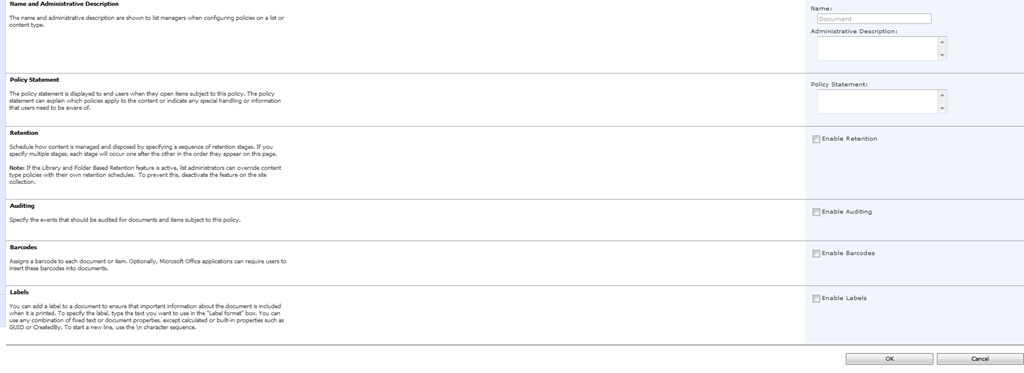
Tick the Enable Labels box, and in the label format type {Version}, click the Refresh button and make sure you see {_UIVersionString} in the Preview box.


We have now created a custom Label that will appear as a Quick Part within Word (the Word Doc has to be opened from SharePoint) that contains the SharePoint Version number.
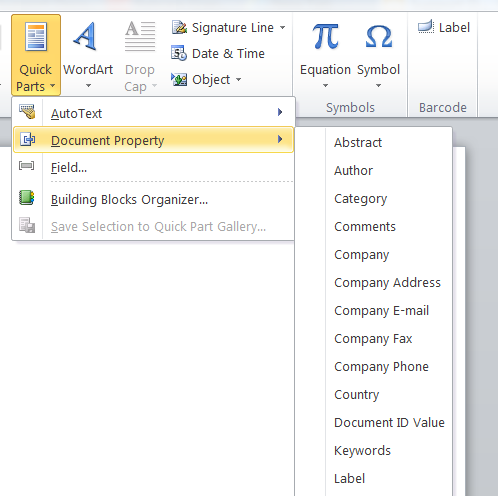

Once you have saved and re-opened your document you will now have a Label field linked to your SharePoint Version Number.

Enjoy the SharePoint Goodness.

More fun with SharePoint Web Analytics
Following on from yesterdays post regarding problems with getting into the CA site, today we got on with the job of looking at Web Analytics, and the reports that we can provide to end users.
So we checked the Web Analytics reports and could see good graphs like the ones below, very nice.

Just the sort of thing you could hand to a client.
So the next stage was to get the Schedule Web Analytics Reports workflow running and send the reports to a test user for analysis, this is when the fun started, no matter what we did the workflow simply refused to work, all we were getting was “An error has occurred in” and no reports, nothing in the ULS logs, nothing in the Event Viewer and nothing of any help in the Workflow History list, really handy, we knew that ‘normal’ workflows such as Approval worked fine on this system, so it was a bit baffling.

After a few(more) hours of head scratching I decided to try the Schedule Web Analytics Alerts workflow instead, which still failed, but at least gave out a more helpful error.

Of course it turned out that our test account didn’t have a mailbox (duh!), so we used a different account (with a mailbox) and the Schedule Web Analytics Reports worked fine
But it really annoyed me that 2 workflows related to the same area in SharePoint have clearly been developed by different teams in Microsoft and both show different failure messages for the same event.
We go the reports out finally, and they are just straight Excel exports, so we might not even use them, another fun packed day working with SharePoint !

Project Server – "An unknown error has occurred"
I recently had an issue at a client where the Project Center was failing to load and returning “An unknown error has occurred” on the page. We have seen this behaviour before and it’s usually some corrupt Project data that causes it, but I’ve never had the time to get to the bottom of the problem. Fortunately, today I had a bit more free time to investigate.
This particular issue is caused by custom fields that are linked single value (read: not multi-select) lookup tables erroneously getting multiple values assigned to them. How this occurs is as-yet unclear, but it appears to be symptomatic only in the published database – the draft and reporting databases are unaffected.
So, what’s the fix?
There are a couple of things that can be done, depending on your level of access and technical capability. Firstly, we need to identify the plans that are causing the issue. The fastest way of doing this is with a little piece of SQL code (change <Published_DB_name> to your actual Project Server published database name):
USE <Published_DB_name>
SELECT
(SELECT proj.PROJ_NAME FROM dbo.MSP_PROJECTS proj WHERE pcf.PROJ_UID = proj.PROJ_UID) as ProjectName
,(SELECT pcfv.[MD_PROP_NAME] FROM [dbo].[MSP_CUSTOM_FIELDS] pcfv WHERE pcfv.[MD_PROP_UID] = pcf.MD_PROP_UID) as CustomFieldName
,count(*)
FROM [dbo].[MSP_PROJ_CUSTOM_FIELD_VALUES] pcf
GROUP BY PROJ_UID, MD_PROP_UID
HAVING COUNT(*) > 1
ORBER BY ProjectName, CustomFieldName
(credit to Jan @ Piet Remen’s blog for the above query – http://pietremen.blogspot.co.uk/2012/01/project-centre-unknown-error-has.html)
This will return a list of projects, custom fields and the number of times that the custom field has been populated. If any project appears as an output of this script, you can view view the issue by taking a look at the Project Information through PWA. Affected custom fields will appear comma separated – e.g. Project Priority: Low, Low, Low, Low – where they should only appear as a single value.
The fix is quite a simple one – republish the project. This pushes the values from the draft database back to the published database and overwrites the broken custom field values. Check in PWA > Project Information, or re-run the above query to check that the plan is now fixed in the published database. I have seen a couple of instances where this did not fix the problem, and we had to delete the published version of the plan, and re-publish from the draft version.
It is still unclear how long the project will remain “fixed”, we have had a couple of plans reproduce the issue after being republished.
Microsoft have identified the issue, and released a fix, which can be found here: http://support.microsoft.com/kb/2598251
This KB is also included in the roll-up package (http://support.microsoft.com/kb/2597152) though it’s not documented.
These KB’s will prevent the issue occurring in the future, but will not fix existing problems – be sure to follow the above steps to ensure that the plans are fixed. As always – be sure you have database backups before applying updates!


 SharePoint (and Project Server) Shenanigans
You must be logged in to post a comment.