Archive
InfoPath 2010 People picker control
New with InfoPath 2010 is a People Picker control, this acts like the People Picker in SharePoint and allows you to choose contacts from AD.


I was using this control recently and wanted to promote the chosen person value to a list when the form is submitted, to my surprise I found that the submitted value was just a text value, not a presence aware name, so had none of the rich integration that OCS or Lync offers.

To get around this drawback I had to write a small workflow that fired when the form was submitted.

The workflow read the list value into a variable and then wrote it back to another column in the same list, but was key was to make the return field data type an Email Address.

Now we have a presence aware Name value.

Fun with PowerShell and Feature Activation
I was recently working on a system where we wanted to create a site based on a previously saved site template, unfortunately when trying to create the site we were getting the error.
Error creating site: The site template requires that the Feature {some-or-other-GUID} be activated in the site collection.
Hmm, oh well, off to Site Collection Administration and I switched on all the features I could find, but still no joy, time to crack open PowerShell.
First thing to do is find the name of the feature we are looking for, this excellent post on MSDN lists all the SP2010 features and their GUID’s.
Now we know the name of the feature we are looking for its time to get PowerShelling…
Firstly lets list all the features we have installed and activated, open PowerShell from the Microsoft SharePoint 2010 Products folder from the start menu.

the Cmdlet Get-SPFeature is the one we are going to use, this gives us a massive amount of output, so lets add the –Site switch, so we now have Get-SPFeature –Site <myurl>,

again we have lots of output, so let use the Out-File Cmdlet to pipe the output to a text file called “features.txt”, so our command is now Get-SPFeature –Site <myurl> | Out-File c:\features.txt

now from PowerShell all we have to do is type Notepad c:\features.txt

and we have a notepad file with all our site scoped features listed, a quick search for our missing GUID shows no entry, so we have to activate the feature with PowerShell, this is simply a case of typing Enable-SPFeature –Identity <FeatureName> –url <myUrl>,

Job done.

Writing History events from a SharePoint designer Workflow
Most SharePoint 2010 solutions will have some form of workflow associated with them.
Workflows written in SharePoint designer can be powerful, but tricky to troubleshoot if they do not work correctly.
Some workflows will complete but not perform as expected, and some will simply fail with the ever helpful An error has occurred in <Workflow Name> written to the history list.
To help us out with this is the Log to History List core action in our workflow designer Action List.

This allows us to write a message to the workflow history, and as such we could write back the value of a workflow parameter or variable that we can check on.
To illustrate this I have written a one step workflow with one Variable and one Parameter, the workflow has an Initiation Form that allows a user to select a colour.

We set the variable varColour to be the value of the colour the user selected which is stored in the parameter ParamColour , on the second line we use the Log to History List to output the value of varColour to the workflow history.

This is what it looks like, firstly we choose a colour from the Initiation Form

The workflow processes and completes, when we check the History list we can see that our message and the value of varColour have been recorded in the Workflow History list

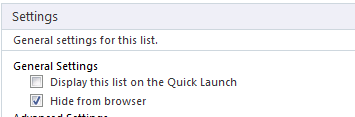
Normally the Workflow History list is hidden from the browser, but you can change this setting in SharePoint Designer.

Excel Services Problem. “An unexpected error has occurred”
I was recently asked to look at an Excel Services problem, where rather then a spreadsheet opening in the browser we were getting the ever helpful “An unexpected error has occurred” screen.
Checking in CA the Excel Services service application seemed to be provisioned, the settings seemed okay and the service was running, a quick check in Windows event log soon found the problem
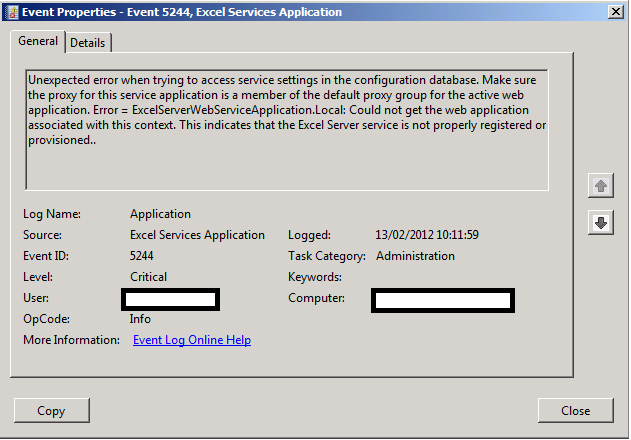
The service application was not registered with the default web application.

As soon as we set the association, Excel Services sprang into life


 SharePoint (and Project Server) Shenanigans