Why you should use a SQL Alias with SharePoint
Recently I was asked to take a look at a SharePoint 2007 system that was having a few problems after an IP readdressing project.
The 2007 Farm was stretched across 2 domain, the main farm was working fine after the readdressing, but one server in the 2nd domain was having problems connecting to SQL.
When trying to connect to a web application hosted in the 2nd domain we were getting the ever helpful “An unexpected error has occurred” message in the browser.
The ULS Logs were full of database connection errors, but we could ping the database server okay, we could TELNET to port 1433 okay. We had all the firewalls checked for dropped packets but could not see an faults.
After many hours of checking and rechecking we decided to re-run the SharePoint Config Wizard, which timed out and failed but left these entries in the PCDiagnostic log file.
03/13/2012 12:11:44 1 INF Found a v3 confidb in the registry. configdb SharePoint_Config, server xx.xx.xx.xx
…
03/13/2012 12:12:14 1 INF Calling SPFarm.Local and SPServer.Local to get the local farm objects
03/13/2012 12:23:24 1 INF SPFarm.Local returned null. This usually means that the server is not joined. But, you can delete a server from the configdb without unjoining, which would mean that this machine still thinks it is joined.
…
03/13/2012 12:23:24 1 ERR Discovered a v3 connection string and SPFarm.Local indicates that this machine is not joined. Therefore we failed to determine if we were joined to a server farm.
This finally shed some light onto the problem, the IP highlighted above was the previous address of the SQL server, not its new address, or its name, so we checked the registry and found that the dsn for the SharePoint SQL server has the SQL servers previous IP address, as soon as we updated this to the SQL servers name SharePoint sprang into life.
[HKEY_LOCAL_MACHINE\SOFTWARE\Microsoft\Shared Tools\Web Server Extensions\12.0\Secure\ConfigDB]
"dsn"="Data Source=xx.xx.xx.xx;Initial Catalog=SharePoint_Config;Integrated Security=True;Enlist=False;Connect Timeout=300"
"Id"="4990697d-8893-43f4-8422-206622797eaa"

#ProjectServer 2010 / 2007 high-level Audit Export via #PowerShell #MSProject #PS2010 #EPM
Quite often there is a request for audit information from Project Server but unfortunately there is nothing available out of the box. This post covers a very high-level solution to this using the Project Server PSI and PowerShell.
Most actions in Project Server are processed via the Project Server queue, one simple way to get high-level audit information is to extract the queue information. The following PowerShell script uses the ReadAllJobStatusSimple method from the Queue System web service to export yesterdays processed jobs into a txt file with yesterday date appended to the filename:
$Today = Get-Date
$Yesterday = $Today.AddDays(-1).ToString("yyyy-MM-d")
$Filename = "C:\PSAuditExport\QueueExport-"
$filetype = ".txt"
$svcPSProxy = New-WebServiceProxy -uri "http://vm353/pwa/_vti_bin/PSI/QueueSystem.asmx?wsdl" -useDefaultCredential
$svcPSProxy.ReadAllJobStatusSimple("$Yesterday 00:00:01", "$Yesterday 23:59:59", "200", "0", "QueueCompletedTime" ,"Ascending").Status | Export-CSV $Filename$Yesterday$filetype -Delimiter "|"
For the full post please see:
#SP2010 and #PS2010 versions and the associated KB articles #SharePoint #ProjectServer #in
Following on from my colleagues post on finding the SharePoint Build Version via PowerShell (Link), I would just like to draw your attention to a list of SharePoint / Project Server versions that I maintain.
Links to the KB articles are also available along with the build version and the Cumulative Update / Service Pack that they are associated with.
How to access:
In the top menu of the site:

Screenshot:

I know that other people maintain similar lists, this is just my way of keeping on top of the versions for SharePoint and in particular Project Server.
Hopefully this is useful for others also.
Enjoy!

Project Conference 2012 Sessions List in Excel! #MSPC12 #PC324 #PC301 #in #MSProject #ProjectServer
So I am sitting here this evening announcing my new Windows Phone 7 app and starting to look at the sessions in the Project Conference myself, my colleagues (Chris Pond @ccpond, Sacha Cohn (webcast session) and my client (Philip Stanbury-Jones – ARM #PC301) are going to in just over a weeks time.
I have ended up collating this spread sheet with links to all the twitter feeds for use during the conference.
Hopefully others will find it useful also, You can download the spread sheet here:

Or you can view it online here:

Enjoy!

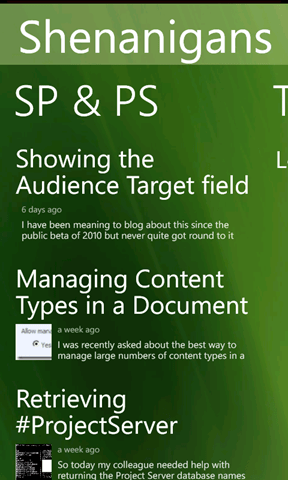
Announcing the Shenanigans #WP7 app #SharePoint #SP2010 #PS2010 #ProjectServer #PS2010 #in
It has been about 6 months since I created the first mobile application for this website and now finally an app is available for the most suitable platform for the subject matter of this blog.
Announcing: Shenanigans for Windows Phone 7
|
|
|


All the key features from the previous applications are available for WP7 including:
- SharePoint (and Project Server) Shenanigan feeds
- Twitter feeds for SharePoint and Project Server
- You Tube Videos
- Podcasts
- and more…
- I hope you enjoy and stay tuned for updates

Screenshots:
 |
  |
 |
  |

SharePoint 2010 Calendar Features
The SharePoint 2010 calendar has some interesting features for those clients NOT using exchange.
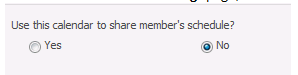
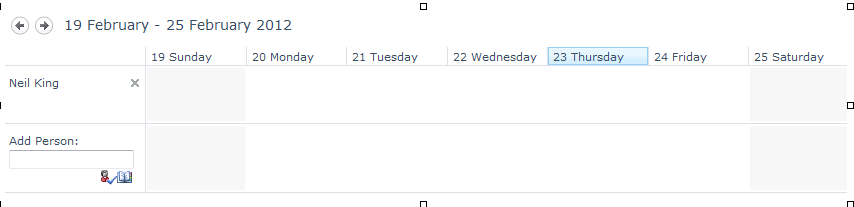
In the calendar General Settings page, there is a sharing option, this seems to change the calendars default view to the one shown below
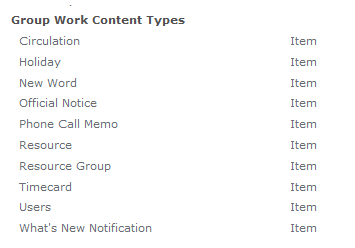
If you then activate the site feature Group Work Lists, you will see 3 more lists, and a load more content types

Also the Calendar General Settings page now has an option for resource reservation.
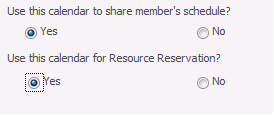
So if we add some resources to our resource list

We can then book a meeting and add a resource and check availability


Not a bad little solution for someone not using Exchange Calendars.

Finding a SharePoint Farm build version
At some point you will need to know the build version of your SharePoint 2010 system, this might be for patching, feature checking or even raising a ticket with Microsoft.
In the world of SharePoint 2007 you could get the build number from any site collection administration page, (not really, that’s the content database schema build number, if you have a 2007 farm and the build number changes between site collections then some of your content db’s have not been updated and you need to rerun the config wizard)
In the world of 2010, build versions are now displayed in Central Administration under Upgrade and Patch Management > Check Product and Patch Installation Status.

You are then presented with a list of the installed components in your farm and their installed version and install status, from this list you will look for the highest install version number, and that will be your build, Service Pack or CU number depending on your patch status.
There is also a neat little link at the top of the page that will take you to the SharePoint 2010 updates page.

but there is also a neat way to get the same information from Power Shell with 3 simple lines
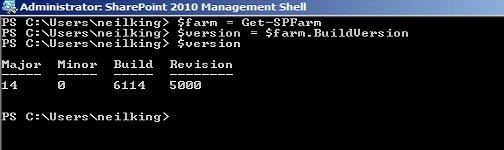
Simply open the SharePoint 2010 Management Shell and type the 3 lines as above, to simplify matters even further you can put the 3 lines into a notepad file, save this with a .ps1 extension in your documents folder and you call it directly from within Power Shell.
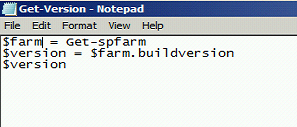
In this example I called the script Get-Version.ps1, then I can call it directly from PowerShell
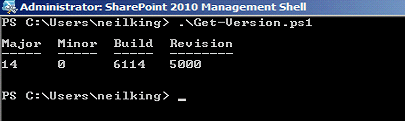
Simple.

Showing the Audience Target field in an EditModePanel #SharePoint #SP2010 #in #ProjectServer #PS2010
I have been meaning to blog about this since the public beta of 2010 but never quite got round to it until now!
I was reminded of the functionality we implemented for a client recently that allowed the Audience Target field to appear in the Edit Mode Panel of a Publishing page layout.
You would think that it would be easier, but after lots of digging around we finally found a solution.
Firstly in the Page Layout we need to register a new reference at the top of the page:
<%@ Register
   TagPrefix="OfficeWebControls"
   Namespace="Microsoft.Office.Server.WebControls.FieldTypes"
   Assembly="Microsoft.Office.Server.UserProfiles, Version=14.0.0.0, Culture=neutral, PublicKeyToken=71e9bce111e9429c"
%>
With this new reference in place we can now implement the field in a standard EditModePanel way like so:
<PublishingWebControls:EditModePanel runat="server" PageDisplayMode="Edit">
   <table>
      <tr>
         <td>
            <span>
               Use if you wish to ‘push’ this content to a particular
               audience select here. Leaving it blank will make it
               available to all site users.
            </span>
            <br />
            <OfficeWebControls:SPFieldTargetToControl
               ID="Audience"
               runat="server"
               FieldName="Audience"
            />
         </td>
      </tr>
   </table>
</PublishingWebControls:EditModePanel>
Have fun!
Managing Content Types in a Document Library
I was recently asked about the best way to manage large numbers of content types in a document library. The most simple way that I know of is to just add more document libraries and spread the content types among them, but what if your requirement is to only have one document library, in this scenario folders can help you.
When you set “Allow Management of content types” to Yes:

an extra item “Change New Button Order” is added to the bottom of the ECB menu for folders

This takes you to a “Change New Button Order” screen for the current folder not the document library.

You can now create logical groups of content types in separate folders, also as permission levels can be broken as folder level you can now create permissions at folder level and indirectly control who can use which content type in a document library.
** NOTE **
If you want to create a document library template or site template with content types in folders remember to tick the “Include Content”, button when you save your template or your folders will not be saved.


Retrieving #ProjectServer database names from the URL #in #PS2010
So today my colleague needed help with returning the Project Server database names from PowerShell.
The usual process occurs here within CPS in this scenario, email to the whole team asking the question and this results in a variety of response from the sensible to the ridiculous to achieve the end goal.
The sensible suggestions is as follows:
PowerShell:
Get-SPProjectWebInstance
Example Output:


 SharePoint (and Project Server) Shenanigans
You must be logged in to post a comment.