Archive
SharePoint Page Performance
Recently I have been asked to take a look a couple of client SharePoint systems that have been experiencing a few random performance issues with the odd slow page load times. So I thought I would highlight a few tools that can be used to help with this.
Task Manager
The first and most simple tool to use is Task Manager, run this on your servers to monitor general CPU and memory usage also drill down into individual process memory and CPU usage, if you show processes from all user, you will be able see the w3wp.exe processes and user names (Managed accounts) running those processes. This can help you in a multi-server, multi-web environment, where an app pool on a single server may not have started.
From a command line run c:\Windows\System32\Inetsrv\appcmd list WP to see the app pools currently running, each of these will have a PID.

If you add the PID column in task manager you can tie both together and see what’s going on with your app pools on each server.

Developer Dashboard
The developer dashboard is a real bonus in SP2010 for looking at page load issues, run it in ‘OnDemand’ mode, and use the icon next to your name to view the output.

This will tell you everything about your page execution time
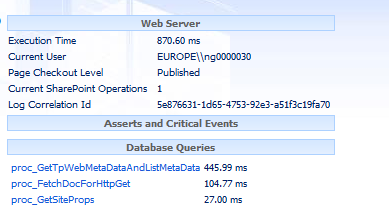
to enable the developer-dashboard run
Stsadm –o setproperty –pn developer-dashboard –pv “OnDemand”
An excellent article about the developer dashboard is here
Output Cache
SharePoint server can use the ASP.NET output cache, which can help can help improve page response times by caching ASPX pages in memory, this only works for Publishing pages, use Site Collection Administration settings to get to the Output cache settings page.

Once you have enabled the cache switch on “Enable debug cache information on pages” this will add an extra comment at the end of the HTML markup of a web page indicating if the cache has been used.
<!– Rendered using cache profile:Extranet (Published Site) at: 2012-06-07T12:11:42 –>
or not used
<!– 8 Output cache not used. Reason: User can view an unpublished version of the current page. –>
Object Cache
Enabled by default at 100 MB, you can make this larger but remember your memory allocations !
Blob Cache
This is probably the most over looked, but most useful cache available in SharePoint
The BlobCache this is disabled by default, but it allows files and images to be stored in a folder on your WFE server rather then being fetched from the SQL Server for each request.
This is of particular value for large image and movie files, to enable the BlobCache pick a non-system drive on your WFE for your store, then locate the line below in the web.config for the Web App in question and update the drive location and set the enabled value to true
<BlobCache location="C:\BlobCache\14" path="\.(gif|jpg|jpeg|jpe|jfif|bmp|dib|tif|tiff|ico|png|wdp|hdp|css|js|asf|avi|flv|m4v|mov|mp3|mp4|mpeg|mpg|rm|rmvb|wma|wmv)$" maxSize="10" enabled="false" />
Don’t forget to backup your web.config before making changes as it a quick way to break SharePoint, also no need for an IIS reset as SharePoint will re-read the web.config as soon as its saved.
for more information about SharePoint caching, see the white paper at this location.
http://www.microsoft.com/en-us/download/details.aspx?id=12768
Happy SharePointing !
Follow @NeilKing41
Forefront 2010 Protection for SharePoint
Recently I have looking at some performance issues relating to Forefront 2010 Protection for SharePoint (FPSP).
Most people will be be familiar with Forefront Endpoint Protection (FEP) for Windows clients and servers, but with FPSP installed on your SharePoint servers you can benefit from the following features.
- Stops malware more effectively through integration of multiple industry-leading scanning engines
- Blocks dangerous attachments from being posted or downloaded with file filtering
- Prevents the upload or download of out-of-policy content with keyword filtering
In essence FPSP sits in-between your SharePoint service and its content and can scan content on upload and download, and this can can have an impact on both server performance and content upload and download times, it does this by installing its own API (VSAPI) ISAPI filter into IIS.
Another thing to be aware of is that the service account used by FPSP has some specific permission needs
1) Member of local Admins on each SharePoint server
2) Member of Farm Administrators
3) Member of the SQL Sysadmin role on the database server.
Watch out for number 3 as your DBA’s might have something to say.
By default FPSP installs with 4 scanning processes (this can be changed).
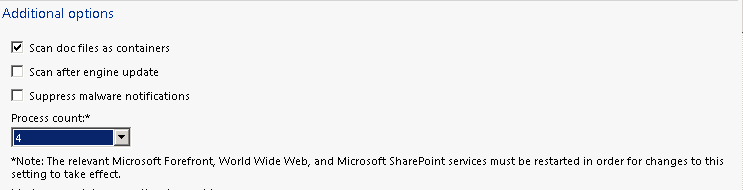
The scanning process show up in Task manager as FSCRealtimeScanner.exe, and they can consume quite a lot of memory.

and by default SharePoint will create 10 AntiVirus threads (again this can be changed) for each w3wp process SharePoint creates.
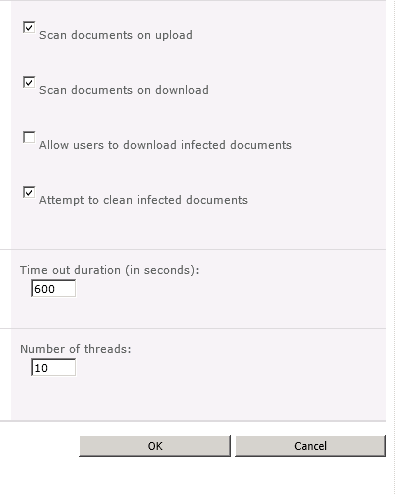
So if SharePoint is using 3 W3wp processes there will by default be 30 threads of execution served by 4 in memory processes, so you may need to play with these numbers to if you are seeing some performance issues.
Also don’t forget to add the appropriate folder exclusions in FEP for your SharePoint servers. If your using using SCCM to control FEP policies the following exclusions will be added automatically.

These are okay for a standard SharePoint 2007 or 2010 install, but if your install uses other locations don’t forget to add these.
A full list of location exclusions please see this article

Found an issue [WITH FIX] with SP2010 April 2012 CU : incoming emails not going to SharePoint
Issue :
Incoming emails to SharePoint are all configured properly and emails are being received in the server’s SMTP Drop folder but they stay there and are not picked up by SharePoint.
Troubleshooting :
Looking at ULS Logs the following error is showing :
E-mail cannot be delivered because site is over quota or locked for editing. Site URL: http://xxxx.
Researching :
A quick Google and it seem that CU April 2012 has raised this issue: http://blogs.msdn.com/b/george_bethanis/archive/2012/05/25/sps2010-cannot-send-incoming-emails-to-lists-libraries.aspx
SharePoint incoming email Fix :
Following the steps fixes the issue except for Nintex:
-> SharePoint Central Administration > Application Management > Configure quotas and locks > on the Site Quota Information section > set a limit (i.e: 5000 MB) on this setting: “Limit site storage to a maximum of:” > and then press “OK”.
Nintex issue :
I now work a lot with Nintex workflow and one of the greatest feature in the product is the ability to approve a task via email response called “Lazy Approval”.
The issue with the above is that Nintex drops the Lazy Approval emails in to a HIDDEN library under the Central Administration, therefore we need to set a quota to the Central Admin site as well but as you will experience there no way to select the Central Administration Web app when setting Quota.
Nintex Lazy Approval Fix :
I found the fix on the Nintex connect forum here.
1) get the storagemaximumlevel for Central Administration using PowerShell :
$ca = get-spsite -identity http://sharepointserver:portnumber
$ca.quota.storagemaximumlevel
Result should be 00000 since no quota is usually set for Central Admin site.
2) set a maximum quota
$ca.quota.storagemaximumlevel=80000000

No IISRESET is required and email will leave SMTP DROP Folder to be treated by Nintex Lazy Approval in a few seconds once Timer Job restarts.
Conclusion :
Seems that either not many environment use Incoming Emails to Sharepoint libraries or not many have upgraded to April 2010 CU since there isn’t much articles about this, hopefully the next CU will fix this issue otherwise make sure you include this workaround in your Sharepoint and Nintex configuration.
[Update] April 2012 CU was removed and re-releaed however it still does not fix the incoming email, making this look like a definite move to disable it by default.

Create a New MySite Host Site
On a recent project we created a small SharePoint development farm using AutoSPInstaller.
The farm created perfectly, the Portal was working, UPS was working, mysites were working, all was good.
The My Site host Web app had been created on port 8080 with the URL http://ServerName/:8080/
We then decided to move this to a DNS addressable location with a (slightly) more user friendly URL of
http://DevMySite.domain.local on port 80
I looked at extending the mysite host Web Application, but I decided to create new Web Application with a host header value instead.
The first step is to create a new Web Application with the appropriate value in the Host Header field
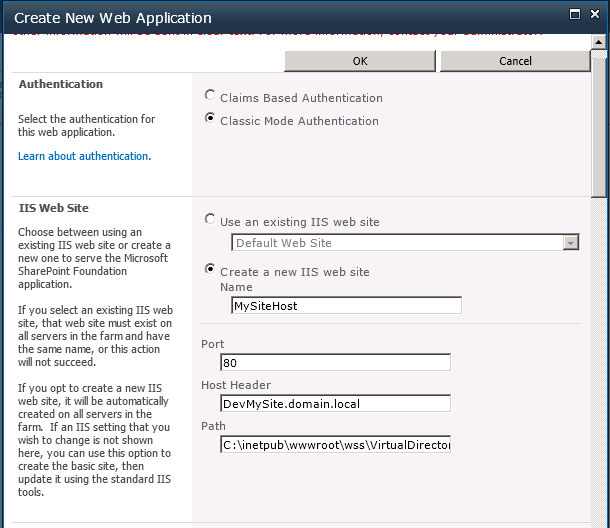
Make sure your Public URL is the same as the DNS A record
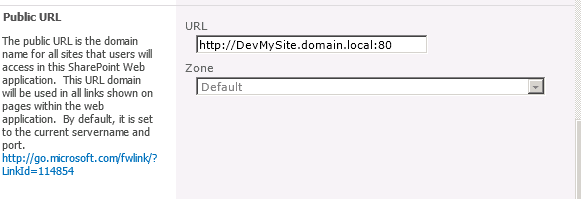
For this install I’m using an Alias for SQL, I like to add the word ‘Alias’ just to remind you in 6 months time how you built a system.

I’m also creating another content database, but if you have personal sites in an existing content DB, we can deal with that as well.
Now that our new web application has been created on port 80..

…we need to put in a root site collection, the name does not really matter but I used My Site Host
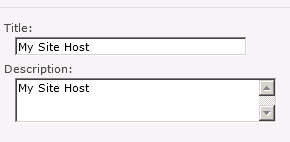
this needs to use the My Site Host Enterprise template.

Don’t forget to pick the Personal Site quota template

Once your site collection has been created, head over to your UPS and find the Setup My Sites link

The only thing you need to change here is the My Site Host location value, make this the URL of the new Web application you have created.

We are almost finished, run a quick IIS reset and try to create a mysite, you might get the error below, as the managed path personal is the location used to navigate to mysites, but you can change it to anything you want.

So head back over to your CA site and add the personal managed path to the new web application.
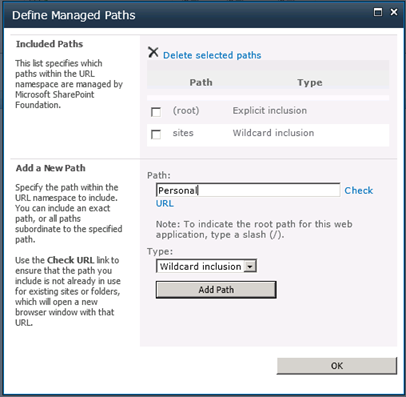
If you try to create a mysite now, you might get a different error, as each mysite is actually its own site collection.

So head back to CA and switch on Self-Service Site Collection Creation in your new Web Application.

Your new My Site host should be working.
If you want to bring in any mysites that you have created on another web app, go to CA-> Application Management –> Manage Content Databases.

Hit the Add a content database link

Pick the correct Web Application and enter the content database name that the other my sites exist in:

NOTE: The database you attach here cannot be attached to another web application in the same farm, but you can have more than one content database attached to any one web application.
Happy SharePointing !
Follow @NeilKing41
How to break a SharePoint list in less than minutes
My client asked me today the limitation of Sharepoint 2010 in terms of number of words per column types, lines and attachments.
I found the answers in Microsoft website and also this blog http://sharepointgadget.blogspot.co.uk/2010/05/limits-in-sharepoint-2010.html that has a good summary.
But then I wanted to prove myself what “Multiple Lines of Text : 192 Maximum Value” really meant for my end user language, so now is the reference to my title “how to break Sharepoint”:
– In a Sharepoint list, I create a Multi-lines column
– Add the value “0123456789” to have 10 characters, then copy and paste this value a few times to have a few hundreds.
– Now be crazy and copy and paste is a lot, I used Word to count my characters and I arrive to 1Mo.
– From here Internet Explorer (I was pasting in a Datasheet mode) crashed, I could have let it think for 30 minutes but decided to crash it after 5.
– Now re-open IE and this list….
– It cannot open ! to be precise: the page opens but doesn’t load anything (blank page).
– And worse: if the list is also showing in a webpart on a page that page won’t open either. Quite an issue if that page is a homepage right ?
Now I had a problem: the list default view cannot be opened because it contains my very large value in a column, and you can only point to the list settings if you know the unique ID of the list (url http://sharepointsite/_layouts/listedit.aspx?List=%7B3C68CBBE%2D3F51%2D402A%2DA584%GD61A0F8C5AFA1%7D)
To fix it: open the site in SharePoint Designer, then open the list gives the option to

The column are now editable and I can change my “Multiple lines of text” to be “Single line of text”

By doing this the long text value in the column will be truncated (and rich text lost if any).
Don’t forget to close the Column edit tab in Sharepoint designer and save the changes.
Now any page containing the view and the list itself can be opened again.

Issue Downloading SharePoint 2010 Prerequisite Installer Files
Strictly speaking this quick article doesn’t really have anything to with SharePoint, but hopefully it might help-out someone out there in SharePoint land.
One of the projects I’m currently working on is a 2010 Farm build, we are just getting the media set ready to install SharePoint with AutoSPInstaller, and of course need to download the Pre-Requisite Installer Files. For this particular project I have no local access to the servers so everything is being done by RDP on the server. So to download the Pre-Requisite Installer Files I’m was using this script from codeplex, but it was failing with a really wierd error
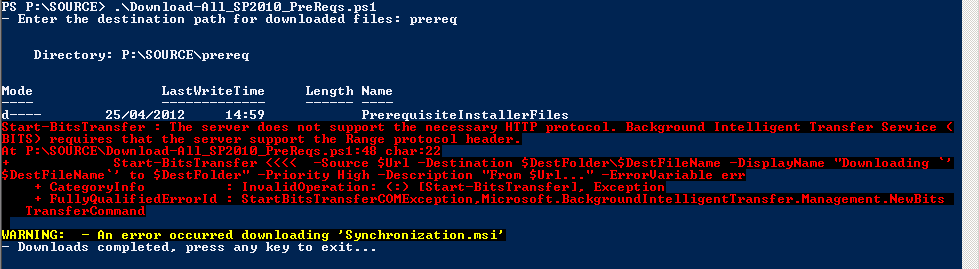
I tried it on a few different servers, but they all had the same problem.
I could of course simply open the script, grab the URL’s and paste them into a browser, but where is the fun in that.
This KB article talks about foreground / background transfers, and this being a problem when using background transfers and that foreground should be okay.
This article describes the cmdlet references for BITS and the –Priority switch that controls the foreground / background transfer setting
So the fix was to change this line
Start-BitsTransfer -Source $Url -Destination $DestFolder\$DestFileName -DisplayName "Downloading `’$DestFileName`’ to $DestFolder" -Priority High -Description "From $Url…" -ErrorVariable err
to this line
Start-BitsTransfer -Source $Url -Destination $DestFolder\$DestFileName -DisplayName "Downloading `’$DestFileName`’ to $DestFolder" -Priority Foreground -Description "From $Url…" -ErrorVariable err
and Voilá, pre-reqs downloaded . 

SharePoint and Document Versioning within Word.
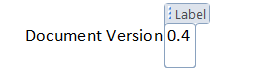
I was working with a client recently and looking at how they were using (or not in this case) versioning in document libraries, they were still in the NTFS mind-set, as shown by the example below.

To client was using the versioning that Word supplies and manually updating the document version number in the title each time a new version was uploaded into SharePoint.
I introduced them to the Major / Minor versioning settings within a document library, so we could at least get document versions working.

The only problem with this was that the client still wanted to have a version number on the document, as these were quite often printed.
This is a problem that I have seen before with SharePoint 2007 and have addressed with Information Management Policies, this is the first time I have had to set this up for SharePoint 2010, but the steps are similar. From your Doc Lib, go to Library Settings, –> Information management policy settings.


In this example I am using the Document content type, but you should be looking to use your own custom content type, to make the final solution more flexible.
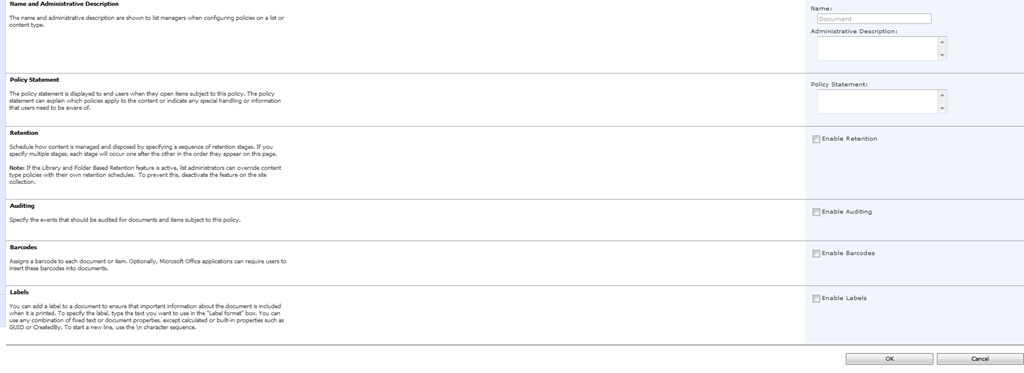
Tick the Enable Labels box, and in the label format type {Version}, click the Refresh button and make sure you see {_UIVersionString} in the Preview box.


We have now created a custom Label that will appear as a Quick Part within Word (the Word Doc has to be opened from SharePoint) that contains the SharePoint Version number.
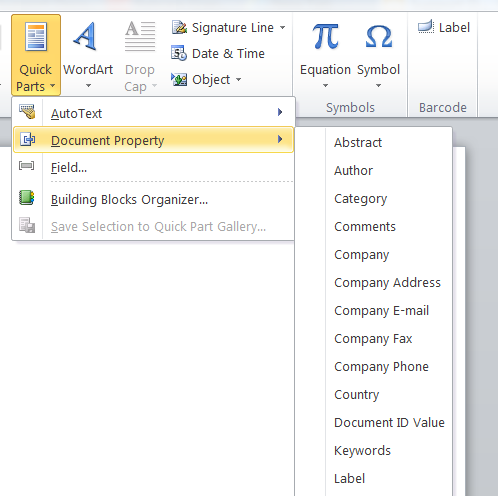

Once you have saved and re-opened your document you will now have a Label field linked to your SharePoint Version Number.
Enjoy the SharePoint Goodness.

More fun with SharePoint Web Analytics
Following on from yesterdays post regarding problems with getting into the CA site, today we got on with the job of looking at Web Analytics, and the reports that we can provide to end users.
So we checked the Web Analytics reports and could see good graphs like the ones below, very nice.

Just the sort of thing you could hand to a client.
So the next stage was to get the Schedule Web Analytics Reports workflow running and send the reports to a test user for analysis, this is when the fun started, no matter what we did the workflow simply refused to work, all we were getting was “An error has occurred in” and no reports, nothing in the ULS logs, nothing in the Event Viewer and nothing of any help in the Workflow History list, really handy, we knew that ‘normal’ workflows such as Approval worked fine on this system, so it was a bit baffling.

After a few(more) hours of head scratching I decided to try the Schedule Web Analytics Alerts workflow instead, which still failed, but at least gave out a more helpful error.

Of course it turned out that our test account didn’t have a mailbox (duh!), so we used a different account (with a mailbox) and the Schedule Web Analytics Reports worked fine
But it really annoyed me that 2 workflows related to the same area in SharePoint have clearly been developed by different teams in Microsoft and both show different failure messages for the same event.
We go the reports out finally, and they are just straight Excel exports, so we might not even use them, another fun packed day working with SharePoint !

SharePoint its 1 step forward 2 steps backwards..
I was looking at a SharePoint 2010 farm recently to check out the Web-analytics reports and was quite shocked to not be able load the CA site I was simply getting a “Cannot connect to configuration database” error in the browser, and masses of Critical and Error warning messages in the WFE event logs, like the one below
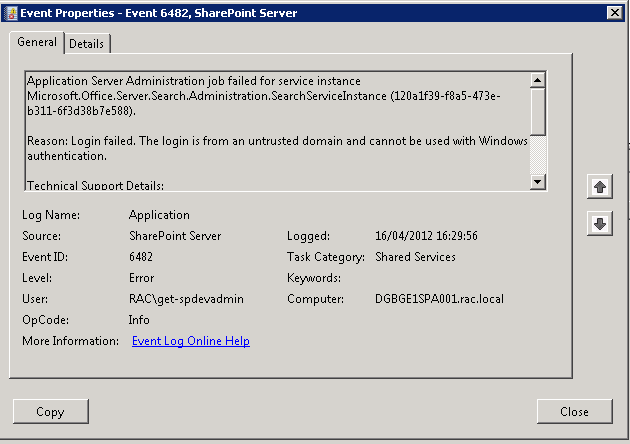
and mass of 17806 & 18452 SQL server errors in the application log on the SQL Server all for “untrusted domain” errors
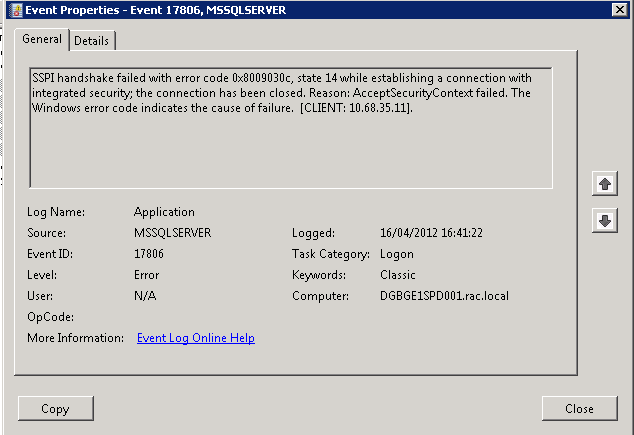
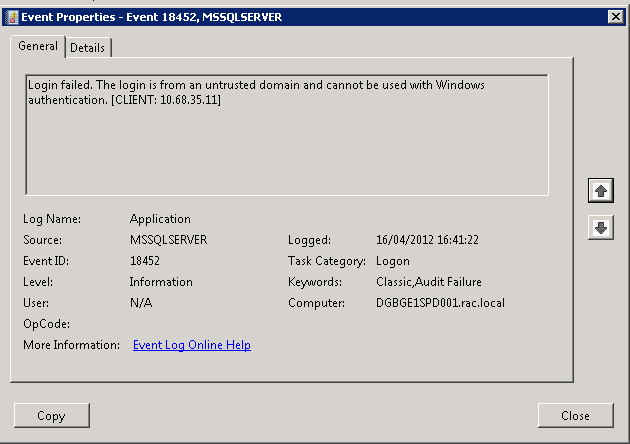
But strangely enough the Portal site on this farm was still running so the users were unaware.
After much head scratching and several hours later we realised that the password for the account running the CA web app, the Farm account , had expired.. ( one of my colleagues logged on to one of the WFE’s as the farm account was prompted to change its password).
Once we had resolved that issue (changed the password back to its previous value and set it to non expiring ), I could get on and look at Web-Analytics..

SharePoint and PDFs
Everyone knows that the Adobe PDF iFilter can be used to index PDF files, so I was quite surprised to look at an SP2010 farm last week that was only sometimes showing the PDF icon, and sometimes a blank icon.
Of course the solution to this was obvious, this farm had 2 WFE servers and the icon file and DOCICON.XML file had only been updated on one server, so a couple a minutes later everything was working once I had updated the 2nd server.
Here are the Microsoft instructions on how to install the PDF iFilter http://support.microsoft.com/kb/2293357
but personally I prefer the Nick Grattan instructions.
http://nickgrattan.wordpress.com/2010/06/14/adobe-pdf-ifilter-indexing-with-sharepoint%C2%A02010/


 SharePoint (and Project Server) Shenanigans
You must be logged in to post a comment.