Archive
SharePoint Patching and “Action Required”
The last 2 SharePoint 2010 systems I have looked at have displayed the “Action Required” status for one or more servers in the farm in the “Manage Servers in this Farm” page, which is normally caused by incorrect server patching.
When you apply a Service Pack or CU to your SP2010 farm, you are normally looking at performing a quite straight forward 3 stage process.
Stage 1: Obtain patch:
Download the latest Service Pack or CU from here:
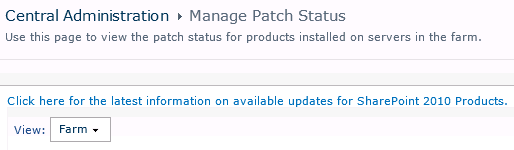
http://technet.microsoft.com/en-us/sharepoint/ff800847#LatestUpdates or use the “Use this page to view the latest patch status for products installed on servers in the farm” link on the CA site in Central Administration > Manage Patch Status
Stage 2: Install Patch
Once you have your Service Pack or CU, you will need to run it on each of the servers in your SharePoint Farm that has the SharePoint binaries installed, there is no special order to do this, but personally I like to run the patch on each WFE in turn, then on the application servers.
Once the patch has installed you will normally be prompted to run the Config wizard, if you are working on a single server farm, run the Config Wizard at this point, if you are working with a multi server farm cancel the Config Wizard and run the patch on each server on your farm.
Stage 3: Config Wizard
If you are running a single server system and have followed the instructions in stage 2, you should be finished. If you are running a multi-server farm you now need to run the Config Wizard to finalize the patch install. I like to run the wizard on the 1st server I patched and let it run to completion, then run the wizard on the rest of the servers in the farm, again there is no particular order to this but personally I like to run the wizard in the same order as I patched the servers, Once finished a quick reboot all round and we are done, and your status should be “No Action Required”


Why a picture is worth 1000 words
I have recently been working with a colleague on a new client implementation, putting together some options for a farm design. We came up with three different options, all with differing server layouts and SQL configurations. Trying to articulate these designs to a non technical audience can be almost as challenging as building the final solution, if you are with the client you can always sketch out your ideas on a whiteboard or flipchart, but documenting your design for a distributed audience is always a problem.
This is when Visio comes to your aid, Microsoft have some specific Visio shapes available for SharePoint and Project Server.
You can download the shapes from here http://www.microsoft.com/download/en/details.aspx?id=21480
These allow you to create your own TechNet style diagrams for SharePoint, below is an example I made earlier…


SharePoint 2010 Calendar Features
The SharePoint 2010 calendar has some interesting features for those clients NOT using exchange.
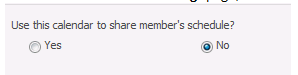
In the calendar General Settings page, there is a sharing option, this seems to change the calendars default view to the one shown below

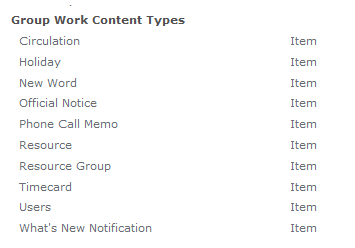
If you then activate the site feature Group Work Lists, you will see 3 more lists, and a load more content types

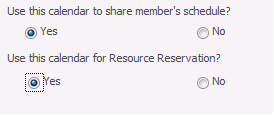
Also the Calendar General Settings page now has an option for resource reservation.
So if we add some resources to our resource list

We can then book a meeting and add a resource and check availability


Not a bad little solution for someone not using Exchange Calendars.

Managing Content Types in a Document Library
I was recently asked about the best way to manage large numbers of content types in a document library. The most simple way that I know of is to just add more document libraries and spread the content types among them, but what if your requirement is to only have one document library, in this scenario folders can help you.
When you set “Allow Management of content types” to Yes:

an extra item “Change New Button Order” is added to the bottom of the ECB menu for folders

This takes you to a “Change New Button Order” screen for the current folder not the document library.

You can now create logical groups of content types in separate folders, also as permission levels can be broken as folder level you can now create permissions at folder level and indirectly control who can use which content type in a document library.
** NOTE **
If you want to create a document library template or site template with content types in folders remember to tick the “Include Content”, button when you save your template or your folders will not be saved.


Documenting a SharePoint Farm
Anyone involved with the building / running / supporting of a SharePoint system will know how important documenting the original build configuration is.
If you build farms using the excellent AutoSPIntaller, then most of your work is already done as you have to plan things like your service accounts and database names for the inputs.xml file.
But what if you are called into look at a system that you know nothing about ?. in this case the equally excellent SPSFarmReport will come to your help.
The download zip file has versions for both WSS 3.0 / MOSS (32 & 64 bit) and SharePoint Foundation / SP2010 / Project Server 2010.
Once downloaded onto one of your servers with the binaries installed, simply run the appropriate executable under Farm account credentials, once ran you can delete the executable if needed.
The report output file is a nicely formatted HTML document that covers just about every single aspect of your farm configuration, this can be used to create your documentation guide, and as a timed snapshot of your configuration for future comparison.

InfoPath 2010 People picker control
New with InfoPath 2010 is a People Picker control, this acts like the People Picker in SharePoint and allows you to choose contacts from AD.


I was using this control recently and wanted to promote the chosen person value to a list when the form is submitted, to my surprise I found that the submitted value was just a text value, not a presence aware name, so had none of the rich integration that OCS or Lync offers.

To get around this drawback I had to write a small workflow that fired when the form was submitted.

The workflow read the list value into a variable and then wrote it back to another column in the same list, but was key was to make the return field data type an Email Address.

Now we have a presence aware Name value.

Fun with PowerShell and Feature Activation
I was recently working on a system where we wanted to create a site based on a previously saved site template, unfortunately when trying to create the site we were getting the error.
Error creating site: The site template requires that the Feature {some-or-other-GUID} be activated in the site collection.
Hmm, oh well, off to Site Collection Administration and I switched on all the features I could find, but still no joy, time to crack open PowerShell.
First thing to do is find the name of the feature we are looking for, this excellent post on MSDN lists all the SP2010 features and their GUID’s.
Now we know the name of the feature we are looking for its time to get PowerShelling…
Firstly lets list all the features we have installed and activated, open PowerShell from the Microsoft SharePoint 2010 Products folder from the start menu.

the Cmdlet Get-SPFeature is the one we are going to use, this gives us a massive amount of output, so lets add the –Site switch, so we now have Get-SPFeature –Site <myurl>,

again we have lots of output, so let use the Out-File Cmdlet to pipe the output to a text file called “features.txt”, so our command is now Get-SPFeature –Site <myurl> | Out-File c:\features.txt

now from PowerShell all we have to do is type Notepad c:\features.txt

and we have a notepad file with all our site scoped features listed, a quick search for our missing GUID shows no entry, so we have to activate the feature with PowerShell, this is simply a case of typing Enable-SPFeature –Identity <FeatureName> –url <myUrl>,

Job done.

Run SPD2010 workflows with impersonated permission
Today one of my users reported that “something is not happening as supposed to” on a site, which most IT professional would say is quite a typical call we receive…
ISSUE:
After a quick test I realised that a workflow meant to start on item submission of an InfoPath form was failing to complete and the workflow status would show “CANCELLED” (very misleading as nobody actually “cancel” that workflow… and this message “The workflow could not update the item, possibly because one or more columns for the item require a different type of information.”
CAUSE:
Basically the user’s permissions had changed on the site so that he could not anymore update items in the library but the site owner didn’t realise the knock-on effect this would have on existing workflows as well, especially if the workflow is meant to go search for other items in the library and update them. The user not authorised to edit them will fail the workflow.
SOLUTION:
A short Google on “SharePoint Designer workflow elevated permissions” and I was reminded by this blog articlehttp://is.gd/RdjmWH about impersonation in SPD 2010 Workflows (and not elevated as mentioned) which was new from SPD 2007.
But not any kind of permission, since it will the logged in user on SharePoint Designer so bear that in mind when releasing to Production environment.
STEPS
Make sure you are logged in SharePoint Designer with the correct user (one that will not disappear once you finish your development) [note: use the little “change user” icon on the bottom left corner of SPD2010 to switch user].
– Edit your workflow
– Within the steps of the workflow that require to be impersonated with your user insert an “Impersonation Step” by just typing the label

– Move all required steps into it (using Move Up or Down)

– Publish your workflow
– Test with the access level of your user
Et voila !
Note: This short blog article is my first attempt to participate to my colleague Giles‘ blog https://ghamson.wordpress.com as an author and therefore you may also see it on my other blog.

SPC11 – SharePoint 2010 Design Content Packs (Unreleased, yet) #SPC11 #SharePoint
During a session being hosted by a rep from Sketchers (yep, the shoe people) – we were told that Microsoft is in the process of finalising Design Content Packs which will provide master pages, CSS and other design collateral for people wanting to re-brand SharePoint 2010.
They are expected during Q1 of 2012 and according to Sketchers (who I believe must have been involved in their development) they will be what ‘Themes’ (which are rubbish) should have always been.
I would hope that at the very least, they will be a good jump start for anyone looking to re-brand SharePoint.
As soon as they are released I will update this post.
Twitter: @pcgriffiths
SPC 2011 – SharePoint Network Topology Visio Addin #SPC11 #SharePoint
Twitter: @pcgriffiths
So as I’m waiting for my 12 hr flight home, I thought I’d start the process of trying to share some of the mountain of information I’ve acquired this week in California. Firstly it’s important to say that Microsoft and all the presenters did a fantastic job, it really was a great week.
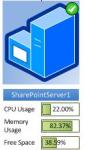
This first item is very cool – particularly if you’re an admin/architect. How good would it be if you could render near to real time SharePoint 2010 Farm health information, directly to Visio – then publish it into SharePoint?
Well you can, with the SharePoint Network Topology Diagram Add-in for Visio 2010.
Using a combination of Visio Services, a SharePoint Timer Job and Visio 2010 you can make this happen:



 SharePoint (and Project Server) Shenanigans
You must be logged in to post a comment.